

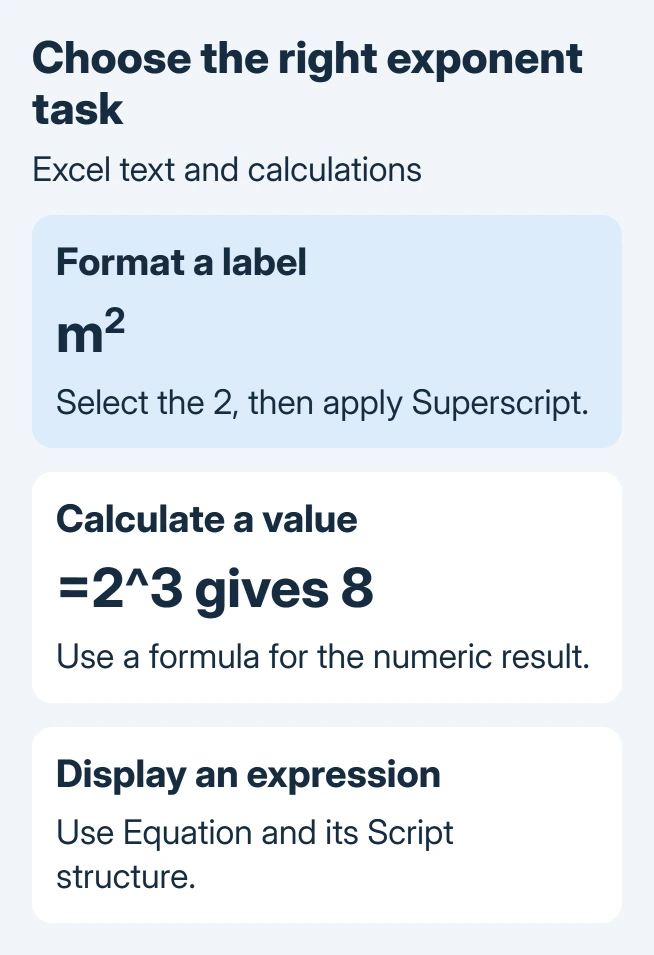
Superscript in Excel raises selected text, but it does not calculate a power. For a label such as m2, select only the 2 inside the cell, press Ctrl+1, and enable Superscript under Effects in desktop Excel for Windows.
For a mathematical result, use a formula instead. =2^3 returns 8; making a character small and raised only changes the notation's appearance.
Raise the character inside a text label
Start with an unused cell and enter m2. Double-click the cell to edit its contents, then highlight the final 2. The letter must remain outside the selection.
Press Ctrl+1 to open the font options. Under Effects, select Superscript and confirm with OK. Finish editing the cell and inspect the result: the 2 should be raised while m keeps its normal position.
Status: Microsoft's Excel character-formatting, equation and POWER instructions checked November 2, 2026. Windows desktop controls are described; no spreadsheet was edited or tested.
Microsoft documents both Ctrl+1 and the Home > Font dialog launcher in its Excel superscript instructions. The selection determines which characters receive the effect.
If the whole label rises, undo the change and select the character inside the cell again. Selecting a cell and selecting part of its contents are different operations.
The Word superscript controls belong to Word's ribbon. Excel's documented desktop method uses its font dialog; a familiar Word keystroke need not perform the same action in a worksheet.
Keep a label separate from a value used in calculations
A unit label such as m2 is text. A measurement such as 12 should remain numeric when formulas need it. Put the formatted unit in a heading or neighboring label rather than converting the measurement into decorative text.
For an all-digit label that really should be text, Microsoft says to choose Text from Home > Number Format before entering it. Its text-number guidance explains the distinction.
Apply partial superscript only after entering the intended text. Do not change a calculation input to Text just to make an exponent look right. That can affect sorting and formulas elsewhere in the workbook.
If a calculation already rejects a text input, the Excel #VALUE! checks distinguish meaningful labels from amounts that need conversion. Decide what the cell represents before changing its format.
Calculate a power with a formula
For two cubed, enter =2^3 in a blank result cell and press Enter. The displayed result should be 8. The alternative =POWER(2,3) performs the same calculation.
Microsoft states in its POWER reference that the first argument is the base and the second is the exponent. It also documents the caret operator as an alternative.
For changing inputs, =A2^B2 uses the base stored in A2 and the exponent in B2. Keep those inputs numeric. Formatting a visible digit as superscript does not turn a text label into this formula.
The example is arithmetic guidance. It does not require changing Excel's calculation mode or installing an add-in.
Use an equation when the expression is for display
For a formatted mathematical expression, open Insert > Symbols > Equation in desktop Excel and insert a new equation. Select Script in its equation tools and choose a superscript structure, then fill its boxes.
Microsoft's superscript guide describes the equation as a movable object rather than something anchored to a cell. Use it to present notation; keep any required calculation in ordinary formula cells.
Remove an unwanted superscript
To remove a character's raised formatting, select it again and clear Superscript in the font dialog. If the control is unavailable, confirm that the cell contains editable text and that the workbook allows editing.
For a persistent formatting problem, send a harmless example to Microsoft Support with the Excel edition. Specify whether the affected cell holds text, a number or a formula, since its appearance can hide that distinction.
The Short Version
Select characters inside a text cell and apply Superscript through Ctrl+1. Use a caret or POWER for a calculated exponent, and an equation object for displayed mathematics. Keep numeric inputs separate from formatted text labels.

Isaac Smith is the founder and editor of PC Glance, a website that covers computers, laptops, and technology. He is a tech enthusiast and a computer geek who loves to share his insights and help his readers make smart choices when buying tech gadgets or laptops. He is always curious and updated about the latest tech trends.