
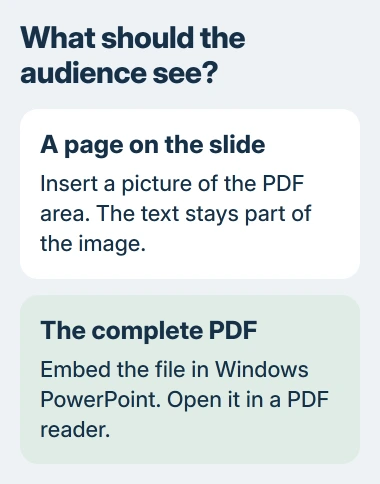
A PDF can go into PowerPoint as a picture visible on the slide, or a file that opens separately. Choose a picture for a page or chart. Desktop PowerPoint for Windows can also embed the complete PDF in the presentation.
Neither method turns the PDF into editable PowerPoint slides. Decide whether the audience needs to see one section immediately or open the original document before choosing the insertion method.
Show part of a PDF on the slide
Microsoft documents a picture route in its PDF insertion guide. Open the PDF to the required page and leave its window visible, not minimized.
Status: Microsoft's PowerPoint PDF and clipping instructions checked November 3, 2026. Embedded-object steps apply to desktop PowerPoint for Windows, not PowerPoint for the web.
Make the PDF the last window used before switching to PowerPoint. Select the destination slide, then choose Insert > Screenshot > Screen Clipping. When the screen fades, drag across the PDF area to capture it.
Microsoft says the clipping tool uses the most recently active window. If it shows the wrong application, cancel, activate the PDF again and return directly to PowerPoint before retrying.
The captured area becomes a picture. Resize it using a corner handle, then run the slide show to check that its smallest text is readable. A tightly cropped chart usually fits better than an entire densely written page.
For a long passage, use separate slides with readable sections. Keep enough context around a table or chart to preserve its labels, units and source information.
On a Mac, save a capture of the needed PDF area, then choose Insert > Pictures > Picture from File. PowerPoint for the web also accepts saved images, but cannot insert the PDF object described next.
Include the complete PDF as an object
Close the PDF in its reader first. In Windows desktop PowerPoint, select Insert > Object > Create from file, choose the PDF with Browse, then confirm with OK. This embeds the file in the presentation.
Microsoft states that closing the PDF first prevents an insertion error. If insertion fails, check that the document is no longer open before trying again.
Double-click the inserted PDF object in Normal view to test opening it. The slide's preview is not a conversion of every PDF page into slides; the original document opens in a PDF reader.
Make the PDF open during a slide show
Select the PDF object, then choose Insert > Links > Action. Under Mouse Click, choose Object action > Open, then select OK. Test by starting the slide show and clicking the object.
The receiving computer needs software that can open the embedded PDF. Test the actual presentation computer before relying on that click during a talk; a working image preview alone does not prove the document opens there.
If opening a separate application would interrupt the presentation, use the picture method for the material the audience needs to see. Send the full PDF separately for reading afterward.
When the destination or output is different
A report needs a different insertion workflow: putting a PDF into Word separates a file object from converting its text for editing.
For the reverse direction, save the PowerPoint as a PDF. Exporting slides produces a PDF of the presentation; it does not unpack the PDF object stored inside it.
If a trusted PDF still cannot be embedded after closing its reader, record the exact PowerPoint error and version for Microsoft Support. Keep a readable picture on the slide while the object-opening problem is resolved.
The Short Version
Use a clipped picture for content that must be visible immediately. Embed the full PDF in Windows desktop PowerPoint when it needs to open separately, then test that action on the presentation PC.

Isaac Smith is the founder and editor of PC Glance, a website that covers computers, laptops, and technology. He is a tech enthusiast and a computer geek who loves to share his insights and help his readers make smart choices when buying tech gadgets or laptops. He is always curious and updated about the latest tech trends.