

Microsoft Teams meeting links open the invited call directly. For everyday work, sign into the organization's account, then use chat for messages and Calendar for meetings. That account determines which conversations appear.
The steps here cover work or school Teams on a computer, with phone controls where they differ. A personal account can have a different set of features.
Open Teams with the account used by your organization
Start Microsoft Teams from Windows Start or the Mac's Applications folder. Microsoft documents the browser option at teams.microsoft.com in its Teams sign-in guide.
Enter the work or school credentials and complete any verification required by the organization. Confirm that the account belongs to the workplace or school whose conversations you need.
Status: Microsoft Teams chat, channel and meeting instructions checked November 3, 2026. This guide uses work or school Teams; access and available features depend on the organization.
On a phone, install Microsoft's Teams app from the device's app store and sign into that account. If access is refused, ask the organization to check the account's Teams access rather than creating an unrelated personal login.
Send a message to a person or group
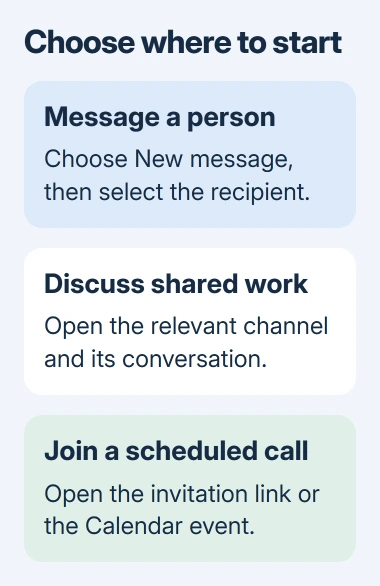
Select New message at the top of the chats-and-channels list. Enter the recipient's name, choose the intended person, write the message and select Send. On the phone app, start with Chat > New message.
For a group, add the other recipients before sending. Microsoft's chat instructions also explain how to name the group and review its participants.
Check that the message appears in the intended conversation. Similar names can belong to different people, so verify the selected recipient before sending confidential information.
Keep shared discussions in the appropriate channel
Open the team's channel when the conversation belongs with its shared work. Microsoft says people with access to that channel can read its messages; choosing a channel is different from selecting individual chat recipients.
In a Posts layout, choose Start a new post or Start a post, enter the subject and message, then select Post. Use Reply on an existing discussion when responding to it.
A Conversation tab uses a threaded layout. Write a new message and select Send, or use Reply in thread for a specific discussion. Microsoft's channel-message guide describes both layouts.
If the new-post command is unavailable, the channel may restrict posting to moderators. Ask its owner about posting permission; a different keyboard shortcut cannot grant that access.
Join the meeting and control what others hear or see
Open the meeting link in the invitation, or select Calendar, open the meeting and choose Join. Microsoft states that joining without an account depends on the organizer allowing it; some invitations place guests in a lobby.
The meeting-joining instructions explain those routes. If waiting in a lobby, the organizer needs to admit you; repeatedly opening the invitation does not admit you automatically.
Once connected, Mic switches your microphone on or off and Camera controls video. Chat opens the meeting conversation. Select Leave when finished, as described in Microsoft's meeting-control reference.
For a microphone that remains silent while enabled, check Teams' selected audio device. Presenting an app uses the separate screen-sharing controls, including its computer-sound option.
Schedule a call for later
In the current desktop Calendar, select New or a timeslot. Add the title, date, time and attendees, enable Teams meeting, then select Save. Confirm the event includes online meeting details.
Microsoft's scheduling page also gives a chat route: More chat options > Schedule a meeting, followed by the details and Send.
On a phone, use Calendar > New event, add the participants and meeting details, then tap Done. Check the time and recipients before sending an invitation, especially when colleagues work in another time zone.
If the expected team, calendar or permission remains missing, give IT the account address and exact message. For a meeting-access problem, contact its organizer with the invitation you received.
The Short Version
Use the organization's account, choose a person or channel for messages, and join calls through their invitation or Calendar. Check Mic and Camera during the call, and enable Teams meeting when scheduling an online event.

Isaac Smith is the founder and editor of PC Glance, a website that covers computers, laptops, and technology. He is a tech enthusiast and a computer geek who loves to share his insights and help his readers make smart choices when buying tech gadgets or laptops. He is always curious and updated about the latest tech trends.