
AirPods connect to a Chromebook through its Bluetooth device list. Make the AirPods status light flash white, select Pair new device on the Chromebook, then choose their name. Opening the case alone does not complete this connection.
The pairing control depends on the AirPods model. Older cases use a button on the back; newer ones respond to a double-tap on the front. Once connected, check the Chromebook's sound destination if playback stays on its speakers.
Open the Chromebook's Bluetooth device list
Select the time in the shelf's bottom-right corner, then open Bluetooth and switch it on. Choose Pair new device to start looking for the AirPods.
Google says Bluetooth appears in this panel on compatible Chromebooks. Its Bluetooth connection guide also requires a discoverable accessory when adding a device.
Status: Chromebook Bluetooth and audio menus checked November 3, 2026. Apple's current pairing guide includes AirPods 5. No earbuds were paired here.
Keep this device list open while starting pairing mode. A school Chromebook with unavailable Bluetooth controls needs its administrator's help; a Windows Add device tutorial describes a different operating system.
For a separate Windows computer, the AirPods Windows connection guide explains that platform. Use the Chromebook controls here for ChromeOS.
Make the AirPods light flash white
Apple documents these model-specific controls in its non-Apple pairing instructions. For earbuds, leave both inside the case and open its lid.
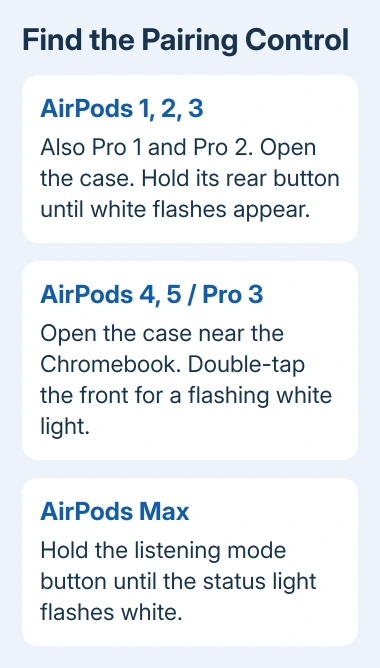
- AirPods 1, 2 or 3; AirPods Pro 1 or 2: press the setup button on the case's back for roughly five seconds, releasing it when the light flashes white.
- AirPods 4 or 5; AirPods Pro 3: with the open case near the Chromebook, double-tap the case's front. Look for the white flashing light.
- AirPods Max: hold the listening mode button until white flashes appear, normally after about five seconds.
Select the AirPods name when it appears on the Chromebook and complete any prompts. Return to Bluetooth and inspect Currently connected. That confirms a connection, rather than merely a remembered device name.
Apple states that AirPods can provide listening and speaking on a non-Apple device, but Siri is unavailable. Pairing does not turn ChromeOS into an Apple device or add an iPhone setup screen.
Connected but silent: select the audio destination
Play a short audio clip at a modest volume. If it uses the laptop speakers, select the time, open Settings, then choose Device > Audio. Under Output, choose the AirPods as the device.
Google's Chromebook audio controls separate the output device from the microphone input. Review mute and volume too; a Bluetooth connection can exist while output is muted.
For calls, inspect Input separately and select the microphone offered for the intended device. Try the page's Mic test when available, then check the calling app's own microphone selection.
A TV or monitor may offer another audio destination after connecting a Chromebook to a TV. Check the chosen output again when a display cable is attached or removed.
If the Chromebook cannot find the AirPods
Check that the case and earbuds have charge and that the white pairing flashes actually appear. If the light never reaches that state, the Chromebook has no discoverable accessory to select.
With pairing mode working, turn Chromebook Bluetooth off and back on. Google also recommends installing available ChromeOS updates and restarting the Chromebook for persistent Bluetooth trouble. Save open work before restarting.
If other Bluetooth headphones connect but these AirPods remain absent, contact Apple with their model and light behavior. If the Chromebook cannot find any accessory, contact its manufacturer or school administrator instead.
The Short Version
Open Pair new device, activate the correct AirPods pairing control and select their name. Confirm they are connected, then choose their audio output. A missing white light and a connected-but-silent headset need different checks.

Isaac Smith is the founder and editor of PC Glance, a website that covers computers, laptops, and technology. He is a tech enthusiast and a computer geek who loves to share his insights and help his readers make smart choices when buying tech gadgets or laptops. He is always curious and updated about the latest tech trends.