
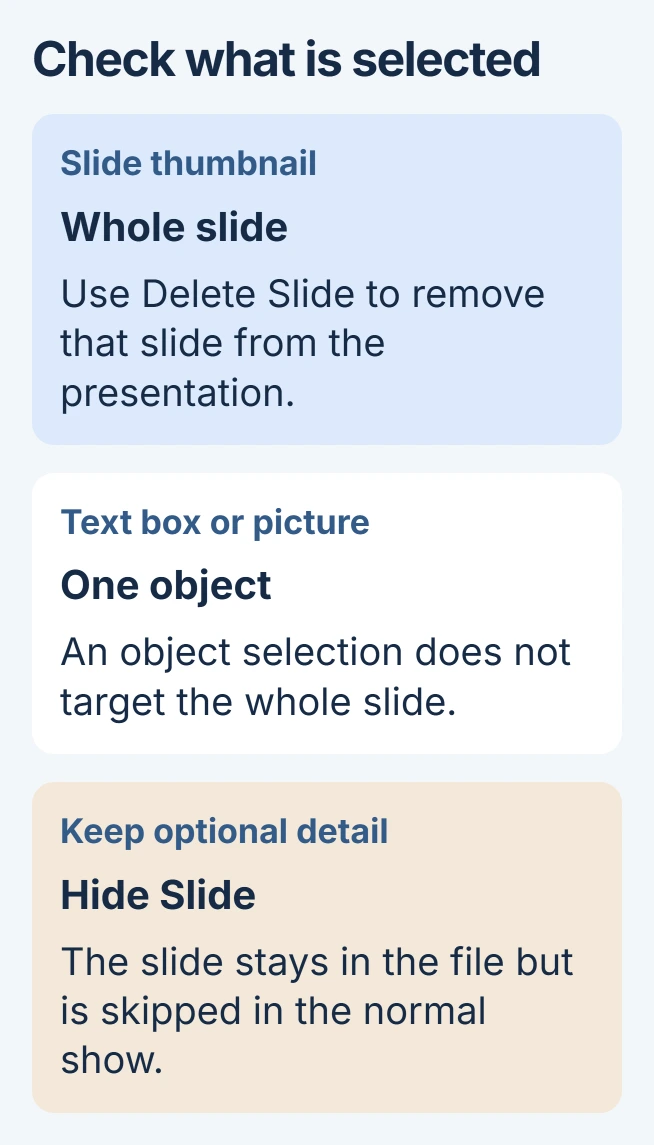
Deleting a PowerPoint slide starts with its thumbnail in the left pane. Right-click that thumbnail and choose Delete Slide. Selecting a text box or picture on the main canvas targets that object instead of the entire slide.
For a slide needed only by another audience, hiding may be the better choice. A hidden slide remains in the presentation file. Save a separate copy before deleting material that the complete deck will need again.
Select the slide thumbnail before deleting
Open the presentation in its editing view and find the small slide previews on the left. Click the intended preview and check the large canvas to confirm which slide it represents.
Microsoft documents Delete Slide in the thumbnail's right-click menu for Windows and browser PowerPoint in its slide-management instructions.
Status: PowerPoint deletion, hiding and Undo controls checked November 3, 2026. Windows, Mac and web procedures are distinguished. No presentation was edited.
On PowerPoint for Mac, Control-click or right-click the thumbnail and choose Delete Slide. Microsoft also documents selecting that thumbnail and pressing Delete.
The preview should disappear from the slide list. Review the adjacent slides before moving on, since removing a transition between ideas can make the remaining presentation harder to follow.
If the preview pane is unfamiliar, the PowerPoint window guide explains the editing areas. The large slide canvas and its smaller navigation thumbnail have different jobs.
Remove several slides in one selection
On Windows, hold Ctrl while clicking separate thumbnails. For a consecutive range, click its first thumbnail, then hold Shift and click its last one. Release the modifier key before opening the selection's menu.
Check every highlighted thumbnail, then choose Delete Slide from the right-click menu. PowerPoint for the web documents those same Ctrl and Shift selection methods.
On a Mac, use Command when selecting separate slide thumbnails. Review that selection before applying the removal command.
Read the selected slide titles instead of relying on remembered numbers. The presentation's numbering can change as earlier slides are removed.
After changing the deck, review its slide numbers and any typed total before sending the presentation to its audience.
Hide a slide when it should stay in the file
Right-click the thumbnail and select Hide Slide. Microsoft says this skips the slide during the normal slide show in its hidden-slide guide.
The thumbnail remains, marked as hidden. To bring it back into the normal show, open its menu and choose Unhide Slide. This is useful for optional detail that may be needed later.
Hiding is not a way to remove confidential content before sharing the file. The recipient still receives that slide. Make the appropriate deletion in the copy being distributed and inspect the resulting deck.
Recover an accidental deletion and check the deck
Immediately use Undo, or press Ctrl+Z on Windows and Command+Z on Mac. Microsoft states in its Undo reference that PowerPoint for the web can undo basic actions too.
Once the slide returns, inspect its position and contents. If Undo is unavailable, look for a saved revision that still contains it. Do not assume a closed presentation retains the same editing history.
Before distributing the revised file, review any printed speaker notes too. Handouts exported before the deletion may still contain material absent from the new deck.
When deletion is unavailable in a shared presentation, confirm that you have editing permission. Ask the file owner for access. For unexplained failures, send Microsoft Support the error wording and the affected PowerPoint edition.
The Short Version
Target the thumbnail to remove a whole slide. Select multiple thumbnails before deleting a group, use Hide Slide for optional material that should remain in the file, and use Undo promptly after an accidental removal.

Isaac Smith is the founder and editor of PC Glance, a website that covers computers, laptops, and technology. He is a tech enthusiast and a computer geek who loves to share his insights and help his readers make smart choices when buying tech gadgets or laptops. He is always curious and updated about the latest tech trends.