
An iCloud calendar can be shared from the iPhone's Calendar app: open Calendars, tap its Info button, then choose Add Person. Invite the other person's email address and decide whether they should be able to change events.
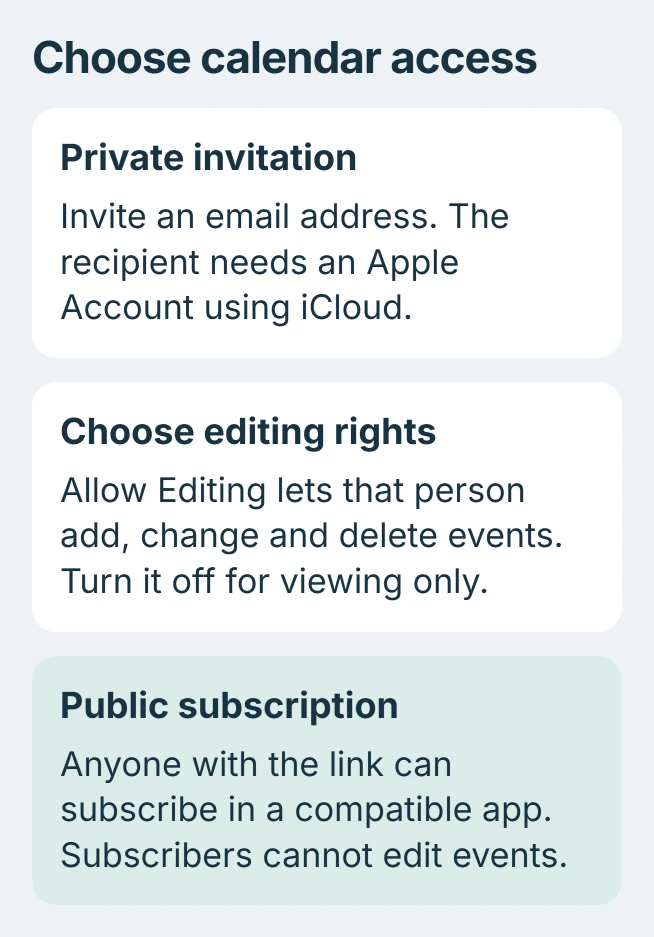
Private sharing requires an Apple Account using iCloud. For someone who only needs to view the schedule in another compatible calendar app, a public subscription link is a separate option.
Invite someone to an iCloud calendar
Open Calendar, tap Calendars, and locate the intended calendar under iCloud. Check its name carefully. Sharing that calendar gives access to its schedule, rather than just one appointment.
Apple documents the invitation route in its iPhone calendar-sharing instructions. Open the calendar's Info screen, choose Add Person, enter the recipient's email and tap Done.
Status: Apple's iPhone and iCloud calendar-sharing controls checked November 3, 2026. Private invitations and public subscriptions have different account and editing requirements.
A contact needs an email address for this invitation. A saved phone number alone is insufficient. Ask the recipient to accept the calendar invitation and confirm that the calendar appears in their list.
To create a separate schedule first, use Calendars > Add Calendar > Add Calendar. Enter its name and select iCloud under Accounts if another account is selected. Finish with Done, then invite its participants.
An Outlook calendar shown in Apple's app still belongs to Microsoft. Use the Outlook sharing controls for that calendar; opening it on an iPhone does not convert it into an iCloud calendar.
Choose who can change appointments
Return to the calendar's Info screen and tap the invited person's name. Turn Allow Editing off for viewing access, or on when that person should help manage the schedule.
Apple says editing permission includes creating, changing and deleting events in its iCloud sharing guide. Grant it deliberately, especially for a calendar holding work or family appointments.
To stop sharing with one person, open that person's entry and tap Delete. This removes their access. Delete Calendar, at the calendar level, is a different command that removes the calendar itself.
If events later seem absent, check which calendars are visible before recreating appointments. A hidden calendar and an event removed by someone with editing access need different responses.
Use a public link for viewing in another app
In Calendar > Calendars, tap the iCloud calendar's Info button. Enable Public Calendar, then choose Share Link and send or copy the address.
Apple states that public-calendar viewers do not need iCloud accounts. They use a compatible calendar app to subscribe. This route provides a view of the schedule without letting subscribers edit its appointments.
Treat the URL as shareable: another person can forward it. Use this option for information suitable for any recipient of the link. An invitation limited to named people is the better choice for a private schedule.
Public sharing also does not turn a single event into a meeting request. Use the event's invitation controls when the purpose is to ask someone to attend that appointment.
Check an invitation that has not arrived
Confirm the email address and that the calendar belongs to you. Apple limits private-calendar sharing to its owner. Someone already viewing another person's calendar cannot invite participants as though they own it.
On a computer or tablet, open iCloud.com/calendar and the calendar's sharing control. It shows whether invitees accepted, declined or have not responded. Beside a pending recipient, use the options button and Invite Again if needed.
If a correctly addressed invitation still fails, give Apple Support the error, device software version and whether the recipient can use iCloud Calendar. Do not erase the calendar to repair an invitation.
The Short Version
Invite named iCloud users through the calendar's Info screen, then review Allow Editing for each person. Public Calendar supplies a viewing link for compatible apps; it is unsuitable for a schedule that must stay within a named group.

Isaac Smith is the founder and editor of PC Glance, a website that covers computers, laptops, and technology. He is a tech enthusiast and a computer geek who loves to share his insights and help his readers make smart choices when buying tech gadgets or laptops. He is always curious and updated about the latest tech trends.