
An Outlook profile picture belongs to the signed-in account, so the correct change page depends on that account. Personal Outlook.com mail uses the Microsoft account profile; a work or school mailbox uses the organization's profile page.
Start by checking the email address on that page. A browser already signed in to another account can change the wrong picture, and a work account may require an administrator to make the change.
Choose the account that owns the picture
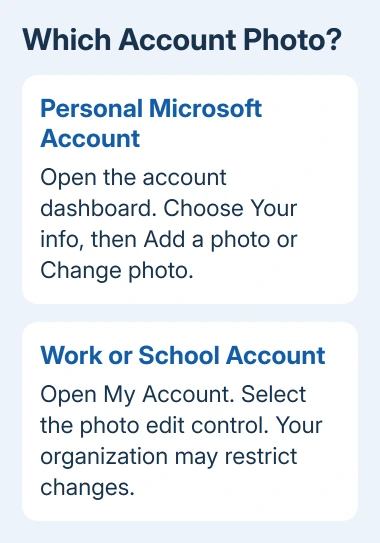
For personal Outlook.com, Hotmail or Live email, use account.microsoft.com. For a workplace or school Microsoft 365 identity, use myaccount.microsoft.com with that organization's address.
Microsoft documents these separate account types in its profile-picture instructions. A photograph can appear in other Microsoft apps using that identity, not just Outlook.
Status: Microsoft personal, organization and classic Outlook photo routes checked November 3, 2026. Published update delays differ by route. No account photo was uploaded.
An image placed inside an Outlook email signature belongs to the message's closing block. Changing the account portrait does not replace a signature logo or photograph.
Update a personal Microsoft account photo
Sign in to the Microsoft account dashboard and select Your info. Choose Add a photo or Change photo, then select an image stored on the device.
Review the framing and complete the upload controls. Use a static JPG or PNG if an image is rejected: Microsoft's account page excludes HEIC and animated GIF files.
Check the preview before leaving the page. Microsoft says to allow up to 24 hours for the personal picture to appear throughout its services. A different app temporarily retaining the old image does not mean the upload failed.
If the account page cannot be opened because the password is forgotten, use the Outlook password recovery process. Reinstalling Outlook will not recover the account credential.
Upload a work or school profile picture
Sign in at myaccount.microsoft.com using the work or school account. Select the edit control on the current profile photo, upload the replacement and adjust its size if needed. Choose Save.
Microsoft's organization-profile guide gives this route. If the edit control is unavailable, IT or human resources may control the image.
Outlook on the web also offers an account route: select the profile picture, choose View account, then select the picture again. The photo dialog offers Upload a new photo and Apply.
Microsoft states in its web Outlook instructions that the new image appears at the next Microsoft 365 sign-in. Reopen the account page first to verify the saved picture.
Start from classic Outlook when the File tab is present
In classic Outlook for Windows, open File and select Change beneath the existing picture. This opens Outlook in a browser; sign in to the intended account if asked.
Select the profile picture in the browser's upper corner, then select it again. Choose Change photo, browse to the image and open it. Adjust the photo's framing and select Save.
The classic Outlook photo guide allows up to 48 hours for the new picture to appear. That is longer than the personal-account page's stated delay.
New Outlook does not use this classic File-tab procedure. The account's browser profile page provides the appropriate personal or organization route without searching for a missing classic control.
When the old picture remains
Compare the saved picture on the account website with the one shown in Outlook. Confirm the address, allow the documented update period, then restart Outlook or refresh its sign-in when appropriate.
Do not keep uploading different images while waiting for the first change to spread. For a work account, ask IT whether profile editing is restricted or another company system supplies the picture.
For a personal account that still shows the old photo after the stated period, contact Microsoft Support with the account type, upload time and affected app. Keep private mailbox content out of any support image.
The Short Version
Change the photo on the profile page for the correct account. Personal accounts use Your info; work accounts use My Account. Classic Outlook can open the browser route. Check editing restrictions and allow the published update time.

Isaac Smith is the founder and editor of PC Glance, a website that covers computers, laptops, and technology. He is a tech enthusiast and a computer geek who loves to share his insights and help his readers make smart choices when buying tech gadgets or laptops. He is always curious and updated about the latest tech trends.