
Two external monitors showing the same picture through a USB-C dock can be a compatibility limit on a Mac. Check whether the dock uses MST: macOS can't use it for two independent desktops, even when the dock works on Windows.
First check the Mac's display mode, then the dock model. If the screens are black rather than mirroring, use the dock connection checks before following this guide.
1. Check which screens the Mac sees separately
Open Apple menu > System Settings > Displays with both monitors attached. Select the external display's name and open Use as. Choose the option to extend the desktop if it's currently set to mirror.
Apple's extended desktop instructions describe that menu. It works with displays that macOS recognizes separately.
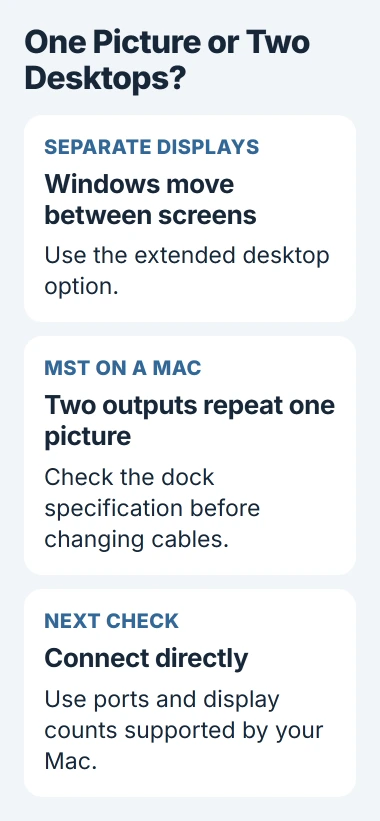
Move a window from one external screen to the other. If it appears in a different position on each, you have separate desktop space. Use the arrangement controls to match the screens to your desk.
If both monitors still repeat the same picture and aren't listed separately, keep checking the dock. The display-mode menu can't give you two desktops through a connection that supports only one.
The Use as menu appears only when the Mac has enough screens connected. A Mac with a built-in screen needs an external display attached. A desktop Mac without one needs more than one display to show these choices.
2. Look for MST in the adapter's specifications
Find the dock or adapter model on its label, then read its supported operating systems and display modes. Look for MST, short for Multi-Stream Transport.
MST sends video for several screens through one DisplayPort connection. Many USB-C adapters use it to provide two HDMI outputs without needing separate USB graphics software.
Plugable explains the macOS MST limitation: its outputs can mirror instead of providing independent extended desktops on a Mac.
That's why a dock can extend both monitors on a compatible Windows laptop but repeat the picture on a Mac. Your monitors and cables can be working correctly in both cases.
Check the compatibility table for extended-display support on macOS. A dock that supports two monitors doesn't necessarily give you two different desktops on every operating system.
I'd check that detail before buying another cable. A better HDMI cable doesn't change which display technology the dock uses or add an operating-system feature.
3. Compare a direct connection with the dock
Connect a monitor to a supported video port on your Mac with a suitable cable or adapter. To connect two external screens without the MST adapter, check which connections your Mac's specifications allow.
If those direct connections give you independent desktops, the original dock setup is the limit. Keep using the working connections while you decide whether you need a different dock.
If the second screen still fails when connected directly, check how many displays your Mac supports. Removing the dock doesn't increase the number of screens the Mac can run through its video ports.
For a DisplayPort output converted to HDMI, the active-adapter guide covers a different fault where the screen stays dark. Signal conversion and MST mirroring are separate checks.
Note which connections worked. A monitor on each supported Mac port uses a different connection from two HDMI plugs sharing one USB-C adapter, even though the screens look the same on your desk.
4. Check the exact Mac chip and lid requirements
Open Apple menu > About This Mac and note your model and chip, then check its display specifications. The M3, M3 Pro and M3 Max support different external-screen setups.
For a MacBook Air or MacBook Pro with the base M3 chip, the two-display procedure requires a closed laptop lid. It also requires power and an external keyboard and mouse or trackpad.
Connect the first display, close the lid, then connect the second. The minimum system versions are macOS Sonoma 14.3 for the M3 Air and 14.6 for the M3 MacBook Pro.
Opening the lid with both attached makes the secondary external display go dark or disconnect. That differs from the MST case, where two external screens repeat one picture.
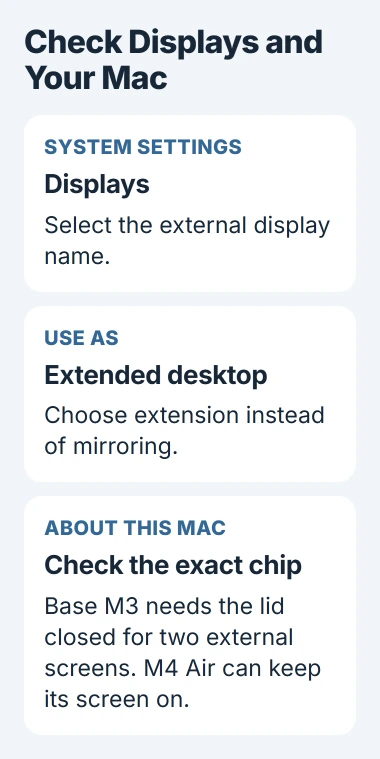
The M3 lid rule doesn't apply to every MacBook. The M4 MacBook Air display limits allow two external displays alongside its built-in screen, depending on their resolution and refresh rate.
Closing the lid on an M4 Air doesn't let it run more external displays. If you have another model, check its own limits before buying equipment or changing a working connection.
5. Choose a compatible display path if MST is the limit
To use the Mac's own video output, connect through its supported ports or a Thunderbolt dock that supports your screen setup. Thunderbolt doesn't let you exceed the Mac's display limit.
DisplayLink is another option: compatible dock hardware uses software to send display information over USB data. It isn't another name for DisplayPort or an upgrade you can apply to any USB-C adapter.
Installing DisplayLink Manager alone won't convert an MST dock. Confirm that the dock itself uses DisplayLink, then follow its software and screen-permission setup for your macOS version.
DisplayPort Alt Mode adapters usually don't need DisplayLink Manager. Alt Mode carries the computer's own video signal through the port; USB graphics works differently. Follow the instructions for the adapter you own.
Check the dock's resolution and refresh-rate limits for a two-screen setup. Its highest single-screen setting may not work on both outputs at once.
For fast games or work that needs accurate color, tell the dock maker how you'll use the screens before choosing USB graphics. Check what software it needs as well as how many ports it has.
If you're still unsure what will work, give support your Mac model, chip, macOS version, dock model and monitor details. Ask whether you can get two separate external desktops with that equipment, and which settings to use.
The Short Version
Check Use as in Displays, then the dock's MST specification. macOS can't extend two desktops through an ordinary MST adapter. Compare supported direct connections and the exact Mac display limit before choosing a different dock.
Checked November 4, 2026.

Isaac Smith is the founder and editor of PC Glance, a website that covers computers, laptops, and technology. He is a tech enthusiast and a computer geek who loves to share his insights and help his readers make smart choices when buying tech gadgets or laptops. He is always curious and updated about the latest tech trends.