
Zillow can make your computer hot when a page keeps the browser busy, especially while you use its interactive content. Close the Zillow tab and see whether processor use drops. If it does, check that page first.
The browser, an extension, or another app can also be doing the work. Check which task is busy before treating the heat as a Zillow fault or replacing anything in your laptop.
1. Compare the computer with the Zillow tab closed
Save any property links you want to keep, then close Zillow's tabs. Leave the computer on a hard surface with its vents clear while you compare its behavior. A fan may take time to slow after the workload stops.
On Windows, press Ctrl+Shift+Esc to open Task Manager. In Processes, select the CPU column, which shows use of your computer's processor. This sorts the list so you can see whether your browser drops after closing the tabs.
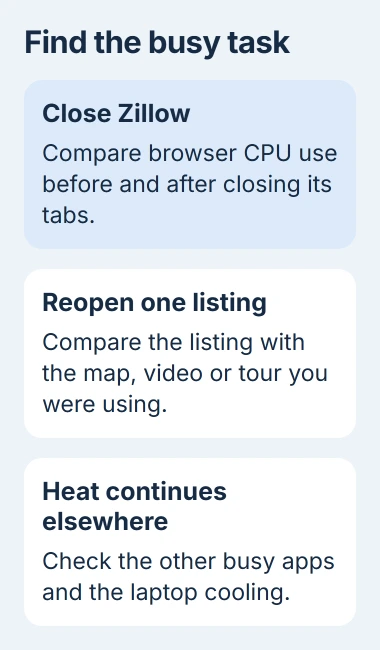
On a Mac, open Activity Monitor from Applications > Utilities, choose CPU, and look at the browser's entries. Compare their activity before and after closing the page. One brief spike won't tell you much.
If browser activity falls, reopen one listing and see whether the busy period returns. If another app stays near the top instead, address that app before changing browser settings.
Look for a change in processor use, rather than a particular CPU percentage that means it's safe. Feeling the case won't tell you its exact temperature.
2. Find the busy page or extension inside Chrome
Chrome splits its work between tabs, extensions, and other tasks. Its own Task Manager makes it easier to spot a busy page than Windows' combined browser entry does.
Open the three-dot menu, choose More tools, then Task Manager. Look for the Zillow tab and any extension entries. Use the CPU column to compare processor activity while the problem is happening.
Google's browser performance guide explains how pages keep the processor busy. Graphics-heavy content can also put extra work on the part of Chrome that handles graphics. See which task is busy to decide what to close.
If Zillow's task stays busy, close the tab normally. If it's stuck, select it in Chrome's Task Manager and choose End Process. You'll lose any unsaved work in the task you stop.
Then reopen just one property. Compare the ordinary listing with the map, video, or tour you were using when the problem began. Stop that extra content if it keeps making processor use jump.
I'd keep this first comparison small: one browser window and one listing. Opening the same search in several tabs makes it harder to see which page is responsible.
If Chrome stops responding during this check, use the Chrome freezing checks to get it working again. If it's hot but still responds, first compare how much work the page makes it do.
3. Update Chrome and compare with extensions off
Open Chrome's menu and choose Help > About Google Chrome. Let any available update finish and select Relaunch if prompted. Reopen your test listing after the restart.
If the problem returns, open Extensions > Manage Extensions from the menu. Turn off the extensions you installed, then try the same activity on the same listing. You don't need to remove them permanently to check this.
When the page works normally with extensions off, enable each extension separately and repeat the same action. If one brings the problem back, check for an update, change its settings, or remove it.
Chrome's speed-up instructions include closing unused tabs, stopping unwanted tasks, and disabling extensions. You can try these without installing a cleanup utility.
A browser your employer manages may block extension changes. Ask your administrator to check the extension and page if those controls aren't available to you.
If you use Edge, Firefox, or Safari, try the listing in another current browser you already have. If it works there, focus on the browser where the trouble happens.
4. Reduce work from tabs you aren't using
It's easy to leave property tabs open after you've finished comparing them. Bookmark the listings you want and close the rest. Every search result left open adds work without helping you read the current listing.
In Chrome, open Settings > Performance. Enable Memory Saver to let inactive tabs release memory. A tab can reload when you return to it, so finish any forms before leaving it for long periods.
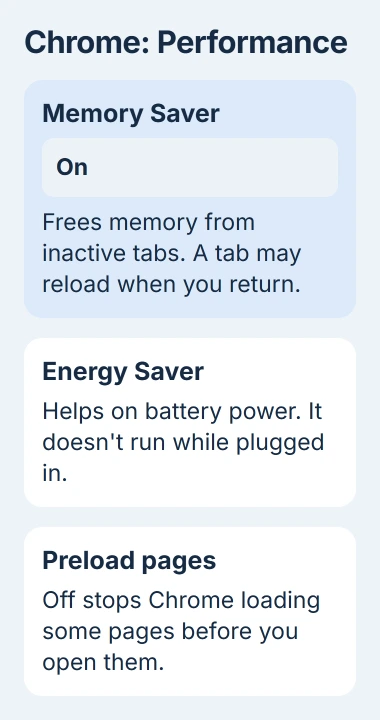
Memory Saver mainly helps with tabs you aren't using. It won't make an active property tour less demanding. If the tab you're viewing is keeping the browser busy, try the comparison in section 2.
On a laptop using battery power, Energy Saver can reduce background work and some visual activity. Choose when it turns on in the same Performance section. It doesn't run while your computer is plugged in.
The performance settings reference explains those limits. Video calls and audio playback can keep tabs active, and some controls depend on the device having a battery.
Also check Preload pages there. Turning it off stops Chrome preparing some pages before you visit them. Links may take longer to open, but this gives you another way to reduce work beyond the current page.
5. Check cooling when the whole computer stays hot
If the heat continues after the browser's activity settles, compare other everyday tasks. A laptop that becomes unusually hot during light work needs its ventilation and cooling checked, even if Zillow was where you first noticed it.
Use the laptop overheating guide for that wider problem. If the computer repeatedly shuts down or shows a temperature warning, stop the demanding task and arrange support rather than repeating the test.
If the problem keeps happening only on Zillow, send its support team the property URL, browser version, and operating system. Explain what makes activity rise, whether closing the tab helps, and whether extensions affect it.
Include whether it happens on several listings or just one property. Support can then try the same action on the same page.
The Short Version
Compare CPU use with Zillow open and closed, find the busy task, then retry the listing after updates and an extension check. Use Performance settings to reduce background work. Check cooling if the computer stays hot during other tasks.
Checked November 4, 2026.

Isaac Smith is the founder and editor of PC Glance, a website that covers computers, laptops, and technology. He is a tech enthusiast and a computer geek who loves to share his insights and help his readers make smart choices when buying tech gadgets or laptops. He is always curious and updated about the latest tech trends.