
PS Remote Play can crash because of its saved files or the shared Visual C++ software it needs. Restart your PC first. If it crashes again, clear its local files and reinstall the app, then try the x86 Visual C++ package.
A window that disappears needs different checks from a stream that disconnects while the app stays open. Watch which one happens before changing your console or router settings.
1. Restart Windows and check where the app stops
Save your work, open Start > Power, and choose Restart. Launch PS Remote Play again after signing in to Windows. Try the same action that made it close, whether that's opening the app, signing in, or connecting to your console.
Sony recommends a Windows crash procedure that starts with a restart, then clears the app's local folder and reinstalls it. The x86 runtime comes next if that fails.
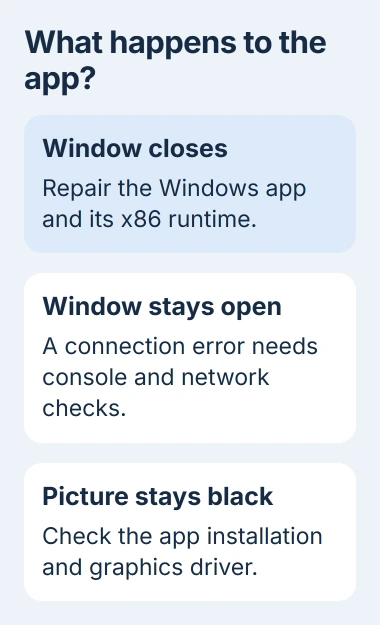
Watch the window itself. If it closes completely, continue with the app repair. If it remains open and displays a connection error, keep the error code and use the connection checks in section 4.
If the app stays open but shows a black picture, it's running but isn't displaying video. After reinstalling, try the display checks instead of repeatedly deleting its local settings.
Also check whether you're using the current PS Remote Play release. Get the installer through the official PC and Mac setup page, which supplies the same Windows app for PS4 and PS5.
I'd get the app to open before changing streaming quality. A lower resolution can't help when the program closes before you can choose a console.
2. Reinstall after clearing the app's local folder
Uninstalling the app can leave its saved files on your PC. These steps remove those files as well as the app itself.
- Close PS Remote Play. If it's frozen and won't close, open Task Manager with Ctrl+Shift+Esc, select the Remote Play application, and choose End task.
- Search Start for Control Panel. Open Programs and Features, select PS Remote Play, and choose Uninstall.
- Press Windows+R, enter
%LOCALAPPDATA%, and press Enter. File Explorer opens your account's local AppData folder. - Find the folder named PS Remote Play and delete that folder. Leave the other AppData folders alone.
- Run a fresh installer from the official download page, then launch the app again.
Keep your PlayStation account details handy for this reset. You may need to sign in again and set your preferences afterward.
If the folder isn't present, continue with the fresh installation. The installer will create the local files it needs when you use the app.
After installation, check whether the window stays open long enough to sign in and select a console. If it does, you've got past the original crash. Next, check whether you can connect to your console and start a stream.
If the window still closes, try the Visual C++ package next. Uninstalling the app again without changing anything else won't help you narrow down the cause.
3. Install the x86 Visual C++ runtime
The Visual C++ Redistributable installs shared software that Windows apps need to run. This crash fix calls for the x86 package, even on a PC running 64-bit Windows.
Open Microsoft's supported Visual C++ downloads. In the current v14 download table, choose X86, then run vc_redist.x86.exe.
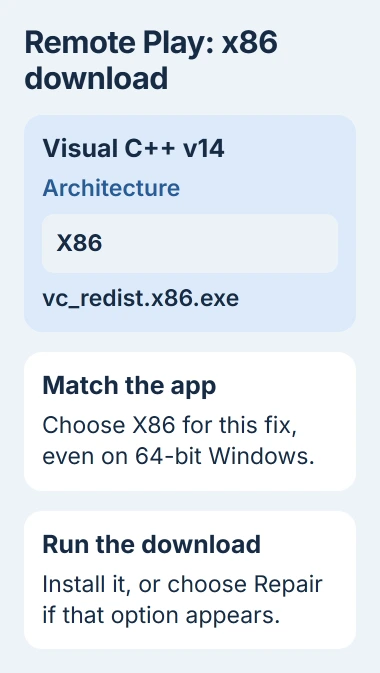
Finish the installation. If the package is already installed and you see Repair, choose it. Restart if prompted, then try Remote Play and see whether it gets past the point where it used to close.
Choose the package your app needs. Picking X64 just because Windows is 64-bit can leave the x86 software missing. Leave existing packages installed, since other programs use them.
An error naming MSVCP140.dll points more directly to a problem with that shared software. The missing MSVCP140 guide explains the error and which installer to use.
If the installer fails, write down its error separately from the Remote Play crash. The runtime needs to finish installing before it can help the app start.
4. Follow the symptom once the window stays open
If you can't connect, check that your console is awake or set up for Remote Play in rest mode. Use the same PlayStation account on your console and PC, and install any waiting console system update.
On PS5, Settings > System > Remote Play contains Enable Remote Play. PS4 uses Settings > Remote Play Connection Settings. A PS4 also needs to be activated as your account's primary PS4.
A stream that starts but keeps dropping needs network checks. Try a wired PC connection if available and pause other large downloads. These changes address the stream; they don't replace the Windows crash repair.
If your security software says it blocked Remote Play, use its app-exception controls to allow the official app to connect. This keeps your protection running while allowing that connection.
For a blank stream, install the current graphics driver supplied by the PC or graphics-card maker. Use the Windows driver update guidance to find that source and avoid unrelated driver bundles.
5. Send support the result that still fails
If the app continues to close after the local reset and runtime repair, contact PlayStation Support with your Windows version, Remote Play version, and the exact point where it exits. Include any displayed error text.
Tell support whether installation finished and whether you ever reach sign-in or console selection. This helps them tell an app that won't start from one that opens but can't reach your console.
Leave your console and router settings as they are while support reviews the crash. Changing them makes the problem harder to track and won't repair an app that still closes on the desktop.
The Short Version
Restart Windows, clear PS Remote Play's saved local files and reinstall it, then install the current x86 Visual C++ package. Once the app stays open, use the connection checks for errors or the display checks for a blank stream.
Checked November 4, 2026.

Isaac Smith is the founder and editor of PC Glance, a website that covers computers, laptops, and technology. He is a tech enthusiast and a computer geek who loves to share his insights and help his readers make smart choices when buying tech gadgets or laptops. He is always curious and updated about the latest tech trends.