
Excel can refuse access to a file because its location has changed, it's locked for editing, or you don't have permission to replace it. If the workbook is already open, save your work under a new name before checking the cause.
The next step depends on when the error appears. An old shortcut, a failed save to a shared folder and a workbook locked by another editor need different checks. Start with the section that matches what you were doing.
1. Save open work somewhere you can write
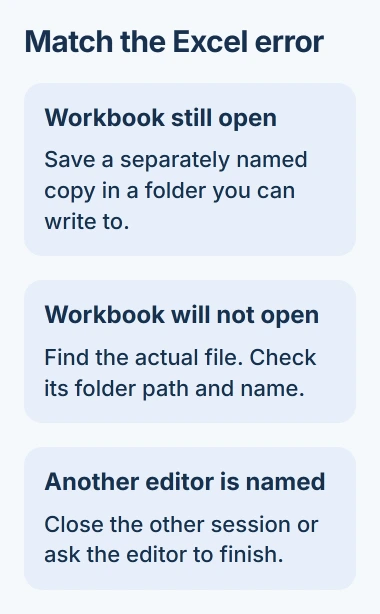
If you can still edit the workbook, keep its Excel window open. Choose File > Save As, or Save a Copy if that's the command shown, and pick a folder on your PC where you can save files.
Use a new, short name such as Budget-copy.xlsx. Keep the same file type: if your workbook has macros, which automate tasks, it needs a format that supports them, such as .xlsm.
Microsoft recommends another name or location in its workbook saving guidance. Once the copy saves, your work is safer while you check why the original wouldn't save.
Check that the new file exists and contains the worksheet changes you expect. Seeing the original file in File Explorer isn't enough to close the only window holding your latest edits.
If Excel has already closed and your changes are missing, check the Excel recovery locations. Renaming an older saved file won't bring back those later edits.
2. Find the actual file instead of retrying an old shortcut
For an error while opening, browse to the workbook's folder in File Explorer. Check whether the file is still there. A Recent entry can keep pointing at a location after someone moves or renames the workbook.
Open the file from its current folder or use File > Open > Browse in Excel. If it opens, keep using that location instead of the old Recent entry.
For a file on your work network, try opening its shared folder. An unplugged external drive or disconnected network can also leave a spreadsheet out of reach even when the file itself is fine.
If someone sent you the file, ask whether they moved it, removed your access or used a temporary link. Ask them for a fresh copy you have permission to open before changing Excel's security settings.
A workbook asking for a password needs a different solution. The Excel file-password guide explains this protection; fixing the folder path won't remove it.
3. Shorten the path and remove troublesome brackets
A path includes every folder name plus the file's name. Excel's limit for that full path is 218 characters, so even a short workbook name can be too long once you count all its folders.
Put a copy in a folder on your PC with a shorter path and give it a plain name. Try opening it, then compare it with the original. Keep the file extension unchanged so Windows and Excel recognize the format.
Check for square brackets in the workbook name and the folders leading to it. For example, a folder named Reports [Final] can cause trouble even when Budget.xlsx looks ordinary.
The special-character workaround covers files you open from outside Excel. Remove unsupported characters from the file or folder name, then try opening the workbook again.
I'd try a copy with a short, plain name before changing which app opens the file or reinstalling Office. If that copy opens, focus on the name and location of the original.
On a shared project, ask the owner before renaming its folders. Other workbooks and colleagues may depend on those locations, even when a different name helps your copy open.
4. Release a real editing lock
If the message names another editor, ask them to finish and close the workbook. You may be able to view it as read-only while you wait, but that won't let you save over their changes.
When the named editor is you, check other computers or sessions where you opened the same file. Close it there after saving. A previous session that ended badly can also leave the server thinking it is still open.
The editing-lock instructions recommend waiting a few minutes after closing your copies so the server can release the lock.
If you need to work immediately, save a separately named copy where permitted. Arrange to combine your changes with the owner later; Excel won't automatically merge the two copies for you.
Don't delete unfamiliar temporary or lock files while someone may still be editing. The lock keeps your saves from clashing. Check who's using the file before asking an administrator to clear a lock that won't go away.
5. Check permission to replace files in that folder
Being able to open a workbook doesn't mean you can save changes to it. Excel saves a temporary copy and then replaces the original, so your account can need more permission to save than to read.
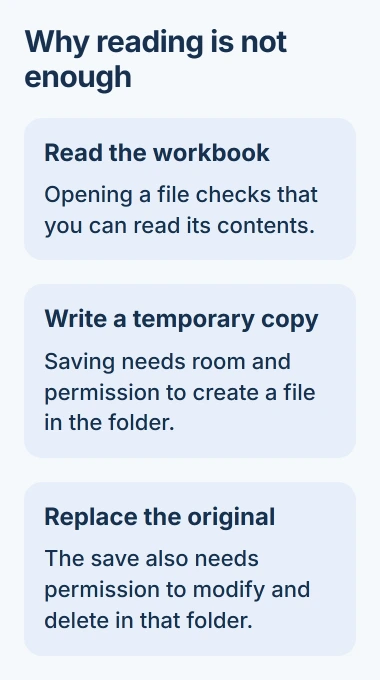
Your account needs read, write, modify and delete permission in the destination folder. If it's a shared work folder, ask its owner or administrator to check those permissions.
Create a blank workbook and try saving it in that folder under a different name. If that fails too, check the folder, connection and free space before looking for a problem inside your original workbook.
If the blank file saves but your existing workbook won't, tell support. The workbook may have different permissions, be locked for editing, or fail when Excel tries to replace it, even though saving a new file works.
Check the drive's available space as well. Excel needs room to write its temporary copy, so the original workbook fitting on the disk doesn't mean the next save has enough room.
6. Compare synced storage and ask for targeted help
For a workbook in a OneDrive folder, check the OneDrive icon for a paused sync or error. Fix that first, since the copy on your PC and the shared copy may not have the same changes yet.
The OneDrive sync checks cover blocked names and sync status. Keep any separately saved workbook until you can confirm the intended version reached its destination.
If saving fails in every folder you can normally write to, try a fresh blank workbook too. Tell support your Excel version, the full error message, whether the blank file failed and whether the error appears when opening or saving.
Security software can block Excel while it saves the temporary copy. Ask IT or the software's maker to check, rather than turning off protection and repeatedly saving over the same file.
If a protected work document denies your account access, ask its owner for permission. Fixing the path or repairing Office won't give you access the owner hasn't allowed.
The Short Version
Save open work under a new name, then find the file, shorten its path, release editing locks and check folder permissions. Try a local copy and a blank-workbook save to see whether the file or its storage is causing trouble.
Checked November 4, 2026.

Isaac Smith is the founder and editor of PC Glance, a website that covers computers, laptops, and technology. He is a tech enthusiast and a computer geek who loves to share his insights and help his readers make smart choices when buying tech gadgets or laptops. He is always curious and updated about the latest tech trends.