
Apple Watch calorie counts are estimates based on your profile, movement and workout measurements. They aren't exact, so check your setup when a result looks wrong.
First, check which number you're comparing. Active Calories and Total Calories measure different amounts. A workout total can be larger than the calories added to your red Move ring even when both are working correctly.
Compare active calories with active calories
On your watch, open Activity and find the red Move ring. It tracks active calories, the energy you use through movement. Compare this number with a goal based on active energy.
A workout's total adds the energy your body uses at rest during that time to your active energy. Before comparing two screens or fitness apps, check whether each says Active Calories, Total Calories, or uses another energy unit.
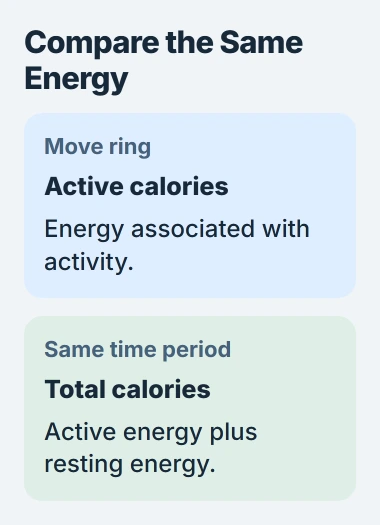
Compare the same time period too. A completed workout, today's Move total and a whole-day energy estimate cover different parts of your day. They aren't three readings of the same event.
Apple says your personal details and heart rate help calculate activity in its measurement guidance. Correct details help, but the number is still an estimate, however precise it looks.
No single accuracy percentage fits every person, watch and workout. A brisk outdoor walk, a strength session and an activity where your wrist moves irregularly give the sensors different information.
Correct the personal details used in the calculation
On the paired iPhone, open Watch > My Watch > Health > Health Details. Tap Edit, review your details, and correct anything that's wrong. Check weight and height, including the units used to enter them.
The watch uses these details to calculate calories and other workout figures. An old weight or height entered in the wrong unit gives it the wrong information, even when the heart-rate sensor works normally.
Enter your actual details. Changing them to close the ring faster won't improve the watch's estimate and can make later results harder to compare.
If two people finish the same route with different calorie totals, compare their profiles and workout measurements before deciding a watch is faulty. Covering the same distance doesn't make both watches calculate identical calories.
I'd correct these entries before resetting calibration. It's a quick check; making the watch relearn how you move won't fix a wrong number in Health Details.
Give the sensors a steady fit and the right workout
Wear the watch on top of your wrist, snug enough to keep the back sensor against your skin but still comfortable. If the band slides around during exercise, the watch can have trouble taking measurements.
Open the Workout app and choose the activity that matches what you're doing. Use Indoor Run for a treadmill run, for example, rather than logging it as an outdoor route. Use Add Workout when the suitable activity isn't visible.
Different workouts use different measurements. Indoors, the watch uses movement alongside heart rate; outdoors, GPS helps with pace and distance. Choosing an unrelated workout won't improve your calorie estimate.
On ordinary walks, let your watch arm swing naturally. If both hands are busy, such as when you're pushing a stroller, start the matching workout so the watch can use the measurements available during it.
Check Watch > My Watch > Privacy > Heart Rate if workouts have no heart-rate readings. For continuing gaps, use the Apple Watch heart-rate checks before judging calories.
Teach the watch your walking or running pace
On the iPhone, open Settings > Privacy & Security > Location Services and enable Location Services if needed. Scroll to System Services and turn on Motion Calibration & Distance if it's off.
Wear your watch in a flat, open outdoor area with good GPS reception. Start Outdoor Walk or Outdoor Run in Workout and keep your usual pace for around 20 minutes.
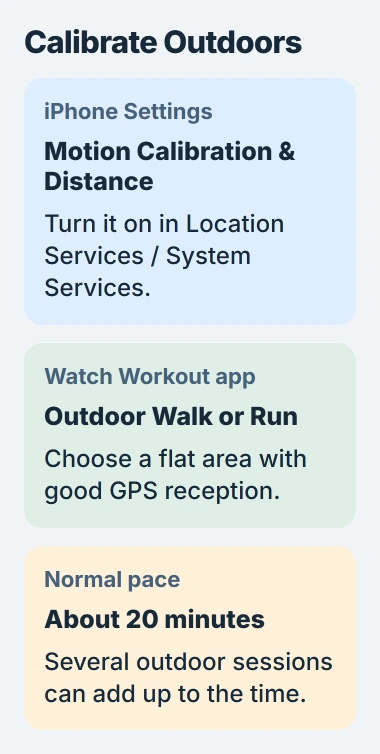
The calibration instructions let you split those minutes across several outdoor workouts. If you regularly walk or run at different speeds, calibrate for about 20 minutes at each speed.
Calibration teaches the watch your stride and movement so it can work better when GPS is limited or unavailable. It can improve distance, pace and calorie estimates, but it won't make calories an exact measurement.
Your watch keeps learning during suitable outdoor workouts. Choose a route with open sky; tall buildings can block the GPS information it needs, and an indoor treadmill won't give it that information either.
Reset learned calibration only when it needs rebuilding
To start calibration again, open Watch > My Watch > Privacy on the iPhone and tap Reset Fitness Calibration Data. Then repeat the outdoor calibration session so the watch can relearn how you move.
This resets what the watch has learned without erasing or unpairing it. Check your personal details and sensors first; you don't need to reset calibration before every workout.
Compare later workouts of the same type, with a similar route or duration. Look for a problem that keeps happening, such as missing heart-rate readings or a distance that's far off. Calories won't be identical every day.
If distance and heart rate still look wrong after setup and calibration, tell Apple your watch model and workout type. Include examples of missing or incorrect readings so support knows what to check.
A missing readiness feature is a separate issue. The Watch readiness guide explains that setup; it isn't a way to verify the calories shown for a workout.
The Short Version
Match the calorie labels, correct Health Details and choose the right workout. Wear a snug band and calibrate outdoors for about 20 minutes. If readings keep going missing, ask support; calories are still estimates.
Checked November 4, 2026.

Isaac Smith is the founder and editor of PC Glance, a website that covers computers, laptops, and technology. He is a tech enthusiast and a computer geek who loves to share his insights and help his readers make smart choices when buying tech gadgets or laptops. He is always curious and updated about the latest tech trends.