
Chrome's Reading mode on iPhone opens through More while an article is open. Choose Turn on Reading Mode instead of looking for the old chrome://flags/#enable-reader-mode switch, then adjust its font and background.
Instructions for a computer's side panel or an Android reading app won't match your iPhone. Use the controls inside the iOS Chrome app.
Open Reading mode from the article itself
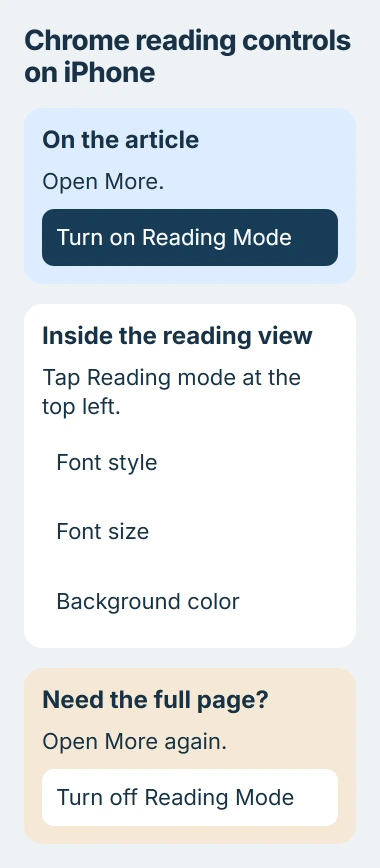
Open Chrome on your iPhone or iPad and load the article you want to read. Tap the three-dot More menu, then look for Turn on Reading Mode. Select it to open the simplified view.
Google recommends this menu in its iPhone Reading mode instructions. You don't need to change an experimental flag to follow them.
Start with an ordinary text article rather than a search-results page or an account dashboard. Check that the simpler view is easier to read and keeps the text you need.
If a link jumps into a separate app, open its web address in Chrome first. The iPhone link-opening checks explain why a tapped link can leave the browser before its reading controls are available.
Reading mode changes how the open page looks. To save it for a journey without an internet connection, use Reading List instead. Turning on Reading mode alone doesn't save a file.
Make the simplified text comfortable to read
With Reading mode open, tap Reading mode at the top left. Choose a font style, use Font size to adjust the text, and select a background color that is comfortable for the room you're in.
The default font style is Sans Serif. Change one setting at a time and read a full paragraph to see how it feels. Check the body text as well as the heading before keeping the change.
These settings change the reading view. To enlarge the original page's menus, images and text together, return to normal view and use page zoom.
The phone's controls are in its menu and reading view. A desktop tutorial that sends you to a side panel won't match them, even though the feature has the same name.
I wouldn't install an extension just to reach these controls. Reading mode is part of Chrome. An iPhone tutorial for Safari extensions covers a different browser.
If you were trying to enable a Safari extension instead, the Safari extension availability checks cover its switches. They won't add desktop Chrome extensions to the iPhone app.
Return to the full page when something is missing
Open More again and select Turn off Reading Mode to return to the normal page. Use that view when the simplified version leaves out an important table, control or piece of the article.
If Chrome shows Reading mode failed, it can't open that page in the reading view. Try another article to see whether just one page fails or the problem happens everywhere.
A form or checkout may need controls that the reading view leaves out. Use the normal page when you need those controls.
If the reading view looks incomplete, check the original page for the missing information. It may still be there, since the two views can show different parts of the same content.
Use whichever view lets you read the article and see everything you need. If that's the original page, try zoom without changing unrelated browser settings.
Check Chrome updates when the command is absent
Open the App Store, tap your profile at the top right, and look through the available updates for Chrome. Tap Update if it appears, then open Chrome and try the article again.
The Chrome update requirements currently list iOS 18 or later. If your iPhone can't run that version, it may not be able to install the latest Chrome.
If Chrome is already current, compare more than one readable article. Note whether the command is missing from the menu or present but failing; those are different problems to report.
If the command stays missing or fails across several pages, send feedback with your Chrome version, iOS version and the page address. Don't reset the browser or delete its data just to look for one menu command.
Use zoom or Safari Reader as a practical alternative
For text that's simply too small, open Chrome's More > Zoom text… control. Use its larger or smaller text buttons until the original page is comfortable. This keeps the page's normal layout instead of simplifying it.
The iPhone page-zoom instructions cover that control. Check that the part you need remains visible after enlarging it, especially a wide table or a form.
Safari also has a reading view for supported pages. Open the same address in Safari, tap its Page Menu button, then choose Show Reader. Use Hide Reader in that menu to return to the full page.
For a site you often read in Safari, open its Website Settings and look for Use Reader Automatically. It turns on Reader for supported content in Safari, without changing any Chrome flag.
Save the page separately for offline reading
While you're online, Chrome's More > Add to Reading List saves a page for later. Open More > Reading List and select the saved page when you want it again.
Follow the offline-reading steps before you need the page without an internet connection. Turning on Reading mode is separate from saving it.
The Short Version
Open the article in Chrome, choose More and Turn on Reading Mode, then adjust the reading controls. If that page won't work, use its normal view with zoom, try Safari Reader, or report a missing command after checking for an update.
Checked November 5, 2026.

Isaac Smith is the founder and editor of PC Glance, a website that covers computers, laptops, and technology. He is a tech enthusiast and a computer geek who loves to share his insights and help his readers make smart choices when buying tech gadgets or laptops. He is always curious and updated about the latest tech trends.