
On an HP OfficeJet Pro 9010e, open Setup > Printer Maintenance > Restore to reset the printer. Restarting, resetting one function and restoring factory settings do different jobs, so choose the one that fits your problem.
Other HP models need their own reset instructions. Check which settings you need to clear before choosing a reset, especially if the printer also handles scans, faxes or several people's print jobs.
Choose what the reset needs to change
Read the printer's complete model name, including its series and any letters at the end. An OfficeJet touchscreen and a DeskJet with physical buttons don't share one universal factory-reset sequence.
When a DeskJet displays E followed by a number, check the HP code meaning before clearing its preferences.
Write down the error and what you were trying to do. If copying works but printing from Windows fails, start by checking Windows and the connection. A printer that can't make a copy needs different checks.
Try a simple copy from the printer's own controls if it has a scanner. For a Windows-only failure, check the printer queue and offline status before clearing settings that still work.
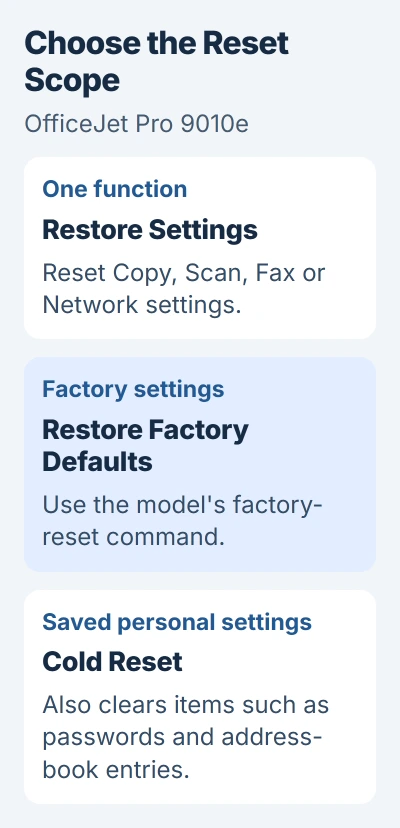
A restart switches the printer off and on. A network reset removes its connection settings. A factory reset changes more preferences. They aren't interchangeable, even when the instructions call each one a reset.
For a changed router or Wi-Fi password, use the HP wireless setup recovery steps. I'd start there when the printer itself still works and only its connection has been lost.
Keep the settings needed for setup afterward
Before a factory reset, have your Wi-Fi name and password ready and note any scanning or fax settings you'll need again. If you share the printer at work, agree on a time with the person who manages it.
Finish or cancel the current job using the printer's controls. Start the reset when its menus respond normally. Don't try button combinations while the printer is updating its firmware, the software built into it.
These steps follow the OfficeJet Pro 9010e manual, pages 182 and 183. This model has separate commands for individual functions, factory defaults, network settings and Cold Reset, which clears more saved information.
If your model doesn't have those menus, use its own user guide to find the reset steps. A similar-looking printer can use the same buttons for a different action.
Restore one function on an OfficeJet Pro 9010e
On this model's touchscreen, open the Dashboard by tapping its tab along the screen's upper edge or swiping the tab down. Tap Setup, shown with a gear, then open Printer Maintenance > Restore > Restore Settings.
Select the function to restore: Copy, Scan, Fax or Network. Tap Restore, read the message about the change, then tap Restore again to confirm it.
Use this when you want to undo changes to one function. Choosing Copy lets you reset its settings without also resetting your scanning and fax preferences.
Try that function again from the printer's controls. For example, check the copy settings and make another copy. If the same problem remains, note what happened before deciding whether to try a factory reset.
Run the factory reset on that touchscreen model
Return to Dashboard > Setup > Printer Maintenance > Restore. Choose Restore Factory Defaults, then read the confirmation message. Select Continue to proceed.
Let the reset finish and follow the setup prompts. Use the factory-default command for your model. If it's missing, don't choose Cold Reset just because it's also under Restore.
For an HP+ printer, HP's manual says to register it again with the HP account used for its original setup. Check that your sign-in works for that account before starting, especially if somebody else set up the printer.
Afterward, check the settings for the task that failed. Reconnect Wi-Fi if needed before asking Windows to find the printer. The computer can't find it over a connection you haven't restored.
In Windows 11, open Settings > Bluetooth & devices > Printers & scanners. Use the Windows printer installation controls and choose Add device if you need to add it again.
Reserve Cold Reset for the data it actually removes
On the 9010e, Cold Reset removes user settings including saved administrator passwords, network configuration, stored jobs, region, language, address-book entries and Web Services account information.
On that model, open Dashboard > Setup > Printer Maintenance > Restore > Cold Reset. Read the message listing what will change, then choose Continue only if that's what you want to clear.
Clearing that information matters when you're giving the printer to somebody else. It also leaves more to set up again than a routine repair may need, so save any address-book entries and settings you'll need first.
Another HP series may handle saved information differently. Follow your model's reset and resale instructions to check what it keeps or removes.
Check one local job and one computer job
Once setup finishes, make a copy from the printer's controls, then print a simple document from the computer. If the copy works but the computer job fails, check the connection, selected printer or Windows queue.
If the same error appears when you make a copy, give HP Support the full model name, error and reset command you used. Say whether the reset finished and whether the error returned straight away or during a job.
If you can't find the reset command, ask HP for your model's steps. A button combination for a different printer won't make these touchscreen instructions work on yours.
The Short Version
On an OfficeJet Pro 9010e, choose Restore Settings for selected functions or Restore Factory Defaults for factory settings. Cold Reset clears more saved information. Match the model, then reconnect and test.
Checked November 5, 2026.

Isaac Smith is the founder and editor of PC Glance, a website that covers computers, laptops, and technology. He is a tech enthusiast and a computer geek who loves to share his insights and help his readers make smart choices when buying tech gadgets or laptops. He is always curious and updated about the latest tech trends.