
Saved website and app passwords are in Passwords on iOS 18 and later. Open the app, unlock it, tap All and select the website or app whose login you need. For iOS 17 and older, open Settings > Passwords instead.
Start with that list rather than the app you're trying to sign into. The account saved on your phone might be a different one from the account you're currently using on a website.
Open the saved account and reveal its password
Find Passwords on your Home Screen or use Home Screen search. Open it, then use Face ID, Touch ID or your iPhone passcode to unlock the list of saved logins.
Choose All, then look for the website or app. If the list is long, search for the company's name or website address. The login may be saved under a web address you don't immediately recognize.
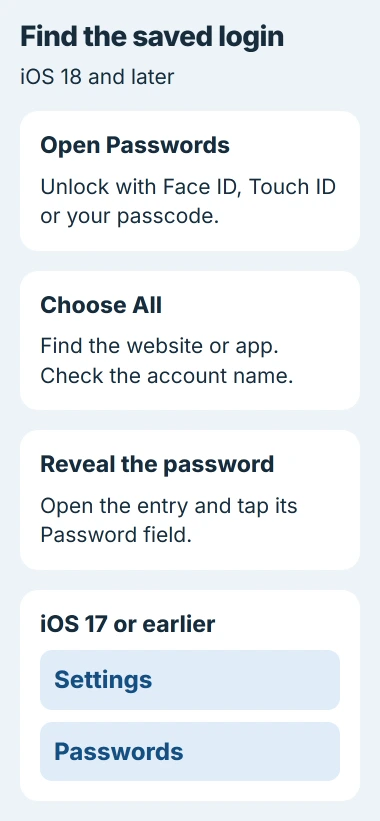
Tap the matching entry and check its User Name before using the password. Accounts for the same service can look almost identical, especially when you have one for personal email and another for work.
Tap the Password field to see the saved password. Apple's saved-password instructions explain both the app and older Settings routes, including how to unlock the list.
If you copy the password, paste it straight into the sign-in field you're using. Don't put it in a message or note just to move it between apps; you can already read it in the saved account entry.
I'd check the username first, even when the password looks familiar. The right password paired with the wrong account address can give you the same sign-in error as a mistyped password.
Use Settings on iOS 17 or earlier
Open Settings, scroll to Passwords and unlock the list when asked. Select the website or app, then reveal its password. You're viewing the same kind of saved login, just inside Settings.
Use the separate Passwords app when the Settings route doesn't match your phone. It arrived in iOS 18, which is why the old route doesn't match a newer iPhone.
Check Settings > General > About > iOS Version if you're unsure which route to use. Your software version decides where to look, rather than whether your iPhone has a Home button.
Face ID, Touch ID and your passcode unlock the list of saved logins. Whether your model uses your face or fingerprint doesn't change where its website passwords are stored.
Search All, shared groups and Deleted for a missing login
Return to the main Passwords screen and choose All before searching again. If you've selected a category or shared group, you may be seeing only part of your list.
Check a shared group if you moved the login there. Devices need compatible software to use shared passwords, so an older device may not show a login after you've moved it into a group.
Next, open Deleted in the Passwords app. Older releases through iOS 17 call it Recently Deleted, inside Settings > Passwords. Look for the missing account there before creating another saved entry.
An entry in Deleted was saved and then removed. Use its recovery control to put it back in your password list.
If the login isn't in any of these lists, you may have saved it in another password manager. Check the one you used to create the account; browsers don't all save their logins in Passwords.
For a Wi-Fi password, use the iPhone Wi-Fi password procedure. It's in the network list, so searching website accounts won't find your router's saved password.
Check sync when the password exists on another device
If the password is on your Mac or iPad but missing on this iPhone, check which Apple Account each device uses. They need the right account as well as password syncing turned on.
On the iPhone, open Settings > your name > iCloud > Passwords and check Sync this iPhone. Older releases through iOS 17 label that iCloud item Passwords and Keychain.
The iCloud Keychain setup instructions explain how to connect your devices. If setup asks you to approve from another trusted device or enter an older device passcode, follow that request.
If the switch won't stay enabled, use the iCloud Keychain sync checks. Repeatedly editing the website entry won't repair a sync setting that turns itself off.
Keep the password saved on your other device while you sort out sync. Deleting that entry can leave your iPhone without a saved login to receive.
Separate a passkey from a password that needs changing
A saved entry may contain a passkey, which lets your device approve a sign-in without a password to type. That account may have no password characters for you to reveal.
Choose the site's passkey sign-in option if you created one for that account. If the site asks for a password instead, use its account recovery or password-setting steps. A passkey doesn't contain hidden password text.
An ordinary saved password can also be out of date. Revealing it shows what you saved; the website may no longer accept it if you've since changed the password.
Change the password through the service's account settings or recovery process, then update the saved entry. Editing only the Passwords app doesn't change the password held by the website.
If the entry is still missing after checking its manager, groups, deleted entries and sync, use the service's password recovery. Contact Apple Support if you can't open Passwords or the iCloud sync problem continues.
The Short Version
Use Passwords > All on iOS 18 and later, or Settings > Passwords on older software. Unlock the list, select the right account and reveal its password. For missing entries, check groups, Deleted, another manager and iCloud sync.
Checked November 5, 2026.

Isaac Smith is the founder and editor of PC Glance, a website that covers computers, laptops, and technology. He is a tech enthusiast and a computer geek who loves to share his insights and help his readers make smart choices when buying tech gadgets or laptops. He is always curious and updated about the latest tech trends.