
Google Workspace Sync for Microsoft Outlook connects your work or school account to supported classic Outlook on Windows. Install the tool, give it access to the right account and open its new Outlook profile to start syncing.
A personal Gmail account can't use this tool, and it doesn't work with the new Outlook. Check both before installing; a fresh download won't change those requirements.
Check the account and Outlook installation first
Ask your administrator whether your account uses Google Workspace and they've finished setting it up for your organization. Having a custom email address doesn't tell you whether this service is turned on for your account.
Google's system requirements list the supported desktop Outlook versions for Windows. GWSMO is the sync tool's short name; it isn't a mobile app or a tool for Outlook on Mac.
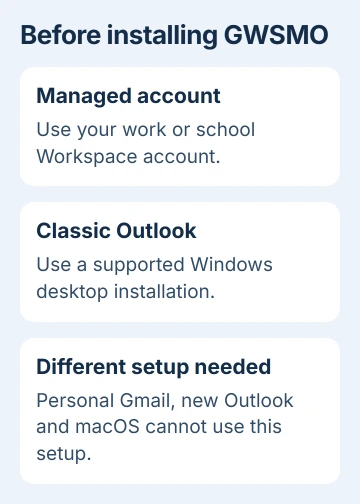
Open Outlook (classic) from Start. GWSMO needs MAPI, a way for desktop tools to connect to Outlook. The new Outlook doesn't support it, as the Outlook feature comparison shows.
Outlook from the Microsoft Store and 64-bit Office on ARM devices aren't supported either. If you're unsure how Office was installed, have IT check before trying the installer again.
You'll need administrator permission on the PC to install GWSMO. At work, IT may provide an approved installation package for you instead of asking you to download it yourself.
Download the user installer and close Outlook
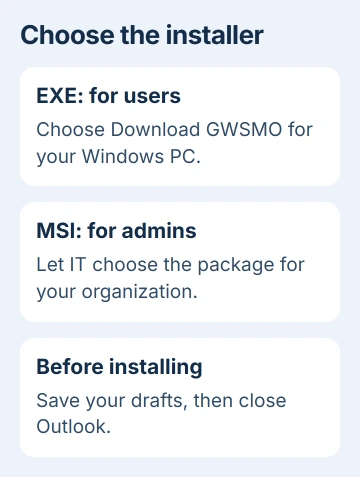
Close Outlook before installing. Save any open draft messages first, then use the GWSMO download page on the Windows computer where you'll use the account.
Choose the EXE file recommended for users unless your administrator gave you another package. The MSI editions on that page are for administrators to install across their organization, even if a filename looks newer.
Open the downloaded installer and follow its prompts. If IT has already installed GWSMO, open Set up a Google Workspace Sync user from Start; you're ready to set up your account.
If installation fails, your Outlook edition or Windows setup may not meet the requirements. Save the error and compare your installation with the supported list before trying to fix your password.
I'd keep your existing Outlook data file until the new profile works. Installing the sync tool is separate from moving old mail, especially when some messages are stored only on your PC.
Authorize the work or school account
When setup asks for an account, enter your full Workspace email address and choose Continue. Sign in, complete any verification, then review and allow the access it requests.
The account authorization steps use your work or school account. Read the email address in your browser before allowing access, since an existing sign-in could select the wrong account.
If you can't sign into the account's website either, ask your administrator to fix that first. Repairing the Outlook profile won't fix a wrong password or a suspended account.
If the website works but GWSMO setup fails, give IT the exact error and say which step failed. They may need to change your organization's access settings before setup can create the profile.
Use GWSMO's authorization steps rather than app-password or server instructions for a different setup. It connects to Workspace in its own way, instead of using ordinary IMAP and SMTP email settings.
Decide whether old Outlook data needs importing
Setup can let you import an existing Outlook profile or a PST, an Outlook data file. Choose the data you want copied into your work or school Google account.
The import choices are optional. If your mail, calendar and contacts are already in Workspace, you can sync them without importing an old profile.
An Exchange import copies the existing data you select; it won't keep bringing in new Exchange messages afterward. If you'll keep both services active, ask IT where new mail will be delivered.
A large import can take hours. Contacts and calendar information are handled differently from email, and you can start using Outlook while imported mail is still arriving.
If the import choices are missing, ask IT whether they've installed the separate tool for moving old data. Creating more profiles won't add that tool, and it can leave you with several similar names to choose from.
Open the new profile and check the first sync
Choose Start Microsoft Outlook from setup, select your Google Workspace profile, then click OK. A profile is a saved Outlook setup. Pick the new one, rather than your old Exchange or ordinary mail profile.
To use it by default, open Options where you choose the profile and select Set as default profile. First check that it's the account you intended to set up.
When Outlook opens that profile, GWSMO starts syncing. Check a recent email, a calendar appointment you recognize and a contact. That checks all three kinds of data instead of just the inbox.
Send a short test message and check for its reply. If email works but calendars don't, tell support exactly that before removing and adding the whole account again.
Some Outlook features sync differently than with Exchange. The GWSMO FAQ lists differences, including unsupported distribution lists (saved groups of recipients) and contact formatting.
Outlook rules are separate settings too. Use the Outlook rules guide to check what your rule does before expecting it to work the same way in Gmail.
Get help for missing data or a stalled setup
Sign into your work or school account on the web and look for the missing item there. Keep that online copy while IT checks the Outlook profile and sync status.
If you're using an Exchange profile, it may only download recent mail. The older-email sync guide covers that setting; its Exchange slider doesn't fix GWSMO.
Give your administrator your Windows version, Outlook edition, installer error and the type of data that's missing. GWSMO's tools can use trace logs, records of what the tool did, to check installation and sync failures.
Keep the original PST and old profile until you've checked the imported folders and items stored only on your PC. Then decide with IT what to remove; opening the new inbox is only part of that check.
The Short Version
Use a managed Workspace account with supported classic Windows Outlook, install GWSMO and authorize the account. Import old data only when needed, open the new profile, then check mail, calendar and contacts before removing anything old.
Checked November 5, 2026.

Isaac Smith is the founder and editor of PC Glance, a website that covers computers, laptops, and technology. He is a tech enthusiast and a computer geek who loves to share his insights and help his readers make smart choices when buying tech gadgets or laptops. He is always curious and updated about the latest tech trends.