
A Mac can screen mirror to a compatible Roku through Control Center > Screen Mirroring. Connect your Mac and Roku to the same Wi-Fi, then turn on AirPlay under Apple AirPlay and HomeKit on the Roku before selecting it on your Mac.
Roku's separate Screen mirroring settings are for other devices. For your Mac, check AirPlay support first; the Android and Windows connection settings aren't the ones you need.
Check the Roku model and switch AirPlay on
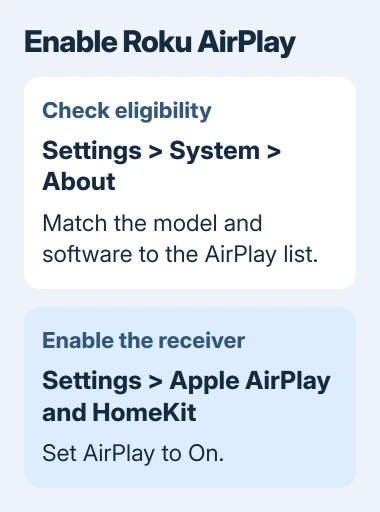
On the Roku, open Settings > System > About. Check the model number and software version. Players sold under the same product name can be different generations, and AirPlay support can differ between them.
Compare that model with the current Roku AirPlay compatibility list. Some listed devices need Roku OS 9.4 or newer; others require 10.0 or newer.
Roku's own instructions list macOS Mojave 10.14.5 or later for AirPlay 2. Check the Mac's version in Apple menu > About This Mac, especially when setting up an older computer.
To check for a Roku update, choose Settings > System > Software update > Check Now. Let any offered update finish. It can bring a supported player up to the required version, but won't add AirPlay to an unsupported model.
Return to the Roku's main Settings menu and open Apple AirPlay and HomeKit. Check that AirPlay is On. You don't need to complete HomeKit setup to mirror your screen; that separate process is for home-control features.
If the AirPlay entry is missing, check your exact model against the list again. I'd check that before buying a mirroring app: not every Roku can receive AirPlay.
Connect the Mac through Control Center
Join the Mac and Roku to the same wireless network. Check the Roku's network name in Settings > Network > About and compare it with the network your Mac is using.
Then connect from the Mac:
- Click Control Center in the menu bar.
- Click Screen Mirroring.
- Select the Roku or Roku TV from the available displays.
- If the TV shows a four-digit code, enter it on the Mac.
- Choose what to share from the options your macOS version offers.
The Mac AirPlay controls may let you share one window, mirror your screen or extend your desktop onto the TV. Choose mirroring to show the same desktop on both.
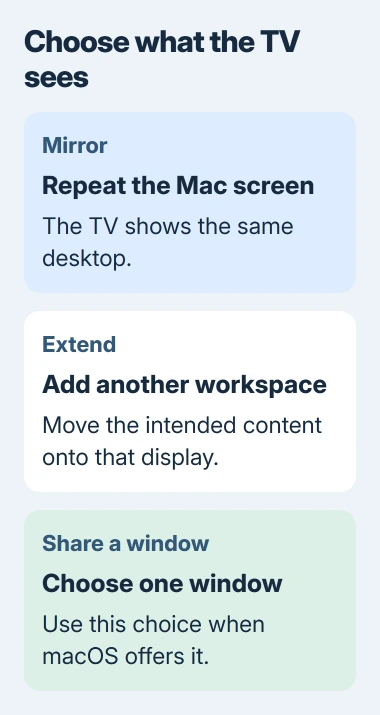
Current macOS may also offer Set as Default when you choose what to share. Select it if you want to use that choice for later connections. Older versions may show a simpler menu for choosing a display.
Start with a window you're happy to share and check that it appears on the TV. For a presentation, make sure the audience sees your slides rather than your notes or another desktop.
Close private windows before mirroring the whole screen, since anything you open on that desktop can appear on the TV. Sharing one window may suit you better if your macOS version offers it.
Use video AirPlay when the desktop isn't needed
In a movie or music app that supports AirPlay, use its AirPlay control and select your Roku. This sends the video or music without showing your whole Mac desktop.
The control usually appears in the app's playback controls. Some apps put it inside a sharing menu. If an app doesn't offer AirPlay, check how that service lets you play it on a TV.
If your desktop mirrors but a movie won't play, the connection to the Roku is working. Use the AirPlay video-format guide to check the playback problem.
If you're sharing from a phone, follow the iPhone-to-TV connection steps for its Control Center gestures. On your Mac, you start from the menu bar.
I'd use desktop mirroring for a demonstration and the app's AirPlay option for supported video. Choose based on what you want the TV to show.
If the Roku doesn't appear in Screen Mirroring
Check three things before changing anything on the Mac: the Roku model supports AirPlay, its AirPlay switch is on, and its network matches the Mac's. A different network name can explain an empty destination list.
On a guest or managed network, ask whether devices are allowed to communicate with each other. Being able to browse the internet doesn't tell you whether the Mac can reach the TV on that network.
Wake the Roku and TV, then reopen Screen Mirroring. If your supported Roku still doesn't appear, restart both devices and check for software updates, then try again.
If a Roku TV or Streambar disappears only when it's off, check Settings > System > Power for Fast TV start or Fast start. Turn on the option your model offers to keep it connected to the network in standby.
That standby option uses more power. Leave it off if you only need AirPlay while the TV is already on; it won't fix a connection problem that happens while the Roku is awake.
If the Roku connects but you get no sound, check that your Mac, TV and any attached receiver aren't muted. With a working picture, check the audio before repeating the connection steps.
End sharing and report a persistent failure
Reopen Control Center > Screen Mirroring. Use Stop on current macOS, or deselect the connected display on other versions. Check that the TV has stopped showing your Mac before opening private work.
If you used AirPlay within an app, open its destination control again and select your Mac to bring playback back. The Roku remote's Home button can also end streamed playback.
If your supported setup still doesn't work, give support your Roku model, Roku OS version and macOS version. Say whether your Mac lists the Roku and whether desktop sharing fails or only one video won't play.
The Short Version
Verify AirPlay support and enable it on the Roku. Connect both devices to one Wi-Fi network, select the Roku in Screen Mirroring and choose what to share. For supported video alone, use the app's AirPlay control.
Checked November 5, 2026.

Isaac Smith is the founder and editor of PC Glance, a website that covers computers, laptops, and technology. He is a tech enthusiast and a computer geek who loves to share his insights and help his readers make smart choices when buying tech gadgets or laptops. He is always curious and updated about the latest tech trends.