
A Switch controller plugged into a PC can charge without its buttons working in a game. Connect it directly with a data cable, then check whether Steam detects your controller before changing the game's settings.
These steps cover the original Nintendo Switch Pro Controller and compatible pads whose maker lists a PC mode. Joy-Cons, the Switch 2 Pro Controller and third-party controllers can need different connections or software.
1. Check the cable and the controller model
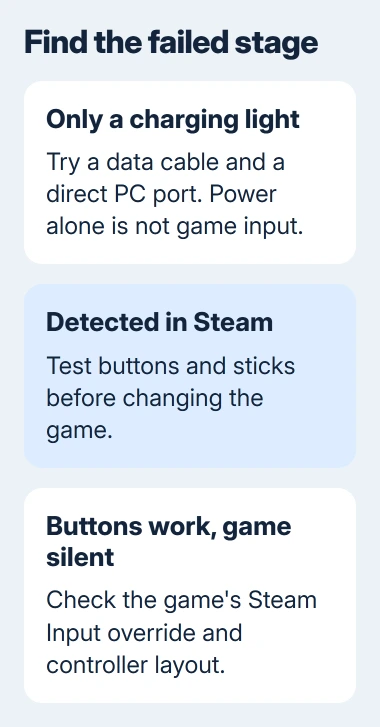
Exit the game and plug the controller into the PC itself. Remove a hub, dock or extension for this check. Use a cable known to carry data, rather than judging it by whether a charging light appears.
Find your model on the controller or in its manual. If it's a third-party Switch-style pad, check whether it supports a wired PC connection and whether you need to select PC or XInput mode.
XInput is a system many Windows games use to read controller buttons and sticks. A mode switch can make Windows recognize your pad as a different type of controller. The same buttons and USB plug don't make every model work alike.
Don't apply button-hold combinations from another controller's manual. Use the sequence for your exact model, reconnect it afterward, and check whether the PC now recognizes it.
If your PC still doesn't recognize the controller, try another data cable and a second direct port. If that works, the connection you replaced was the problem. Once the PC recognizes it, continue to Steam.
2. See whether Steam receives button presses
Open the desktop Steam client, then choose Steam > Settings > Controller. Look for the connected controller. If a test control is offered, open it and press several buttons and move both sticks.
Valve's Switch Pro support announcement confirms support through Steam Input. Its original screenshots use an older interface, so the current Controller settings are the place to start.
If the buttons respond in Steam, your cable and controller are sending input. Move to the game's settings instead of reconnecting a device that's already working.
If Steam doesn't show your controller, restart Steam with it connected, then reopen Controller settings. Leave game settings alone until Steam can detect it. If Windows also displays a USB error, go to the device-error section.
You can also check what Windows receives with the Windows controller input test, opened through joy.cpl. That older panel can behave differently from Steam, so compare the results.
Write down the device name Steam shows. A generic name you don't recognize may come from a third-party pad's selected mode. If the expected Switch Pro entry never appears, include that name and your model when asking for help.
3. Enable Steam Input for the affected game
Close the game fully. In Steam's Library, right-click its title and choose Properties > Controller. Set the game's override to Enable Steam Input, then close Properties and launch it again from Steam.
Steam Input turns supported button presses and stick movements into input the game can use. It can help when Steam recognizes your controller but the game expects a different kind of pad.
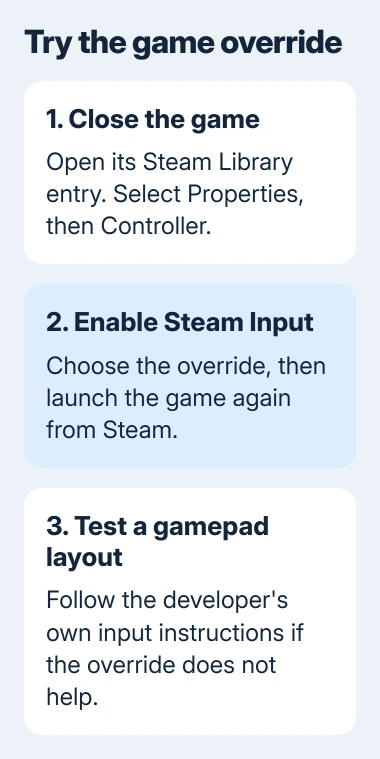
The legacy-input documentation explains how Steam can turn controller input into gamepad actions, keystrokes or mouse movements. Choose a gamepad layout if the game expects a standard controller.
If you've loaded a custom layout, check what each button is set to do. A button assigned to a keyboard key can behave differently from the gamepad button printed on your controller.
I'd try the default gamepad layout before importing a community configuration. That tells you whether the game accepts ordinary controller input or needs more checks in its own settings.
Open the game's own controls menu and enable controller input if that title requires it. Test in actual gameplay as well as the menu, because some games let the mouse control menus while the pad controls the character.
If this change stops controls that worked before, restore Use default settings. Some games handle controllers themselves and need Steam Input disabled. Follow that game's developer instructions.
4. Separate a button-layout issue from no input
If the pad now works but confirm and cancel feel reversed, check Use Nintendo Button Layout in Steam's Controller settings. Nintendo and Xbox position labels differently, so an A prompt can be confusing even with working input.
Choose the layout you want, then check which physical buttons confirm and cancel. Reversed labels don't mean you need to reinstall a USB driver.
If only one game ignores your controller, try another installed game that supports gamepads. If it works there, check the first game's controller support, selected layout and input settings.
If you're launching a game through another service, a Steam setting may not apply. Check that game's controller requirements and use a launch method it supports.
For Steep alone, compare its controller layout when Steam reads the pad but the game ignores it.
If the controller was working and keeps dropping out, use the controller disconnection checks instead. Repeated loss of the device is different from a game that never reads its buttons.
5. Read Windows' USB error before replacing drivers
When Windows displays a device-recognition error, open Start, search for Device Manager and select it. Find the affected device, open Properties, and read Device status on the General tab.
Microsoft's USB-C troubleshooting instructions start with the reported error code. Write down that code and the device name before looking for a driver fix.
This error happens before the game can use your controller. Changing button assignments won't fix a failed USB connection. Address the Windows error or your model's driver requirements first.
Use Windows Update or drivers supported by your PC or controller maker when needed. Leave unrelated USB controllers alone in Device Manager, even if they're listed in the same category.
Try the controller on another supported computer if you can. A failure with two cables and more than one computer gives its maker a clearer report than a single game menu that won't respond.
When it still won't work
Tell the controller maker your exact model, connection type, which cables you tried and the Windows error. If buttons work in Steam but fail in one game, tell that game's developer which Steam Input setting and layout you tried.
Make clear which result you got. A controller with buttons that respond in Steam needs different help from one Windows can't recognize at all.
The Short Version
Check a direct data connection, confirm input in Steam, then enable Steam Input for the game and relaunch it. Reversed buttons need layout settings; a missing USB device needs its Windows error checked first.
Checked November 5, 2026.

Isaac Smith is the founder and editor of PC Glance, a website that covers computers, laptops, and technology. He is a tech enthusiast and a computer geek who loves to share his insights and help his readers make smart choices when buying tech gadgets or laptops. He is always curious and updated about the latest tech trends.