
Android's Swipe option lets you open the Lock Screen with a finger gesture instead of a PIN. Choose it in your screen-lock settings after entering your current code. The phone then stops asking for that code; it doesn't remember it for you.
Swipe keeps a Lock Screen in front of the Home screen, while None skips that extra screen. Neither protects the phone from someone holding it. A fingerprint with a backup PIN makes more sense for the personal phone you carry around.
Decide whether you want Swipe or faster secure unlocking
Swipe and gesture navigation do different jobs. Swipe changes how you open the phone from its Lock Screen. Gesture navigation changes how you move between Home, recent apps and the app you're using.
Google lists Swipe and None as options with no lock in its screen-lock choices. Choose Swipe only if you're comfortable with anyone holding the phone being able to open it.
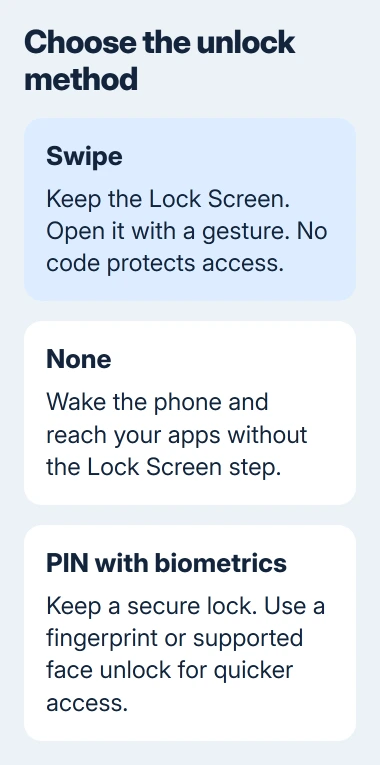
That can suit a shared demonstration phone or a device kept in a controlled room. For your personal messages or payment apps, I'd keep a secure lock and make unlocking quicker another way.
If you only dislike typing a PIN, check the phone's fingerprint or face-unlock options first. Those can open the device quickly while keeping a PIN, pattern or password as the backup method.
Being asked for your backup code after a restart is a separate issue. Switching to Swipe removes the secure lock. It isn't a fix for a fingerprint or face sensor that failed once.
1. Find the screen-lock controls on your phone
Unlock the phone normally and open Settings. On a current Pixel, go to Security & privacy > Device unlock > Screen lock. The screen then asks for your existing PIN, pattern or password.
The Pixel screen-lock guide uses that route. Older Android releases and other manufacturers can place Screen lock directly under Security instead.
On current Galaxy software, open Settings > Lock screen and AOD > Screen lock and biometrics. Enter the existing code, then select Swipe from the lock choices.
Older Galaxy releases use Lock screen > Screen lock type, sometimes with Lock screen and AOD as the first menu. Search Settings for the screen-lock option if your software uses those older labels.
Secure lock settings changes things such as how soon the phone locks. To change the unlock method, you need the list containing PIN, Pattern, Password and Swipe.
If the menu labels don't match, check your phone's exact model and software version. A manual for a different generation may point to a menu that has moved.
2. Confirm the current lock and select Swipe
Enter your current code, then choose Swipe. Before agreeing, read any prompt about removing protection or saved fingerprints or face data.
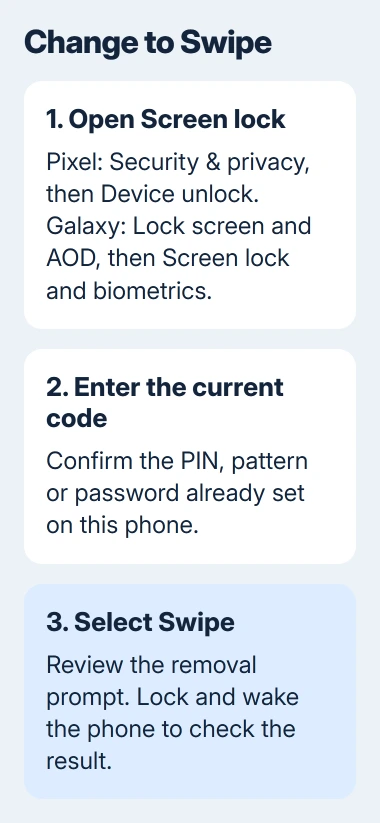
Android asks for your current PIN, pattern or password before changing the lock, so Swipe can't get you past a forgotten code. Your Google Account password is separate from your phone PIN.
For a locked Galaxy with a forgotten code, use the Samsung forgotten-PIN options. The choices vary with the previous lock and recovery options. Swipe can't be switched on outside Settings to bypass the code.
If the phone is already open but changing its lock asks for a code you don't know, stop at that prompt. Keep the phone accessible while its owner or administrator handles the change.
After saving, return to the lock-type page and check that Swipe is selected. That tells you the unlock method changed and you didn't just close a prompt.
3. Turn the display off and check the result
Press the power or side button to turn the display off, then press it again to wake the phone. Swipe across the Lock Screen. On Pixel, swipe up to continue; on Galaxy, you can swipe in any direction.
The phone should open without asking for a PIN, pattern or password. The Lock Screen can still show its clock and notifications before you swipe, because Swipe leaves that screen in place.
If the phone goes straight to the Home screen as soon as it wakes, check whether you selected None. That setting removes the extra Lock Screen step instead of leaving it available for a swipe.
If a fingerprint or face scan opens the phone first, check which lock type is selected in Settings. Testing while the phone is already unlocked can make two different settings seem the same.
A phone's screen lock is also separate from its mobile-network lock. Choosing Swipe won't remove a carrier restriction. The Pixel lock-type explanation explains the difference.
Check apps that depended on the old lock
Samsung's lock-method guidance explains that some features become unavailable with Swipe or None. Banking apps can require stronger protection, and biometric unlocking isn't available with those methods.
Open an app you rely on and check whether you can still sign in. If it asks for a secure device lock, return to the same screen-lock settings and restore a PIN, pattern or password.
Android's backup guidance also links your screen lock to backup encryption, which protects saved data. Keep a secure lock if you want your backups protected by that PIN, pattern or password too.
An app can still ask for its own password when your phone uses Swipe. Removing the phone's code doesn't remove account passwords, app locks or work security requirements.
When Swipe is unavailable or you change your mind
Read the explanation beside a grayed-out option. A work or school phone may require a secure lock. Ask its administrator which methods you can use, rather than deleting certificates or management settings.
For your own phone, give the manufacturer its model, Android version and the exact message beside Swipe. Say whether the option is unavailable or the touchscreen won't let you select it.
To restore protection, reopen the screen-lock settings, choose PIN, Pattern or Password, and confirm. Lock and wake the phone once more to check that it asks for the new PIN, pattern or password.
Set up fingerprints or face recognition again if the phone asks. To reduce unlock prompts in trusted situations, review Extend Unlock separately. It keeps your secure lock and works only under certain conditions.
If the swipe gesture is missing or doesn't work, tell device support which screen is affected. A different Lock Screen app won't change a security policy or recover a forgotten code.
The Short Version
Select Swipe after entering your current screen-lock code. Wake the phone and check that swiping opens it without a code. For quick access that still protects your phone, keep a PIN and use fingerprint or face unlocking.
Checked November 5, 2026.

Isaac Smith is the founder and editor of PC Glance, a website that covers computers, laptops, and technology. He is a tech enthusiast and a computer geek who loves to share his insights and help his readers make smart choices when buying tech gadgets or laptops. He is always curious and updated about the latest tech trends.