

A Google Pixel needs to be erased if you've forgotten its PIN and Android insists on the screen code. A fingerprint or face you've set up may still open it when offered, but neither replaces the PIN when the phone demands it.
Erasing removes the screen lock and local data. Account protection remains: setup can still require a Google Account that was synced before the erase. Check your access to that account before choosing a reset method.
In this guide
1. Decide whether the PIN is forgotten or the screen failed
Read the prompt first. A SIM PIN belongs to the SIM and needs help from the carrier if forgotten. A screen-lock PIN opens the phone itself. A carrier restriction on another network is different again.
The Pixel carrier and screen-lock guide separates those locks. Don't factory-reset the phone to solve a SIM PIN or a carrier approval problem; erasing Android won't unlock either of those restrictions.
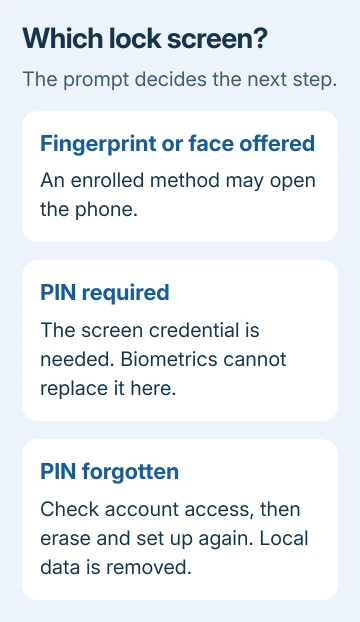
Try your saved fingerprint or face if the lock screen offers it. After a restart, or when Android needs to verify it's you, it asks for the PIN, pattern or password. Your fingerprint or face can't replace the code then.
If taps don't register but you know the PIN, treat that as a touch or display problem. Erasing removes data without repairing damaged hardware. Ask Pixel support about the unresponsive screen before choosing a reset.
Changing to Swipe instead of a screen code also needs the current PIN, pattern or password. It isn't a way around a PIN you've forgotten. Settings needs that code before it can change the lock.
2. Confirm what you'll lose and which account you'll need
Google says a phone that can't be unlocked needs erasing. Its Pixel recovery instructions offer Find Hub and hardware-button methods. Both routes erase any local files that weren't backed up.
Before erasing, sign in to the phone's Google Account on another device. Check the exact address and password, and make sure verification doesn't depend entirely on the locked phone. Use another available sign-in method if prompted.
If the password is forgotten too, complete Google Account recovery first. After resetting the account password, wait 24 hours before factory-resetting the Pixel, as the reset preparation instructions advise.
Check what's accessible in your online accounts, such as backed-up photos. Those copies exist independently of the locked handset. Check which copies are there; some downloads, recordings or app files may not have been backed up.
Restoring some backed-up data can require the PIN or pattern used at backup time. Signing in to the account doesn't mean you can restore every protected backup item without that old code.
I'd settle the account question before pressing an erase button. A reset can turn a locked screen into a setup screen that still can't be completed, while removing the local files you hoped to keep.
3. Erase through Find Hub when the phone is online
Use this route if the Pixel has power, a mobile-data or Wi-Fi connection, a Google Account signed in, Find Hub enabled, and is visible on Google Play. A phone that is offline can't receive an immediate remote erase command.
Open Find Hub on another Android device and use the locked Pixel's Google Account. On a friend's device, use guest sign-in. The web version at android.com/find needs that same account.
- Select the correct Pixel from the device list. Check its name carefully if several phones appear.
- Open the selected device's Settings or reset controls. The wording can differ between the app and website.
- Choose Factory reset or Factory reset device, then review and confirm the erase prompts.
- Let the reset finish on the Pixel. When its welcome screen appears, continue with setup.
Mark as lost secures the device; it doesn't reveal or replace an existing forgotten PIN with a code of your choice. Don't expect it to unlock the phone while keeping your files. A remote factory reset is still an erase.
After the reset, the device is no longer available in Find Hub. If the command can't reach it or Find Hub wasn't enabled, use the button route while you have the handset with you.
4. Use Recovery Mode when Find Hub isn't available
Charge the Pixel to at least 70% before a factory reset. Allow as much as an hour for completion. Have Wi-Fi available for setup afterward, along with the account information checked earlier.
Turn the phone off first. On Pixel 6 and later, the normal power menu uses Power + Volume Up; Pixel 5a or older models open it by holding Power alone. Select Power off from the menu.
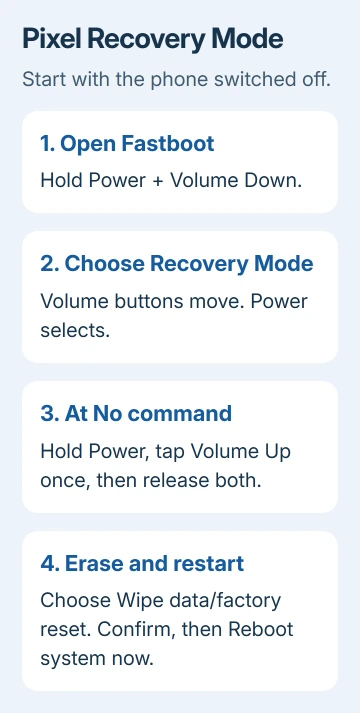
- With the phone off, hold Power + Volume Down until Fastboot Mode appears.
- Press a Volume button to move through the options to Recovery Mode. Press Power to select it.
- At No command, hold Power, press Volume Up once, then release both buttons.
- In the recovery menu, highlight Wipe data/factory reset with the volume controls. Press Power.
- Select the factory-reset confirmation and press Power. Wait for the wipe to finish.
- Select Reboot system now when the recovery menu offers it.
Fastboot and Recovery Mode use the hardware buttons for navigation. Tapping the screen isn't the way to choose those menu entries. Avoid other maintenance options when you're there to factory-reset the phone.
If the buttons don't respond, stop repeating the combination and have Pixel support check the hardware or recovery screen. Account recovery cannot repair a failed button.
5. Finish setup and restore the data you can access
At the welcome screen, connect to Wi-Fi and follow setup. When account protection asks for a previously synced Google Account, use that account. A newly created account isn't a replacement for the one protecting the phone.
Choose the available backup during setup and follow any old-lock verification prompts. Data that was only on the handset has been erased. Set a new screen lock after setup allows it, and keep the code somewhere secure.
For a secondhand Pixel requesting its former owner's account, ask the seller to complete account removal or arrange a return. If your own account won't verify, follow Google Account recovery and its offered verification methods.
For a failed reset, tell Pixel support your model and what Fastboot or Recovery displays. Account recovery and hardware repair solve different problems; describe the screen stopping you so your request reaches the right team.
The Short Version
Biometrics may work while Android allows them. A forgotten mandatory PIN requires erasing through Find Hub or Recovery Mode. Verify the old Google Account first; expect local data loss and possible old-PIN requirements for a restore.
Checked November 16, 2026.
 If you have any business, I can build it online






