

An email that disappeared in Outlook may still be in the mailbox, hidden by a filter or moved into another folder. Clear the inbox filter and check Other, then search the correct account before treating it as deleted.
For a message that was there yesterday, look for its new location first. If it's been deleted, switch to recovery before your account's recovery time runs out.
1. Clear the filter and check the other inbox tab
Open the Inbox for the address that received the email. If you've added several accounts to Outlook, check the full address in the folder list. Two folders called Inbox can belong to different mailboxes.
In Outlook.com or new Outlook, open Filter near the message list and choose All. A filter showing only unread or flagged messages can hide an email as soon as its status changes.
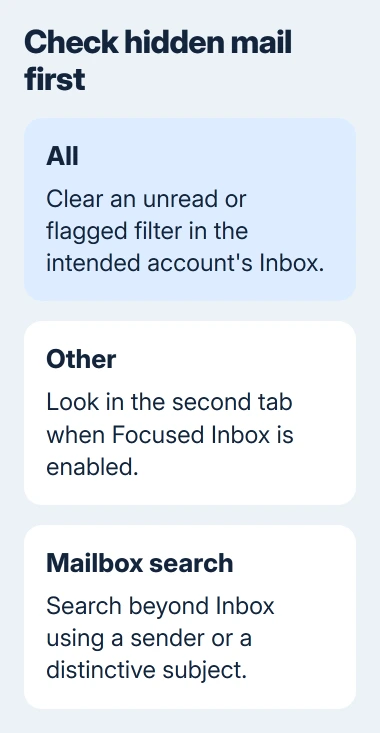
Microsoft's missing-inbox-email guidance recommends checking the filter and the Other tab. Focused Inbox sorts incoming mail into Focused and Other. It doesn't delete mail in Other.
Select Other if those tabs appear. If the missing message is there, move it to Focused through its message menu. Choose an always-move option only if future messages from that sender should follow the same route.
In classic Outlook, check the current view and its filters if messages vanish after you read them. Clear the filters before deciding the mail has gone missing.
2. Search beyond the current folder
Search for the sender or a distinctive part of the subject. Choose Current Mailbox or All folders, depending on your Outlook edition, so the search includes more than Inbox.
Classic Outlook also offers All Mailboxes when several accounts are present. Microsoft's search instructions describe widening the scope and narrowing results by sender, subject or attachments.
Open a match and check that it's the message you need, rather than an older reply with a similar subject. Check which folder the results show, or use the message's move control to put it in a folder you recognize.
Use the message's location to decide your next step. A message in a project folder was moved or filed there. Move an archived message back to Inbox, or start recovery if it's been deleted.
If the folder list itself is missing or collapsed, restore Outlook's folder pane first. Creating a replacement folder won't reconnect the original messages.
I'd search by sender before typing a long exact subject. A reply prefix or a small wording change can keep a subject search from finding the message you need.
3. Inspect Archive, Junk and Deleted Items
Open Archive under the same account. Archiving removes a message from Inbox while keeping it in the mailbox. Select the message and use Move to > Inbox to return it to Inbox.
Next, check Junk Email. If the message landed there by mistake, use Report > Not junk where offered. In the phone app, the menu may instead let you move it to Inbox.
Check Deleted Items too. If the email is there, restore it or move it back to Inbox using your version's controls. Open that destination folder to confirm the email is back.
If the email isn't in Deleted Items either, use the Outlook deleted-email recovery guide for the second recovery area and the accounts that support it. Use a computer for Outlook.com's full recovery controls.
Don't empty Junk or Deleted Items while searching. Those folders can hold the only recoverable copy, and Outlook.com removes junk automatically after its retention period.
If the email comes back but disappears again later, check the rules next. Moving it back won't stop a rule from moving it again or handling the next message the same way.
4. Stop a rule or cleanup action from moving mail
In new Outlook or Outlook.com, open Settings > Mail > Rules. Look for a rule that matches the sender, subject or account. Read what triggers it and where it sends the mail.
Turn off a matching rule for now, then check the folder it sends messages to. You can still edit the rule while it's off. Mail it already moved won't return automatically, so move those messages back yourself.
In classic Outlook, open File > Manage Rules & Alerts to check the account's rules. Some run only in the desktop app, which can explain why mail moves when you open Outlook on that computer.
Check Sweep actions if your account offers them. Sweep can keep only a sender's latest message or remove older messages. That can make a conversation shrink even when you haven't deleted anything yourself.
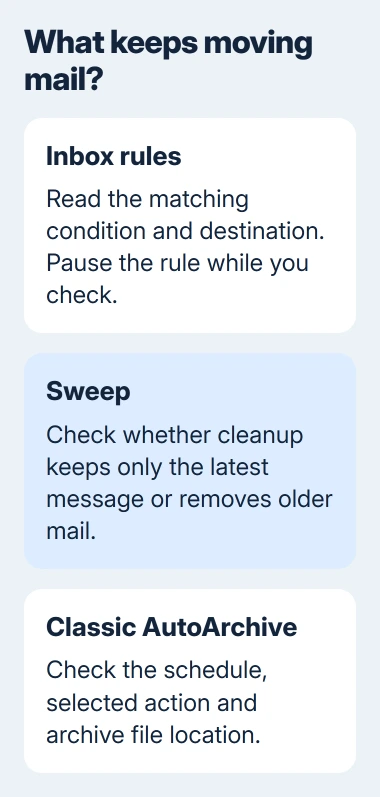
In classic Outlook, check File > Options > Advanced > AutoArchive Settings if older items leave on a schedule. Note the archive file location and the selected action before changing it.
AutoArchive is a classic Outlook feature, as the AutoArchive instructions explain. New Outlook doesn't have it. A work account's retention policy can also control where older mail goes.
If you find a rule you didn't create, check your account security promptly. For a company mailbox, give IT the rule name and where it sends mail. Leave it available for them to examine.
5. Compare the same mailbox with its online copy
Open the provider's webmail and sign into the same address. For Outlook.com, use its mailbox website; for another provider, use that provider's service. Search for the same sender and check the same folder there.
If the message is online but missing in one app, keep the online copy. Check whether the app is connected and syncing before removing the account or deleting a mail-data file.
If only older messages are missing in classic Outlook, check how much mail the account is set to keep offline. A limited download range can hide older mail in the app while it's still on the server.
If your work mail is gone online too, ask the administrator about retention rules, an Online Archive or recovery options. Give them the sender, approximate subject and date. Keep your password private.
Get help when no folder or search finds it
For a personal Outlook.com mailbox, use Help inside Outlook and describe whether the email vanished from every device. Mention any unknown rules or unusual account activity so support can address the right problem.
For work mail, contact IT promptly about recovery. If the provider confirms the message is no longer recoverable, ask the sender for another copy or check a backup you already kept.
The Short Version
Clear filters, check Other, and search the intended mailbox. Look in Archive, Junk and Deleted Items, then inspect rules and cleanup settings. Compare webmail before repairing an app, and start recovery promptly when the message is deleted.
Checked November 5, 2026.

Isaac Smith is the founder and editor of PC Glance, a website that covers computers, laptops, and technology. He is a tech enthusiast and a computer geek who loves to share his insights and help his readers make smart choices when buying tech gadgets or laptops. He is always curious and updated about the latest tech trends.