
Samsung Keyboard shows saved text shortcuts in its predictive text bar. Check Predictive text and the selected keyboard before re-creating phrases. Your Galaxy may be using Gboard or another keyboard instead.
If the missing shortcuts are the Clipboard, GIF or Settings buttons, restore the keyboard toolbar instead. Those buttons use a different setting from your saved phrases.
1. Find out which part of the keyboard is missing
Start in a blank note or an unsent message. Tap where you'd normally type to check the keyboard's usual suggestions and tools.
A text shortcut is a short phrase you've saved to suggest a longer one. For example, typing an abbreviation can offer a saved sentence in the suggestion bar. Tap that suggestion to insert the expanded text.
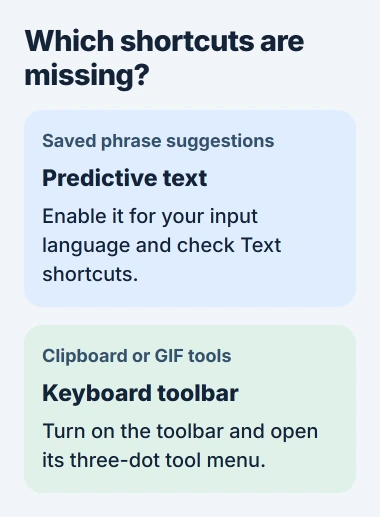
The toolbar is the separate row of tools, such as Clipboard, stickers and Settings. If that row disappeared but word suggestions still work, go to the toolbar section instead of re-creating text shortcuts.
Samsung says saved Text shortcuts appear in the predictive text bar. A phrase can still be saved even when Predictive text is off and you can't see its suggestion.
2. Select Samsung Keyboard as the active keyboard
Open Settings > General management > Keyboard list and default > Default keyboard. Read the selected name. If you're trying to use Samsung's saved shortcuts, choose Samsung Keyboard.
Return to the note and open the keyboard again. See whether Samsung's controls and saved phrase suggestions are back before editing the saved list.
The Galaxy keyboard settings show where to choose the default. Downloading or enabling another keyboard can leave you looking at its tools instead.
Gboard has its own settings and language controls. If the missing suggestion belongs to Gboard, use those settings instead of Samsung's Text shortcuts menu.
Changing the keyboard is also separate from changing Android's default apps. Use Keyboard list and default for this task, rather than changing the browser or messaging app.
If Samsung Keyboard is already selected, check its prediction settings next. You can inspect your saved shortcuts without installing another keyboard.
3. Turn Predictive text on for your typing language
Go to Settings > General management > Samsung Keyboard settings > Predictive text. On the current layout, turn on Predictive text for the language you're using.
Some releases show a single Predictive text switch instead. You can also open these settings with the keyboard's gear button. If that button is missing with the toolbar, use the phone's Settings app.
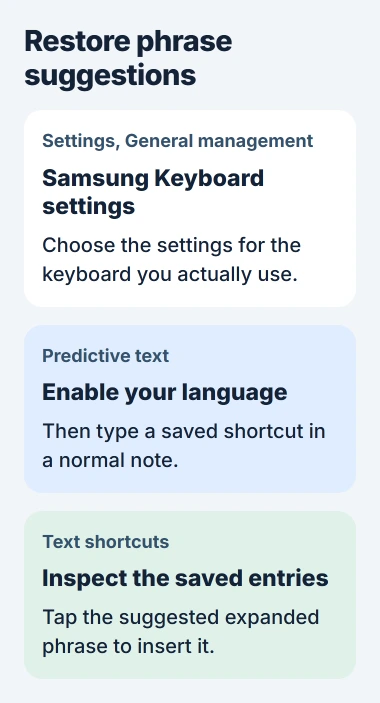
Return to the note, select your typing language and type one saved shortcut exactly as it appears in the list. Look in the suggestion bar and tap the full phrase when it appears.
This isn't the same as Auto replace, which changes a predicted word when you press Space or Enter. Turning Auto replace on isn't required just to tap a saved phrase suggestion.
If the full phrase appears, tap it and check the text in your note. That confirms the shortcut works again.
4. Inspect the saved list before adding anything again
Open Samsung Keyboard settings > Text shortcuts. Check whether your earlier entries are present. On some older layouts, look under More typing options or Smart typing.
The older Galaxy instructions show the More typing options route. A moved menu can make the list seem absent even though the feature still exists.
If the entries are still there, compare what you're typing with the saved Shortcut phrase. Check its Expanded phrase too, especially if several abbreviations look alike.
If an entry is missing, tap the plus button, enter the Shortcut phrase and Expanded phrase, then tap Add. Try a harmless sample first to check that it inserts the text you expect.
For example, save a short abbreviation for a sentence you often type, then test it in the note. Once the sample works, re-create the missing entries you still need from a copy of their text.
I'd leave the entries that remain alone. Clearing the keyboard's data won't bring back the text of a missing phrase.
5. Restore the toolbar when its buttons disappeared
Open Settings, search for Samsung Keyboard, and open its settings. Find Keyboard toolbar and switch it on. Return to the note and check the row of tools again.
If the row appears but a particular tool is absent, tap its three-dot menu to expand the available tools. Look for Clipboard or the other tool there before deciding it has been removed.
The Android clipboard guide covers that button and its saved items separately. Clipboard history is different from a Text shortcuts entry that expands an abbreviation.
Test the tool you needed. Opening Clipboard, inserting a saved phrase and seeing word suggestions each check a different feature. A working toolbar doesn't tell you whether your saved phrases or word suggestions work.
6. Check updates if the controls still misbehave
Install any Samsung Keyboard update offered by its app store, and check the phone's software updater. The Android app update guide explains why Galaxy Store and Google Play can have separate update lists.
Then reopen the note and repeat one simple shortcut test. If only one messaging app fails, tell support the same phrase works in another app. That helps them narrow it down without deleting your saved list.
Contact Samsung Support if the list is empty or controls stay missing. Include the phone model, One UI and keyboard versions, and whether saved entries remain. Use a sample phrase that doesn't contain private information in the report.
The Short Version
Select Samsung Keyboard and turn on predictions for your typing language. Check Text shortcuts, then tap the expanded suggestion to insert it. Use Keyboard toolbar for missing tools, and re-create only missing entries.
Checked November 5, 2026.

Isaac Smith is the founder and editor of PC Glance, a website that covers computers, laptops, and technology. He is a tech enthusiast and a computer geek who loves to share his insights and help his readers make smart choices when buying tech gadgets or laptops. He is always curious and updated about the latest tech trends.