
To print a Word document on paper, open File > Print on your Windows computer. Choose your printer and review how the pages will look. Set the range, copies and one-sided or two-sided option, then select Print.
These steps use desktop Word for Windows. Word in a browser has its own printing steps, and a PDF printer saves a file instead of printing on paper.
Open Print and select the actual printer
Save the document, then choose File > Print. The keyboard shortcut Ctrl+P opens the same print view in desktop Word. Under Printer, select the machine you want to print with and check whether it shows Ready.
Selecting Microsoft Print to PDF creates a PDF file. Choose the physical printer to print on paper. If you need a file to send, follow the Word PDF export procedure.
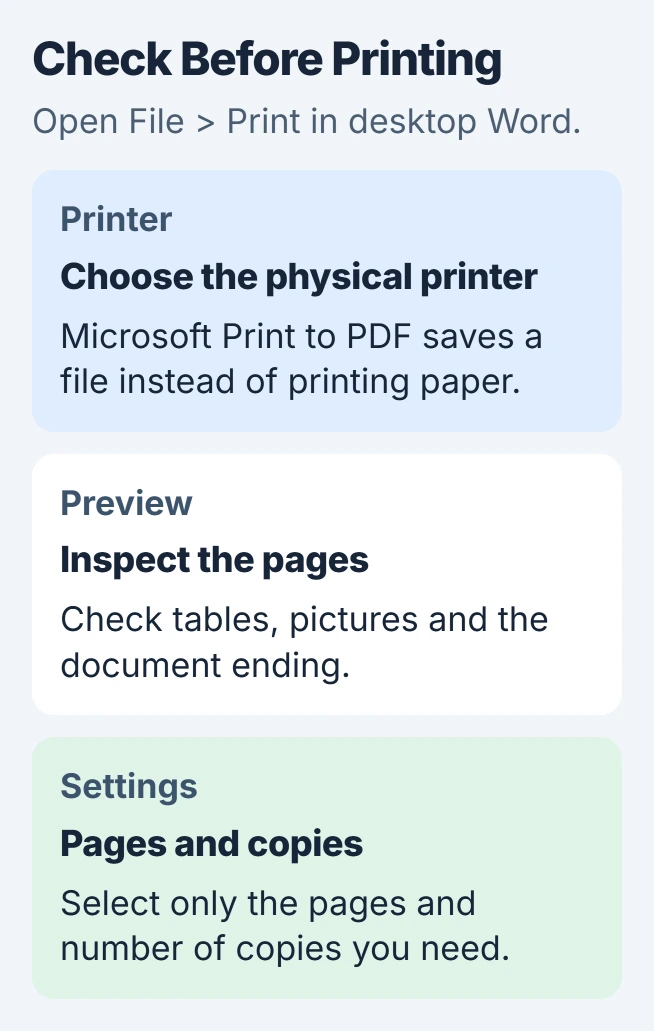
Microsoft recommends previewing the document and selecting its pages before printing. Use the preview's page controls to inspect the beginning and end, plus any page with a large table or picture.
If sheets emerge without any content, check why the printer makes blank pages with a printer-generated report.
Enlarge the preview with its zoom control if the text is too small to read. Zoom makes the preview easier to see; it doesn't change how many document pages print on each sheet.
Choose the pages and copies you need
Under Settings, open Print All Pages to see other choices. Use Print Current Page for the page displayed in preview. For a range, choose Custom Print and enter the intended numbers in the Pages box.
Use a hyphen for a range, such as 2-5, or commas to mix pages and ranges, such as 2,4-6. Check your selection and preview before printing, especially if the document has a cover page or starts numbering later.
Set Copies near the top of the print view. One copy of a ten-page document is different from ten copies of one selected page, so review the page range and copy count together.
For several copies, check the Collated or Uncollated choice. Collated keeps each complete document together. Uncollated groups copies of the same page, which can help if you'll assemble them separately.
I'd print one copy of a long or important document before increasing the count. A small check catches a mistaken page range or layout without using a stack of paper to discover it.
Match the paper, orientation and color
Read the paper size shown under Settings and match it to the paper loaded in the selected tray. Letter and A4 are different sizes. A document laid out for one can look different when sent to the other.
Choose Portrait for a tall page or Landscape for a wide one. Inspect the preview after a change: a wide table that doesn't fit needs attention in the document, rather than repeated attempts with the same print settings.
For document spacing, use the Word margin controls. Changing page margins affects the layout and can move text onto another page, so review the ending after adjusting them.
Color choices depend on your printer. Choose color, black-and-white or grayscale when offered. Some choices are in Printer Properties, so the controls can differ between printers.
For unusual paper, check the printer's supported media and tray instructions. The ordinary document print view doesn't replace the special feed settings used for Word envelope printing.
Set one-sided or two-sided printing
Open Print One Sided under Settings. If Print on Both Sides is offered, select it for automatic two-sided printing. This feature is also called duplex printing; the printer turns the paper for you.
The Word duplex procedure explains why the choice depends on your printer. A copier with two-sided copying and another printer on the same PC can offer different print options.
If automatic duplex isn't supported, choose Manually Print on Both Sides when available. Word prints one side, then prompts you to turn over and reload the stack. Follow the printer's loading direction.
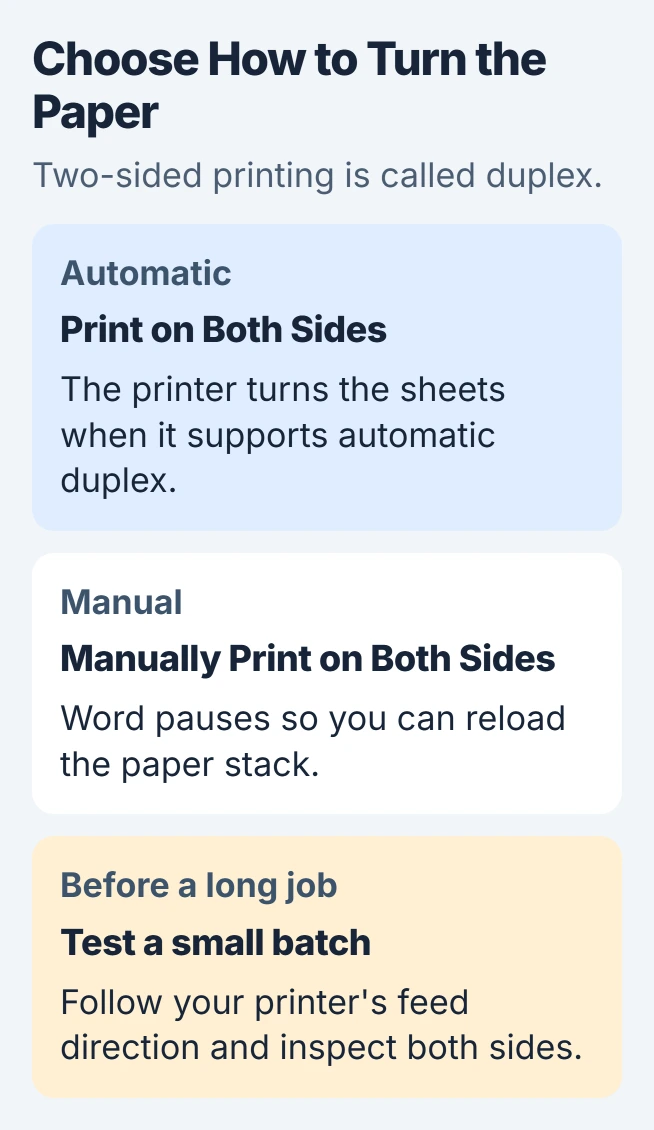
Test the reload direction with a small job before printing a long document. The right face-up or face-down direction depends on your printer. Getting it wrong can leave the second page upside down or print over the first side.
If the driver offers long-edge and short-edge choices, select the edge that matches how you'll turn the finished pages. Check both sides of the first sheet before producing the remaining copies.
Decide whether comments and background colors should print
For a review copy that needs comments, use Review > Show Markup to select the comments you want visible. In File > Print, review Print Markup under Settings before sending the job.
For a clean copy, choose No Markup in the Review tab's display control and inspect print preview. Hiding the marks for printing doesn't delete comments or accept tracked edits in your Word file.
If a document's background color or image should appear on paper, open File > Options > Display. Under Printing Options, enable Print background colors and images, then return to the print preview.
The background-printing setting is separate from Word's Dark Mode. A dark page in the editor doesn't tell you what will print; check the preview.
Print once, then follow the result
Select Print once the preview and settings look right. Check the first printed pages for order and cropping, plus the back of the sheet if you chose duplex. Stop a clearly wrong job before sending extra copies.
If nothing prints, try another simple file in Word and then a file from another app. This checks whether the problem affects one document or more than that. Note whether the same printer works from the other app.
For a Windows 11 connection test, open Settings > Bluetooth & devices > Printers & scanners. Select the printer, open Printer properties, and choose Print Test Page on the General tab.
The app-printing repair steps use that comparison. If the Windows test page fails too, troubleshoot the printer or driver. If only Word fails, give Office Support or IT the document and results from both apps.
The Short Version
Choose a physical printer and check the pages, copy count and preview. Match the paper and duplex settings, decide whether to print review marks and backgrounds, and check one printed copy before making more.
Checked November 5, 2026.

Isaac Smith is the founder and editor of PC Glance, a website that covers computers, laptops, and technology. He is a tech enthusiast and a computer geek who loves to share his insights and help his readers make smart choices when buying tech gadgets or laptops. He is always curious and updated about the latest tech trends.