
Focus, unknown-caller controls and call forwarding can send calls to voicemail without ringing. Compare a call from a saved contact with one from an unsaved number before resetting the iPhone.
If neither reaches the phone, check that your phone line is on and ask your carrier about incoming calls. Cellular data can work even when calls aren't reaching your number correctly.
1. Compare a saved caller with an unsaved number
Ask someone in Contacts to call your normal mobile number while the iPhone is beside you. Then try a number you haven't saved. Use ordinary cellular calls for this comparison, since FaceTime uses a different service.
Watch the screen as well as listening. Check whether the call appears silently or goes straight to voicemail without appearing; those need different checks. Look for a missed-call entry afterward.
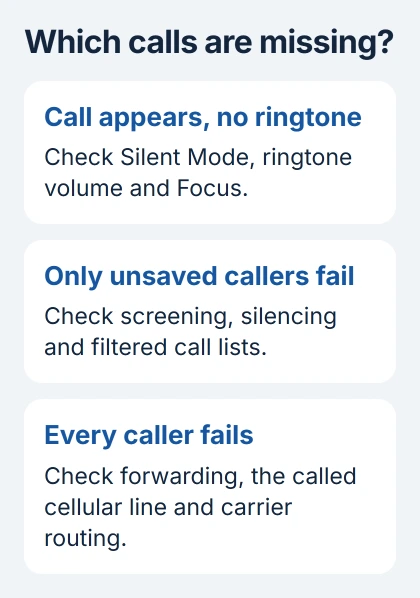
If the screen shows the call, check Silent Mode and the ringtone volume in Settings > Sounds & Haptics. Silent Mode can mute ringing while the call still arrives normally.
For calls that connect but have no sound, use the iPhone call-sound checks. Continue here when incoming calls stay silent, go elsewhere or never reach your phone.
I'd keep those two test numbers handy while checking settings. Repeat the relevant call after each change so you can tell which control made the difference.
2. Turn off the Focus that's silencing calls
Open Control Center and check Focus. If a Focus such as Do Not Disturb is active, tap it to turn it off for the test. Ask the saved contact to call again.
If ringing returns, open Settings > Focus and select that Focus. Check People to see who is allowed or silenced. A Focus can let some callers through while keeping others quiet.
Review its schedules if it keeps returning at a certain time or location. Change the schedule or allowed people to suit how you use the phone, instead of switching the Focus off again every day.
Apple recommends checking Do Not Disturb, blocked contacts and forwarding in its incoming-call troubleshooting. These checks come before a network reset when the phone has service and only certain calls fail.
If turning Focus off changes nothing, note that result and check the unknown-caller controls. A call from an unsaved number can be silenced for a different reason.
3. Review unknown-caller screening and the filtered lists
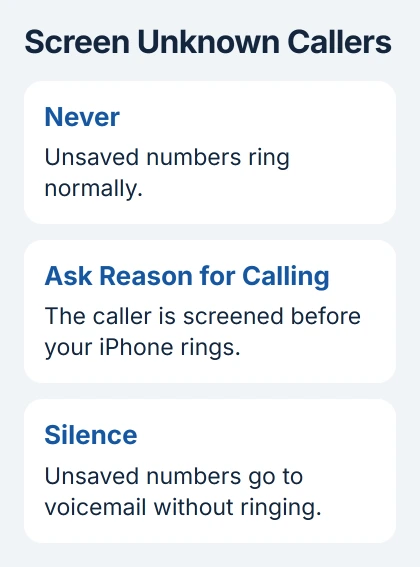
On current iOS versions, open Settings > Apps > Phone and find Screen Unknown Callers. Select Never for a test that lets unsaved numbers ring normally.
Ask Reason for Calling answers an unknown caller and asks why they're calling before your phone rings. Silence sends an unsaved caller to voicemail without ringing. Neither means your phone has lost cellular reception.
On versions that show Silence Unknown Callers instead, turn that switch off for the comparison. Before iOS 18, Phone settings are directly under Settings > Phone rather than inside Apps.
Check the Phone app's Filter button too. Look in Unknown Callers and Spam if those filters are enabled. In Classic layout, use Recents; in Unified layout, use Calls.
Apple's current caller-management controls let you filter calls into a separate list or silence them. If a call is missing from your main call list, check these filtered lists too.
Save important numbers, such as a doctor's office or school, in Contacts. If your carrier marks a real caller as spam, ask them how to correct that label.
4. Check blocks, forwarding and the intended cellular line
In Phone settings, review Blocked Contacts. Unblock the person trying to reach you if they're listed, then ask them to try again. Check the actual number they are calling from if the same person uses multiple numbers.
Find Call Forwarding in Phone settings and turn it off if calls shouldn't go elsewhere. This control depends on the carrier. If it isn't offered, ask the carrier whether forwarding is active on your line.
For Dual SIM, open Settings > Cellular, select the number people are calling, and check Turn On This Line. Some regions call this menu Mobile Service.
A second line can keep cellular data working while the line people are calling is off or missing. If that number disappeared after an eSIM transfer or setting up a new phone, contact its carrier to finish activation.
Don't delete an eSIM just to test calls. The carrier may have to help you activate it again. Tell them which number fails and which line still works.
5. Refresh service and check available updates
Turn Airplane Mode on in Settings, wait five seconds, then turn it off. Once service returns, try the incoming call again. If the status bar shows SOS, No Service or Searching, check the cellular connection.
The iPhone no-service guide covers that symptom in more detail. Try another location too, especially if the failure occurs only inside one building.
Restart the iPhone normally. While connected to the internet, open Settings > General > About and accept a carrier-settings update if one appears. These settings control how the phone works with its mobile network.
Then check Settings > General > Software Update for an available iOS update. After installing an update, let the phone reconnect and repeat the same incoming-call comparison.
If this started after changing carriers or moving your number, tell the carrier that outgoing calls or data work but incoming calls fail. Ask them to check the number transfer and how calls are being sent to your line.
6. Reset network settings only after the earlier checks
If the carrier finds no service or account problem, try Settings > General > Transfer or Reset iPhone > Reset > Reset Network Settings. This resets connection settings without erasing your photos or apps.
It removes saved Wi-Fi passwords and resets your previous settings for private network connections (VPN) and carrier data access (APN). Have your connection details ready; on a work phone, you may need your administrator's help.
Afterward, reconnect and ask the saved and unsaved callers to try again. If calls still don't arrive, give the carrier the approximate times, the calling numbers and what each caller heard.
Ask the carrier to check for outages, account blocks and errors in its call system. If it confirms the line works and suspects the iPhone, give those results to device support so they can check the hardware.
The Short Version
Compare saved and unsaved callers. Check Focus, screening, blocks, forwarding and the SIM line they're calling, then refresh service and update. Try a network reset later, and contact your carrier about calls that never arrive.
Checked November 5, 2026.

Isaac Smith is the founder and editor of PC Glance, a website that covers computers, laptops, and technology. He is a tech enthusiast and a computer geek who loves to share his insights and help his readers make smart choices when buying tech gadgets or laptops. He is always curious and updated about the latest tech trends.