
AirPods Max are ready to pair over Bluetooth when their light flashes white. Take them out of the Smart Case, then hold only the listening mode button for roughly five seconds. Select them in Bluetooth settings once that light appears.
If you've paired them before, check whether they're connected but sound is playing elsewhere. The fix depends on whether they're missing from Bluetooth, connected but silent, or showing a message about another Apple Account.
1. Remove the Smart Case and check charge
Take the headphones out of their Smart Case. Put them beside the phone or computer that needs the connection. The case puts them into a power-saving state; it isn't an earbud charging case and has no setup button on its back.
If the battery is low, plug a working charging cable into the right headphone's port. Match the cable to their Lightning or USB-C port, and check the power adapter and cable connections.
The AirPods Max storage guide explains the case's sleep function. Taking them out is the right start for listening; repeatedly holding both controls isn't a normal power-on procedure.
Before restarting or resetting them, charge them to 50 percent or higher when possible. If they won't charge, try the reset next.
2. Start pairing with the listening mode button alone
Find the two controls on the top of the right headphone. The round control that rotates is the Digital Crown. The listening mode button, also known as the noise control button, is the separate button beside it.
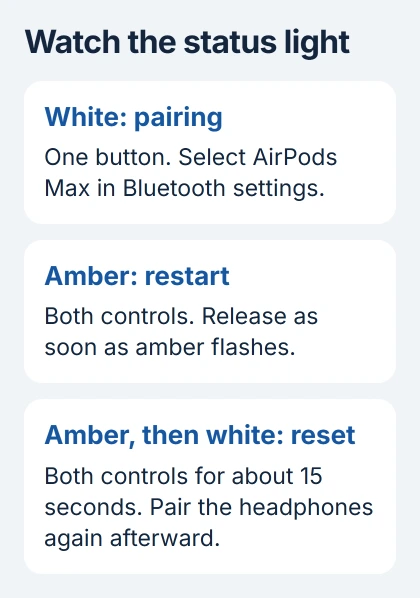
Hold the listening mode button by itself for roughly five seconds. Let go when the light near the charging port starts flashing white.
Apple describes this button in its manual pairing instructions. Holding the Digital Crown too will restart or reset the headphones instead.
On an iPhone or iPad, turn on Bluetooth in Settings > Bluetooth. Keep the headphones close, follow any setup animation, or choose the headphones from the Bluetooth list.
On a Mac, open System Settings > Bluetooth and choose Connect beside the AirPods Max. On macOS Monterey or earlier, use System Preferences > Bluetooth.
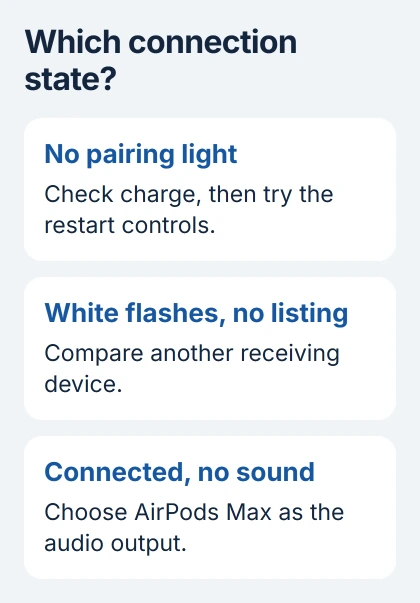
If the white light never appears, check the battery charge, then try the restart step. If it flashes but your device can't find the headphones, check whether another phone or computer can find them before resetting anything.
3. Check the connection and audio destination separately
If Bluetooth lists AirPods Max as connected, start a short audio clip and raise the volume a little. Check where that audio is playing before forgetting the pairing.
On an iPhone or iPad, open Control Center, expand the audio controls, and select AirPods Max from the audio-output list. On a Mac, open Control Center > Sound and choose them as the output.
AirPods Max can stay in the Bluetooth list while disconnected. If they say Not Connected, tap or click the entry to connect. If they say Connected but sound stays on the speakers, select AirPods Max in the audio-output list.
If playback moves between your Apple devices, check the automatic-switching settings. That behavior differs from headphones that never enter pairing mode or appear in Bluetooth.
For a video meeting, check the app's speaker and microphone choices too. The app may be using a different device from the one you've selected for the rest of the system.
4. Compare the receiving device before removing the pairing
On the phone or computer you're trying to connect to, switch Bluetooth off, then on in Settings. Try connecting again. If it still fails, restart that device and install available system updates.
Try pairing AirPods Max with another phone or computer using the white-light step. If that device finds and connects to them, check the first device's Bluetooth connection and software.
On Windows 11, use Settings > Bluetooth & devices > Add device > Bluetooth. On Android, open Bluetooth settings and use Pair new device or the equivalent control. The light must still flash white for pairing.
The non-Apple pairing instructions cover Bluetooth pairing on these devices. You won't see the iPhone setup animation on Windows or Android.
If other headphones also won't connect to the first device, check that device's Bluetooth. The problem may be there rather than in your AirPods Max. If the AirPods Max won't connect anywhere, try restarting them next.
5. Restart, then reset only if the restart fails
To restart, hold both controls together: the Digital Crown and listening mode button. Let go when the light starts flashing amber, then try connecting again.
To factory reset, hold both controls for roughly 15 seconds. Keep holding through the amber flashes until the light flashes white. Then pair the headphones with your chosen device again.
The restart and reset instructions explain the difference. A reset clears the headphones' settings, so try the simpler connection checks first.
Watch the light rather than just counting seconds. Letting go at amber restarts the headphones; holding through the white flash resets them. If neither light sequence works, tell support what happens when you arrange service.
6. Follow a message about another Apple Account
Secondhand AirPods Max may still be linked to the previous owner's Apple Account. A factory reset won't remove that link; the owner needs to remove the headphones from their account.
Ask the seller or previous owner to remove the headphones from their account in Find My. They select the headphones in Devices and use Remove This Device, following the confirmation prompts.
Follow the account-removal guidance when you see a message about another account. For an ordinary connection problem, leave your own devices in Find My.
If the previous owner can't remove the headphones, ask the seller to sort that out before you try to use them with your account.
7. Seek service if the headphones fail across devices
Contact support if your charged headphones won't flash white, won't complete the reset, or won't connect to any of the working devices you've tried. Give them the exact model, charging connector and what the light does.
Say whether they connect briefly and then drop, or never connect at all. If they disconnect while you're wearing them, try the ear-cushion alignment check for a separate reported cause.
The Short Version
Pair with the listening mode button alone and look for white flashes. If they're connected but silent, check the audio output. Try another device before restarting or resetting. A previous owner must remove them from their account.
Checked November 5, 2026.

Isaac Smith is the founder and editor of PC Glance, a website that covers computers, laptops, and technology. He is a tech enthusiast and a computer geek who loves to share his insights and help his readers make smart choices when buying tech gadgets or laptops. He is always curious and updated about the latest tech trends.