AirPods that keep saying Connection Failed need a fresh pairing attempt, starting with both earbuds charging in the case. Close the lid for 15 seconds, reopen it, and start pairing with the case control your model uses.
A failed Bluetooth connection is different from AirPods that connect but play no sound, or an alert about a different Apple Account. Check the message before resetting, because those cases don't all end with the same fix.
In this guide
1. Check both earbuds and Bluetooth
Put each earbud into its case slot. Check that each earbud shows it's charging. Keep the case powered if needed. Pairing won't help while one earbud isn't getting a charge or the case can't complete pairing.
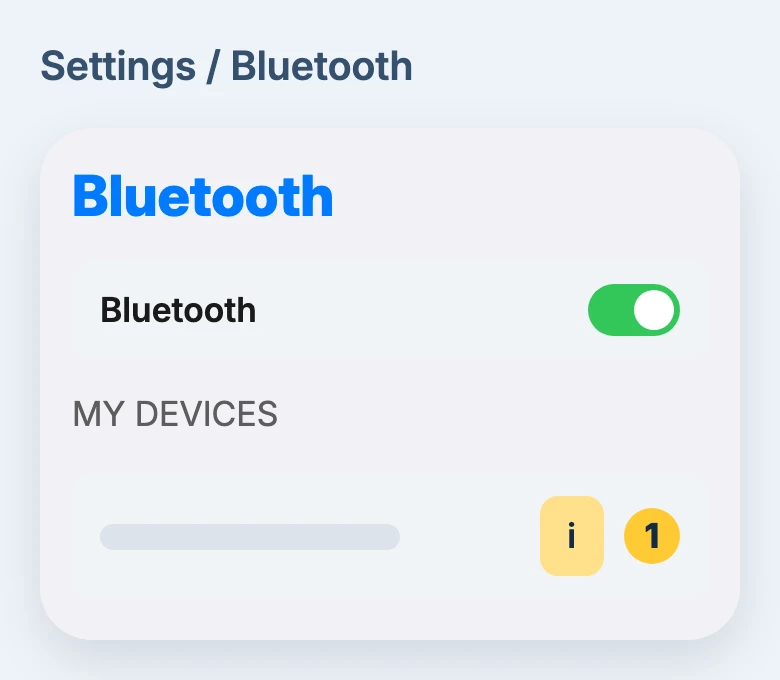
On iPhone or iPad, open Settings > Bluetooth and check that Bluetooth is on. On Mac, choose Apple menu > System Settings > Bluetooth. Keep the AirPods near the device you're trying to connect them to.
Apple's own steps say to update iOS, iPadOS, or macOS too. Install an available update through the device's Software Update settings, then try connecting again.
Check whether the error appears on just one device. If the AirPods still connect to a different compatible device, tell support that later; it helps them tell whether that device alone has trouble or every connection fails.
These steps cover AirPods earbuds and AirPods Pro. AirPods Max use different buttons and restart steps, so follow the AirPods Max connection guide for the over-ear headphones.
2. Check the audio destination when Bluetooth connects
Take the earbuds out and put them in your ears. On the iPhone, iPad, or Mac, open Control Center and select AirPlay. If your AirPods appear in the output list, select them and play audio with the volume turned up.
If you hear sound through the AirPods, the device is using them for playback. If the device says connected but sound stays on its own speaker, the output choice matters before you remove the Bluetooth pairing.
If your AirPods aren't in the output list, or selecting them fails, put them back inside the case and continue with pairing. Don't keep changing audio settings when the Bluetooth connection itself hasn't completed.
For AirPods that move between working devices unexpectedly, use the automatic switching settings. Switching behavior is separate from a pairing request that repeatedly ends in Connection Failed.
I'd make this quick playback check before a reset. It can get audio working without removing a pairing that already succeeds.
3. Start pairing with the right case control
Put both earbuds back in the case, close the lid, and wait 15 seconds. Open it again. Keep the earbuds inside while putting the case into pairing mode.
Older cases (AirPods Pro 1 and 2, plus AirPods 1, 2, and 3) use the rear setup button. Keep it pressed until the case light starts flashing white. White flashing is the pairing signal you're looking for, rather than a steady charge light.
The AirPods Pro 3, AirPods 4, and AirPods 5 cases use a front control. Double-tap the case's front surface and look for white flashing from the status light.
Hold the open case beside your iPhone or iPad after unlocking the device. Follow its setup prompt. On Mac, open System Settings > Bluetooth, find the AirPods among nearby devices, and choose Connect.
If the setup completes, play audio again. If Connection Failed returns, the next step removes the saved pairing and resets the earbuds. Keep the model-specific control in mind; pairing mode and a full reset use different sequences.
4. Forget the saved pairing before a reset
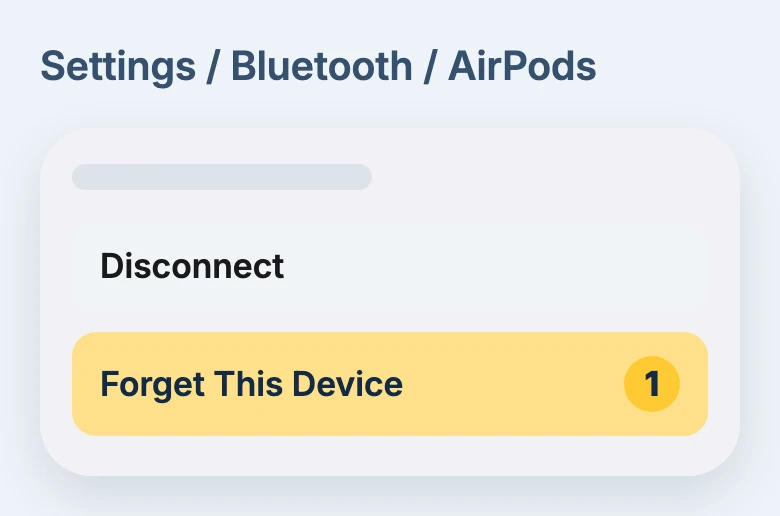
Leave both earbuds inside, close the case, and wait 30 seconds. On your paired phone or tablet, open Settings > Bluetooth. Under My Devices, choose the information control beside the AirPods entry.
Choose Forget This Device and confirm. If they aren't listed, continue to the reset without trying to create an entry first. Forgetting clears the saved connection so setup can begin again afterward.
Next, follow the reset steps for your case. Don't stop when the case only enters white-flashing pairing mode; a completed reset flashes amber before changing to white.
For a Mac-only setup, use the Bluetooth settings' forget control for the AirPods before pairing again. Keep your other Bluetooth devices in place; removing unrelated keyboards and mice doesn't repair this saved AirPods connection.
5. Complete the reset for your AirPods model
With the earbuds still inside, open the case lid. With AirPods Pro 1 and 2, or AirPods 1, 2, and 3, hold the rear button down for roughly 15 seconds. Release after amber flashes change to white.
With AirPods Pro 3, AirPods 4, or AirPods 5, start with the case light illuminated and double-tap its front surface. Wait for white flashing, then double-tap a second time. When the white flashing becomes faster, double-tap a third time.
Wait until amber flashing changes to white. Hold the open case beside your iPhone or iPad, then follow the setup prompt. A Mac pairs again through Bluetooth settings.
If the light doesn't flash white during the reset, close the case for 20 seconds, open it, and repeat your model's reset sequence. Watch the light changes rather than repeating taps without waiting for the next signal.
Try playback after reconnecting. If the connection still fails on multiple compatible devices, write down your model and the light's behavior for the repair provider. Don't keep repeating the reset.
6. Follow account or mismatch messages separately
A notice that AirPods belong to another Apple Account needs the previous owner's help. They need to remove the AirPods using Find My on their account before you can pair them with yours. A factory reset doesn't remove that association.
A Mismatched AirPods or AirPods Mismatch alert can also involve earbuds from different generations, another person's earbud, or an account association. Check whether a replacement earbud or secondhand purchase started the problem.
The seller or former owner needs to clear that account link. Contact Apple support about matching replacement parts when needed. Don't buy another single earbud until its compatibility is confirmed.
If charging, a full reset, and pairing on another device all fail, arrange service with Apple support. Give the model, charging status of both earbuds, light sequence, and exact connection message. Ask them to check the case and earbuds.
The Short Version
Charge both AirPods, check the audio output, and pair again with your model's case control. If needed, forget the pairing and reset until amber changes to white. Account and mismatch alerts need their own resolution.
Checked November 29, 2026.
 If you have any business, I can build it online