AirPods Max 2 that won't reset need enough charge and both controls held together. Charge to at least 50 percent if possible, then hold the Digital Crown plus the listening mode button for 15 seconds. Watch for amber, then white.
Start with charging checks if no light appears. A green light after a quick button press is a battery reading, while white without the amber reset sequence can simply mean pairing mode. Those results need different next steps.
In this guide
1. Check what the light is actually showing
Remove the Smart Case and locate the small status light beside the right ear cup's charging port. Press the listening mode button briefly to check the charge, rather than starting with a long hold.
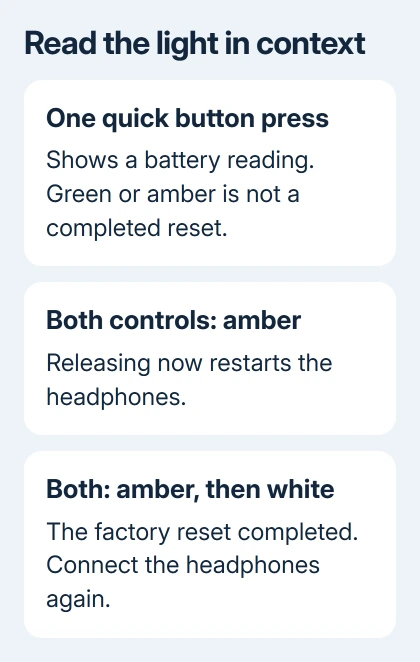
On AirPods Max 2 connected to power, green means at least 95 percent charge; a brief amber pulse means less than 95 percent. Unplugged, green means at least 15 percent, while a brief amber flash means less than 15 percent.
That means a green light off the cable doesn't tell you the headphones have reached the 50 percent needed for the normal reset preparation. A brief amber battery signal also doesn't mean the headphones have reset.
If they're connected to your iPhone or iPad, open Settings > Bluetooth, then tap the headphones' information button to check the percentage. The Batteries widget can show it too.
Check exactly what happens: no light, a charge color after one press, flashing white during pairing, or amber followed by white during a reset. If no light appears after the brief press, continue with power checks.
2. Get power into the headphones
Plug a USB-C cable into the right ear cup. Attach its other end to a working USB charger or a powered USB port. AirPods Max 2 charge through the headphones themselves; the Smart Case isn't a charging case.
Check that the cable is plugged in firmly at both ends. Then swap the cable and power supply separately. A cable that charges another device is useful for comparison; the headphone port still needs a good connection.
Apple's reset instructions say to reach 50 percent charge before a restart or reset. They also direct a reset when the headphones won't charge, so that failure doesn't rule out trying the button sequence.
If charging works, let the percentage reach that level before moving on. If a second cable and power source still give you no battery reading or light, try the reset once. Note what happens and describe it when requesting service.
I'd try the second cable before removing Bluetooth pairings. It checks a possible power problem without making a working connection harder to recover. Keep any working connection available to check the battery.
3. Press the two controls together
Find the Digital Crown, the round control that turns, and the separate listening mode button on top of the right ear cup. The listening mode button is also called the noise control button.
Press the Crown inward as a button, rather than turning it. Keep the listening mode button pressed at the same time. Resting a finger on a control isn't enough; keep both buttons pressed for the whole hold.
For a restart, release both controls once amber flashes appear. Releasing at this point doesn't return the headphones to factory settings. Test the original problem after they reconnect.
Stop if the restart solves the problem; otherwise, continue to the factory reset. Our AirPods Max connection guide covers selecting the headphones and checking the audio destination afterward.
If neither control seems to click or respond normally, tell the technician which one is affected. If either button doesn't register a press, the two-button command won't work, even if the light still shows the charge.
4. Hold through amber until white
For the factory reset, hold both buttons for roughly 15 seconds. Watch for amber, then white, and release after that sequence. Letting go as soon as amber appears ends at the restart stage.
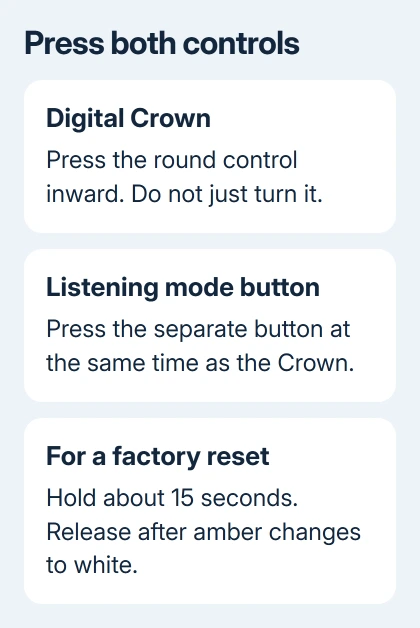
Use a clock if the hold feels longer than expected. Watch for the colors rather than letting go just because 15 seconds have passed. Once white follows amber, the headphones are ready to be connected again.
A long hold of just the listening mode button starts pairing. White flashing from that action doesn't confirm a factory reset. Position both fingers before trying the combined press again.
If amber never appears with a charged battery and a careful two-button hold, record whether the light stays off, turns white, or shows a charge color instead. Tell support what happened rather than trying the same hold over and over.
The reset steps for other AirPods models use different controls. Earbud case buttons and double-tap instructions don't apply to the Max headphones, including the second generation.
5. Reconnect after a successful reset
Bring the reset headphones close to your unlocked iPhone or iPad and follow the connection prompt. Without a prompt, open Bluetooth settings. Keep the listening mode button down on its own until white starts flashing.
On a Mac, select the headphones in System Settings > Bluetooth when they appear. On Android or Windows, use that device's Bluetooth add-device screen while the headphones are available to pair.
A message that the headphones belong to another Apple Account is separate from the reset light. Have the previous owner unlink these AirPods from their Apple Account. A hardware reset leaves that account link intact.
Test playback after reconnecting. If amber changed to white but playback still fails, tell support the reset completed and describe the remaining fault. That tells the repair team the reset worked, but didn't fix the original problem.
6. Request service when the reset command never completes
Use Apple Support's AirPods repair route and ask for charging and button diagnostics. Give the exact model, battery percentage if available, cables and chargers tried, and the light behavior during the simultaneous hold.
For a recently purchased pair, check the seller's return and exchange terms as well. Don't dismantle the headband or try heating or freezing the headphones to make the reset light appear.
The Short Version
Check charge, then press both controls at the same time. Amber alone restarts; amber followed by white resets. If a charged pair never reaches that sequence, request charging and button diagnostics.
Checked November 13, 2026.