An old Apple Watch location in Find My can come from a lost connection or disabled location access. Check both first. If a friend's map shows your iPhone left at home, check the device you've selected for personal location sharing.
These are different problems: Devices tracks the watch itself, while People shows the location a person shares. A watch can appear correctly under Devices while the person's shared position comes from another device.
In this guide
1. Check whether Devices or People is stuck
On the paired iPhone, open Find My > Devices, then select the Apple Watch. Read its timestamp and position rather than assuming the pin represents where the watch is right now.
Switch from a person's People card to Devices for this comparison. One shows where the watch is; the other shows the location that person is sharing.
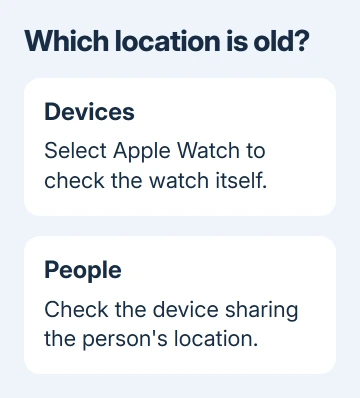
An old position can still help you look for a missing watch, but it doesn't show where it's moving now. Play Sound is useful when the watch is nearby and reachable. A pending action needs the device to reconnect before it can finish.
If you have the watch with you, check its connection next. If it's lost somewhere else, go to the lost-watch section instead. Settings changes on your iPhone can't turn on a distant watch with a depleted battery.
2. Restore the watch's way onto the network
Charge the watch if its battery is empty, then bring it close to the paired iPhone. On current watchOS, open Control Center by pressing the side button. For watchOS 9 or older, swipe from the face's lower edge toward the top.
A red disconnected-iPhone symbol means the phone link isn't available. A green iPhone symbol shows it has reconnected. The watch can also use a supported Wi-Fi connection or cellular service on an eligible cellular model.
Turn off Airplane Mode on the watch and iPhone if enabled. On the iPhone, open Settings and check that Wi-Fi and Bluetooth are enabled. Keep the watch nearby while you return to its device card in Find My.
For repeated red-phone warnings, the Apple Watch connection steps cover the pairing link in more detail. Fix that connection before changing who can see your shared location.
A GPS-only model can't connect to a cellular network. Away from its phone, it needs a supported Wi-Fi connection for online features. A cellular model also needs usable coverage and an active plan to use cellular service.
For offline device tracking, check Settings > your name > your watch > Find My Watch on the watch. Enable Find My network. Nearby participating Apple devices can then help report its position, even without its own internet connection.
3. Allow location access on both devices
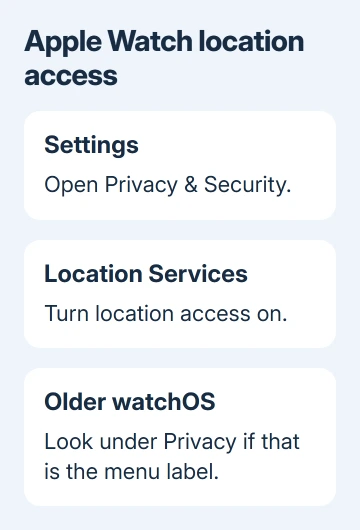
On the watch, open Settings > Privacy & Security > Location Services and check that location access is on. Older watchOS layouts can put these controls under Privacy instead of Privacy & Security.
On the iPhone, go to Settings > Privacy & Security > Location Services. Turn it on, select the Find My app entry, and check its location permission.
Apple's Location Services controls explain the watch setting and app permissions. Location access lets the device work out where it is; a network connection lets it send that position.
If Maps on the watch also shows the wrong position, try again outdoors where the sky is less obstructed. Buildings and roofs can block satellite signals. A large accuracy circle means the estimated position is less precise.
Don't change every app to unrestricted location access. Check the app involved in the fault. If only a Weather complication is stale while Find My and Maps are current, that points to the app's access or refresh behavior instead.
4. Correct the device used for sharing your location
On the iPhone, open Find My > Me. Check Share My Location and read Sharing From. If the wrong iPhone is selected, choose Use This iPhone as My Location on the phone you intend to carry.
For an iPhone paired with an Apple Watch GPS + Cellular model, the watch shares your location when you're out of the phone's range and wearing the watch. Check the model and whether you're wearing it if the shared position still shows home.
A GPS-only watch doesn't automatically take over personal location sharing as a GPS + Cellular model does. Don't assume leaving any Apple Watch on your wrist switches People tracking away from your iPhone.
The location-sharing instructions describe that handoff. Check the watch's actual connection too: having a cellular-capable model doesn't itself show that it can send an update at that moment.
Ask the person checking your position to open the relevant People card again after you've corrected the sharing device. Compare it with the Watch entry under Devices to see which part remains wrong.
I'd check Sharing From before erasing a watch that works normally in Maps. A stale personal location can come from the wrong sharing device, and a reset doesn't correct that choice for you.
5. Restart and update a watch you have with you
If location access and the connection work but the position stays old, unplug the charger and restart the watch. Hold its side button, tap the power control, then slide Power Off. On watchOS 8 and earlier, the slider appears directly.
Turn it on again with the side button, then restart the paired iPhone. Use a normal restart rather than a forced restart, and let any active software update finish first.
Check iPhone updates in Settings > General > Software Update. For the watch, open Watch > My Watch > General > Software Update on iPhone and follow its on-screen connection and charging instructions.
Afterward, compare Maps, the Watch device card, and the shared People card once more. If only one app remains wrong, report the failing app's behavior rather than a general loss of location tracking.
6. Protect a lost watch, or give support the exact failure
For a missing watch, select it in Find My and use Lost Mode. Current layouts place this under the More button beside the watch name, then Lost Apple Watch > Lost Mode; older layouts can show Mark As Lost.
Add your contact number and a message, then activate Lost Mode. An offline watch shows that contact information when it comes online again. Keep the watch on your account to retain its theft protection.
For a watch you have, start a Watch service request in the Apple Support app. Tell support the model, watchOS version, time shown with the old location, and connection status. Explain whether Maps is wrong too, or only People.
If the battery won't keep the watch online, the Watch battery drain checks address that cause. Ask for a battery or connectivity assessment when those symptoms persist after the software checks.
The Short Version
Compare Devices with People, then check connectivity and location access. Sharing From controls personal tracking. Enable Find My network for offline help. Use Lost Mode for a lost watch, and seek support for persistent failures.
Checked November 13, 2026.