
An iPad Home button that won't respond may have a case pressing against it or dirt around its edge. Check those first. If touch still works, AssistiveTouch gives you an on-screen Home button while you check it or arrange repair.
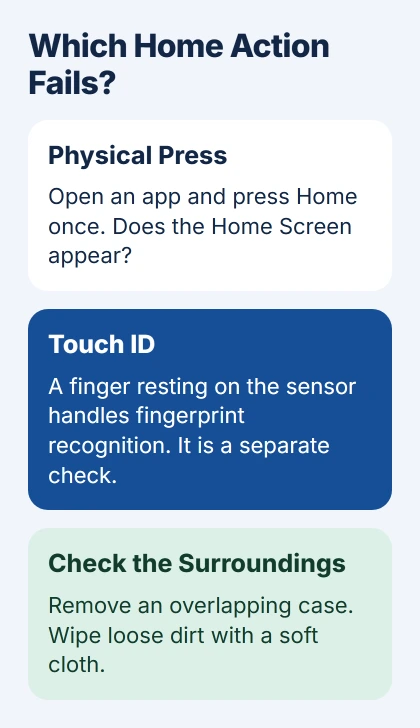
Check whether pressing Home fails or just Touch ID. The fingerprint sensor can reject your finger even when the button still clicks and takes you to the Home Screen normally.
1. Remove anything pressing against the button
Take off the case and any protective film that overlaps the Home button. Place the iPad on a stable surface, open an app and press Home once. Check whether it takes you to the Home Screen with the case off.
Look around the button for loose dirt, then wipe the area gently with a soft cloth. Apple recommends those case and cleaning checks in its button troubleshooting steps. A button that stays unreliable afterward needs service.
Don't pry around the button, put cleaning liquid into its gap or force a sticky or shifted button back into place. Have a repair provider check any damaged parts.
If the button works with the case off, use a case that leaves it clear and test again. If a single press still does nothing, set up the on-screen control next so you can keep using your iPad.
This applies to iPads with a round physical Home button. On models without one, a swipe up from the bottom returns home. A missing floating circle instead needs the AssistiveTouch visibility checks.
2. Add an on-screen Home control
Go to Settings > Accessibility > Touch > AssistiveTouch and turn it on. A floating button appears near a screen edge. Tap it, then choose Home to leave the current app without pressing the physical button.
If opening Settings is awkward and Siri is available, ask Siri to enable AssistiveTouch. Move the floating button by dragging it to another edge, where it won't sit over the controls you need.
Try the menu's Home command from an open app. If it works while the physical button doesn't, you can use it as an alternative. It also shows that your iPad still responds to the Home command through touch.
To go home with one tap, open AssistiveTouch's Single-Tap setting and choose Home. Assign Open Menu to another gesture if you still want the menu's other commands. Try the tap after making the change.
AssistiveTouch doesn't replace Touch ID. You'll still need your passcode when the iPad asks for it. For other ways to lock the display while using this workaround, see the iPad screen-lock controls.
I'd keep the floating button available until the physical button works reliably during normal use. If it starts working briefly after cleaning, that doesn't mean a problem that comes and goes is fixed.
3. Change click timing when one press still works
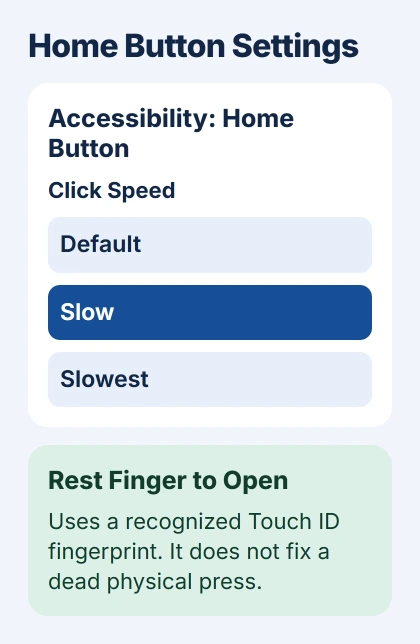
A button that returns home on one press but misses a double-click may need a slower click setting. Open Settings > Accessibility > Home Button. Under Click Speed, choose Slow, then try the action again.
Try Slowest if you need more time between presses. These settings let you double-click or triple-click more slowly. They won't repair a physical button that doesn't respond to a single press.
Try the double-click or triple-click that was failing. If it now works, the new timing suits your presses. Keep the setting if it helps. Otherwise, restore your preferred speed and check the remaining button or Touch ID problem.
On an iPad with Touch ID, Rest Finger to Open is another option on this page. It lets a recognized finger unlock and open the iPad without an extra press. It won't help when fingerprint recognition itself has stopped working.
4. Treat Touch ID failure as a separate problem
Press Home while you're inside an app. If it takes you home, the button responds to that press. If your fingerprint won't unlock the iPad, check the sensor instead of pressing harder.
Clean and dry your finger and the sensor. Rest your finger over the sensor and its surrounding metal ring, keeping it still while the iPad reads it. Check that your case or screen protector doesn't cover the ring.
Open Settings > Touch ID & Passcode and enter your passcode. Check that Touch ID is enabled for what you're trying to do and that you've added a fingerprint. Try adding another finger if the saved one still doesn't work reliably.
A passcode request immediately after restarting is expected. Unlock with the passcode before judging Touch ID again. That request alone doesn't mean the sensor or the physical Home button has failed.
If Touch ID is grayed out, won't turn on or can't finish setup after these checks, contact Apple Support. Tell them whether pressing Home still works so they know which part is failing.
5. Restart only through controls that still respond
When touch and Settings work, use Settings > General > Shut Down, then drag the slider. Let the iPad turn off, then start it again by holding the top button. Retry the physical Home button after startup.
Save your open work first. A restart can clear a temporary app or system problem, but it won't repair a damaged button. If something is blocking the button or the switch is broken, repeated restarts won't help.
If the whole display is frozen too, use the unresponsive iPad guide. On a Home-button model, force restart requires both Home and the top button. A dead Home button can prevent that combination from working.
If the buttons or touch controls needed for recovery don't work, ask support to check the iPad and help you regain access. Tell them which controls still respond so they can choose a method you can use.
6. Arrange service for a damaged or intermittent button
Have the button checked if it works only at one angle, sticks down or still misses presses with the case off. Back up your iPad while you can still use touch, and keep your passcode ready for your own use.
Tell the repair provider your iPad model, whether it's been dropped or exposed to liquid, and what happened in the single-press and Touch ID checks. Mention whether on-screen Home works too.
The Short Version
Remove obstructions and clean gently, then use AssistiveTouch if needed. Change Click Speed only for missed multiple presses. Check Touch ID separately, and arrange service when the physical button stays damaged or unreliable.
Checked November 5, 2026.

Isaac Smith is the founder and editor of PC Glance, a website that covers computers, laptops, and technology. He is a tech enthusiast and a computer geek who loves to share his insights and help his readers make smart choices when buying tech gadgets or laptops. He is always curious and updated about the latest tech trends.