
Google Home needs to reach your router and setup phone to connect to Wi-Fi. Check the network name and password first, then make sure Bluetooth and local network access let the app find your speaker.
A working webpage on your phone only confirms its internet connection. The Home app still has to discover your speaker and finish setup, even when the phone can browse.
1. Check the network and type the password again
Put your setup phone on the home Wi-Fi you want the speaker to use. Open a webpage to check that this network has internet access. If other devices also fail, restart the router before changing anything on the speaker.
Use your normal home network for setup. A guest connection can stop devices from finding each other, even when both show the same router brand. A business or dorm network may also have rules that block a home speaker.
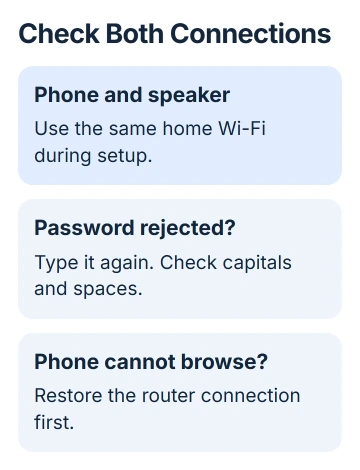
In the setup password box, enter the Wi-Fi password manually. On Android, choose No thanks if a saved-password offer keeps failing. Use the eye control to check it; on iPhone or iPad, use Show password when offered.
Check capital letters and accidental spaces. Your Google Account password isn't your router password. If you changed the router password, an old saved copy won't work, even if it worked last week.
Google's Wi-Fi connection instructions say to reenter the password. A missing network isn't the same problem as setup failing after you've picked one. If yours is listed, check the phone next.
2. Give the setup phone access to the speaker
Turn on Wi-Fi and Bluetooth in the phone's Settings app. Use the latest Google Home app. Current setup requires Android 9 or later, or iOS 17 or later on an iPhone or iPad.
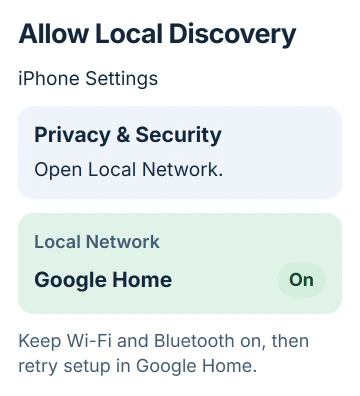
On an iPhone or iPad, open Settings > Privacy & Security > Local Network and turn on Google Home. This lets the app find nearby devices on your network. Bluetooth alone doesn't replace that permission.
Temporarily pause a VPN or proxy while setting up the speaker. The speaker setup guide also recommends turning off cellular data during setup so the phone stays with the local connection.
Reopen the app and try setting up that speaker. Restore cellular data and your usual VPN afterward. If the speaker now appears and reaches Wi-Fi selection, the app had been struggling to find it.
If you're using Android and the phone won't stay connected to your router, try the Android Wi-Fi connection checks first. A poor phone connection can interrupt the speaker's setup.
3. Bring the devices closer and restart setup
For the next attempt, put the speaker near the router and keep the phone beside it. Google's setup advice recommends staying within 5 to 20 feet of the speaker. Try it nearby before repeating setup from another room.
Unplug the speaker's power cable, wait one minute, then reconnect it. Restarting this way keeps the speaker's settings. Wait for it to start before opening the app again.
Close Google Home from the phone's app switcher, then reopen it. Double-click Home to open the app switcher on a Home-button iPhone. On a model without that button, swipe up and pause. Swipe the app preview away.
Choose Add > Device at the top right of Google Home. If the app already offers Set up or Next for the correct device, use that prompt. Follow its identification steps before choosing the network.
Whether you see a QR code or setup-code prompt depends on the device. Use Add a different way if the app offers it for your speaker. Don't scan another device's code just because the app has found several nearby.
If setup works close to the router, move the speaker back and check it there. If it fails only where you normally keep it, check coverage or interference before changing the password again.
4. Compare the other Wi-Fi band or another phone
A router with separately named bands may list 2.4 GHz and 5 GHz as different choices. Try the other supported band, with the setup phone on that network too. Both bands work with many Home and Nest speakers.
Don't apply a blanket 2.4 GHz rule to every device in Google Home. The app also manages thermostats and other products with different requirements. Use your speaker's specifications if its supported bands aren't clear.
Next, try setup with another compatible phone or tablet in your household. Keep the speaker and router in the same places, so the phone is the only thing changing.
If the second phone works, check the first phone's app, permissions or connection. If neither works, continue with the speaker and network checks. I'd try the other phone before erasing the speaker's setup.
5. Reset the correct model only after those checks
A factory reset clears the speaker's settings. You'll have to repeat setup afterward. Unplugging the power doesn't do that. Check the exact model before holding any buttons, especially with similar-looking Home Mini and Nest Mini speakers.
For an original Google Home, press its rear microphone mute button and keep holding for about 15 seconds. Release after the reset announcement. The newer Google Home Speaker (2026) uses a different procedure.
On Nest Mini (second generation), switch the microphone off, then hold the center of the top. Keep holding through the initial five seconds and roughly ten more seconds until the confirmation sound.
For other models, use the matching entry in the factory reset instructions. Home Mini uses a button underneath; Nest Hub displays use both volume buttons. These controls aren't interchangeable.
An Echo Dot uses Alexa instead; connect it through the phone app for either first setup or a new router.
If fresh setup still fails from two phones near the router, contact Google support with the model and exact error. Give your router maker the same details if the speaker joins a different supported network but not your own.
A streaming dongle has its own Chromecast Wi-Fi setup checks. Use those when the failing device is plugged into a TV rather than a Home or Nest speaker.
The Short Version
Check the home network and password, allow local discovery on the phone, then retry nearby after a restart. Compare another band and phone before using the reset sequence for your exact speaker.
Checked November 5, 2026.

Isaac Smith is the founder and editor of PC Glance, a website that covers computers, laptops, and technology. He is a tech enthusiast and a computer geek who loves to share his insights and help his readers make smart choices when buying tech gadgets or laptops. He is always curious and updated about the latest tech trends.