

An SD card missing from Finder may still be visible in Disk Utility. Reinsert it with your Mac awake and unlocked, approve any accessory prompt, then check Finder's display settings before trying to repair or format the card.
Check whether macOS sees the card at all. Finder may be hiding its icon, the card may need mounting to make its files available, or the reader may not be detected. Formatting shouldn't be your first response to missing photos.
1. Reinsert the card and allow it to connect
Wake and unlock your Mac. If the card's icon hasn't appeared, remove the card and insert it again normally. Apple recommends reinserting a card that won't mount; insertion speed can affect detection.
For the built-in SD slot, the metal contacts face downward and toward the computer. A microSD card needs a suitable full-size adapter. Don't force either into a slot that doesn't accept it.
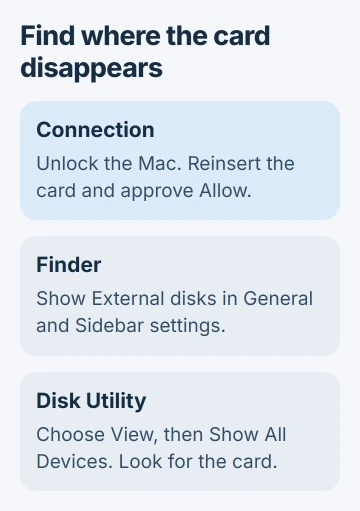
On a Mac laptop with Apple silicon, look for the accessory approval alert. Choose Allow for your own card or reader. If you click Don't Allow, the Mac won't recognize it.
If you rejected that prompt, disconnect and reconnect the accessory to see it again. Open the laptop's lid for this check so you can see the prompt instead of looking only at an external display.
On current macOS, you'll find this control under System Settings > Privacy & Security > Accessories. You don't need to select Always allow just to approve one trusted card.
Try opening Finder again after approval. If the card still isn't listed, check whether Finder is set to show external storage before blaming its contents.
2. Show external storage in Finder
Open Finder from the Dock, then choose Finder > Settings in its menu bar. On older macOS versions, that menu item is called Preferences.
Open General and select External disks if you want the card's icon on the desktop. Then open Sidebar and select External disks in its Locations section.
The connected-device display controls control where storage icons appear. Turning them on shows an available card; it doesn't repair a card macOS can't read.
Open a new Finder window and check Locations. Expand that group if it's collapsed. A card can use a name set by the camera or a previous owner rather than showing the letters SD in its name.
If it opens, copy the photos or files you need to your Mac and check the copies. Being able to open the files tells you more than seeing the reader's name in a hardware list.
If the card still doesn't appear, use Disk Utility next. Changing those Finder options again won't mount an unreadable volume or fix a broken connection.
3. Look for the card in Disk Utility and try Mount
Open Applications > Utilities > Disk Utility. Choose View > Show All Devices so the sidebar shows physical storage devices as well as their volumes, the named areas that hold your files.
Find the external device matching the card's capacity. Expand its entry and select its volume. If that volume is gray and Mount is available, click it and check Finder again.
The Disk Utility mounting instructions explain how to make an ejected volume available again. After a successful mount, the card should open normally.
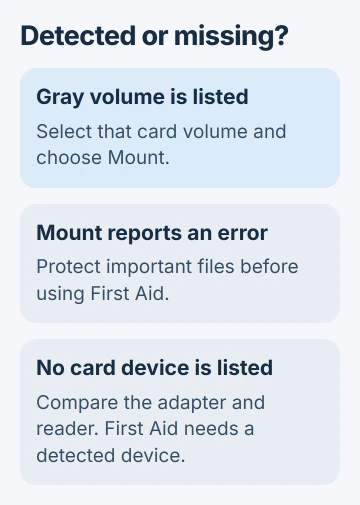
If Mount reports an error, keep the wording. If only a physical device appears without a readable volume, note that too. Both are different from having no card device anywhere in the sidebar.
When the card is absent entirely, skip to the reader comparison. First Aid needs a detected device to work on, and choosing your internal Macintosh HD won't check the missing card.
4. Use First Aid only after protecting important files
If Disk Utility sees the card but it won't open reliably, copy any accessible files first. For irreplaceable photos with no other copy, I'd ask a recovery specialist before running repairs that write to the card.
Once you've protected the files on the card, select its last listed volume and choose First Aid > Run. Work through any other volumes, then containers if present, and finally that card's physical device.
The storage repair procedure checks for problems in the file system, the structure that organizes your files. It can't fix a reader that never detects the card.
Read the result when the check ends. If the repair succeeds, try Mount and open the files. If it reports errors it can't repair, stop repeating the same operation and decide whether the files need recovery.
If a USB hard drive has the same symptom, use the Mac external-drive mounting checks. Those checks also cover causes that don't apply to every SD card.
5. Compare the card, adapter and reader
Connect an external USB reader directly to the Mac if possible, leaving a hub out of the test. If it has a detachable cable, check that connection. Try another compatible reader or a card you know works.
A microSD adapter adds another part to compare. Try a different adapter for that same microSD card. If it then appears, replace the adapter instead of formatting the card.
If one reader works and another doesn't, keep using the working one to copy your files. If several cards fail in one built-in slot but work in an external reader, report that comparison to Apple Support.
If this card fails in several compatible readers, contact its maker or a recovery service, depending on how important the files are to you. Note whether your camera or another device still reads it, without taking more pictures on it.
Formatting becomes an option only after the files are copied or you accept losing them. Follow the SD-card formatting guidance for a card you intend to reuse. It isn't a recovery procedure.
The Short Version
Reinsert and approve the card, show external disks in Finder, then check Disk Utility. Mount a detected volume, protect files before First Aid, and compare readers when the card isn't detected at all.
Checked November 5, 2026.

Isaac Smith is the founder and editor of PC Glance, a website that covers computers, laptops, and technology. He is a tech enthusiast and a computer geek who loves to share his insights and help his readers make smart choices when buying tech gadgets or laptops. He is always curious and updated about the latest tech trends.