

OneDrive can report that it can't add your folder right now when the sync app is disconnected. Open the cloud icon and check whether you're signed in before moving folders or trying to set them up again.
Microsoft says to follow its sign-in steps for this exact message. Start there, then check your account type and connection. Trouble sharing a folder or uploading files after setup needs different fixes.
1. Reconnect the sync app before adding the folder
Look for the OneDrive cloud beside the clock in the Windows notification area. Open the hidden-icons menu if you don't see it. On a Mac, check the menu bar. Click the cloud to read its status.
A gray crossed-out cloud means sign-in or setup isn't complete. Select it and complete Set up OneDrive with the email address and password for the files you want to sync.
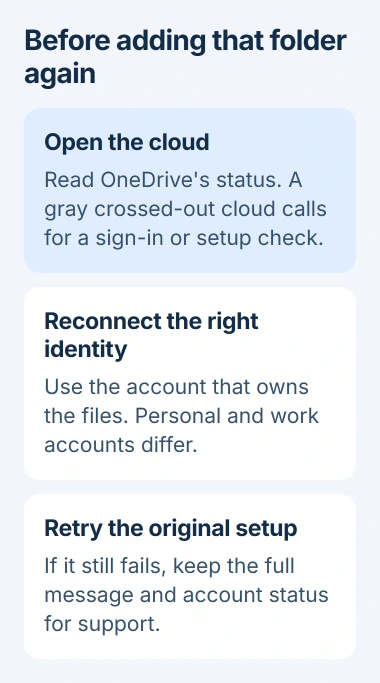
Let your account finish connecting after you sign in. Once the app shows its normal account panel, try the action that brought up the folder message again. If it works, check that the expected folder appears in that account.
The OneDrive error list links this message to the sign-in instructions. The first fix is to reconnect, rather than delete the folder or edit the registry.
Leave your current folder where it is during these checks. Moving a synced folder can affect what's stored online. This first step only needs you to reconnect the app.
If the cloud already shows the right account, note the full status message. A paused connection, storage warning or specific sync error tells you more about what to try next than the general folder message.
2. Match the folder to the right account type
Check the address in OneDrive's panel or account settings. Your personal Microsoft account stores files separately from your work or school account, even when the account names look familiar.
The sync app supports only one personal OneDrive account at a time. If you're trying to add a second personal account, confirm which one is already connected before changing the setup. Keep any files waiting to upload safe first.
For work or school files, use the account that organization gave you. Receiving a sharing invitation on your personal account doesn't make it one of the organization's accounts.
If an error says the selected user doesn't exist in the Microsoft Services organization, you may be using a personal account for a work or school OneDrive site. Try the work or school account, or ask IT to check it.
The OneDrive sign-in procedure explains both the gray cloud and this account mismatch. If the work account is correct but still rejected, send the exact wording to its administrator.
If you're trying to give someone else access, use the OneDrive folder-sharing guide. That's a different task from connecting your own desktop account.
3. Start OneDrive again when it says not connected
On Windows, open Start, type OneDrive and select the desktop app. On Mac, find OneDrive in Applications and open it. This starts the sync program that connects your folders.
Watch for the cloud and account panel, then read any sign-in request. If the app asks you to connect an account, finish setup. If it reports an upload error, you've already reached the syncing stage.
If OneDrive isn't installed or you can't find it, use the official download to install the current app for your computer. You need the desktop sync app for a desktop folder; the mobile app won't do that job.
If it runs when opened manually but disappears after your next Windows sign-in, follow the OneDrive startup checks. That covers disabled startup separately from an account that won't connect.
I'd read the cloud's status before trying another folder location. Repeated moves can make it hard to remember which local folder belongs to which account, without fixing the original connection.
4. Check the connection when sign-in succeeds
If your account accepts the password but OneDrive still can't connect, try another network you're allowed to use. A phone hotspot gives you another connection to try with the sync app.
Try the same account and folder action on that connection. If it succeeds, ask your internet provider or network administrator whether access to Microsoft 365 services is being blocked. Keep that comparison result with the error message.
On a work-managed computer, use a connection your organization allows. Its security rules can affect sign-in and syncing, and the administrator should handle any required firewall or access changes.
Opening a webpage shows that some internet access works, but OneDrive may still be unable to connect. Tell support what OneDrive's status shows as well as what works in your browser.
If you get the same error on the second network, leave the router settings alone. Continue with the app check and tell support that OneDrive failed on both connections.
5. Use a sync reset only after the account checks
Try a reset later if you can sign in but OneDrive still won't sync properly. It disconnects the sync connections and rebuilds the app's settings, so a full sync may be needed afterward.
On Windows, press Windows+R, enter this command and select OK:
%localappdata%\Microsoft\OneDrive\onedrive.exe /resetIf Windows can't find that file, stop and check the app's installed location in the official reset instructions. They provide the Program Files alternatives and a separate Mac procedure.
Reopen OneDrive from Start afterward. Check each account and choose its folders again if needed. A reset keeps your files, but resets settings for both personal and work or school connections.
If your work account's sign-in is rejected or the right folder is unavailable, ask its administrator to check your account and permissions. Repeating the reset won't replace those access checks.
6. Give support the failed stage
For personal OneDrive, give Microsoft Support the exact folder message, your account type and the cloud's status. For work or school files, contact your own helpdesk first.
Say whether the failure happens during account setup, when adding the folder or after syncing begins. Include the network comparison and whether restarting the app changed its status. Keep passwords out of the support message.
If setup completes but individual files remain pending, continue with the file and sync checks. That stage needs the affected filename and sync status rather than another attempt to add the account.
The Short Version
Reconnect the intended account, confirm its type and restart OneDrive. Try another allowed network if it still can't connect. Reset only for continuing sync problems, then tell support where setup or syncing stops.
Checked November 5, 2026.

Isaac Smith is the founder and editor of PC Glance, a website that covers computers, laptops, and technology. He is a tech enthusiast and a computer geek who loves to share his insights and help his readers make smart choices when buying tech gadgets or laptops. He is always curious and updated about the latest tech trends.