
NBA 2K26 crashes on PC can come from damaged files, a graphics driver or unsupported hardware. Start with Steam's file verification, then check the graphics chip and driver before deleting settings or reinstalling.
The Arc 140V has a specific fix: Intel driver 32.0.101.8864 or newer. That fix applies to this graphics chip, so check its name first. Having an Intel processor doesn't mean your PC uses the affected graphics chip.
1. Finish updates and verify the Steam files
Restart the PC, open Steam and let any NBA 2K26 update finish. Then open Library, right-click NBA 2K26 and select Properties.
Choose Installed Files > Verify integrity of game files. Let the check finish before launching again. Steam checks your installation against the files it expects, then repairs those that need replacing.
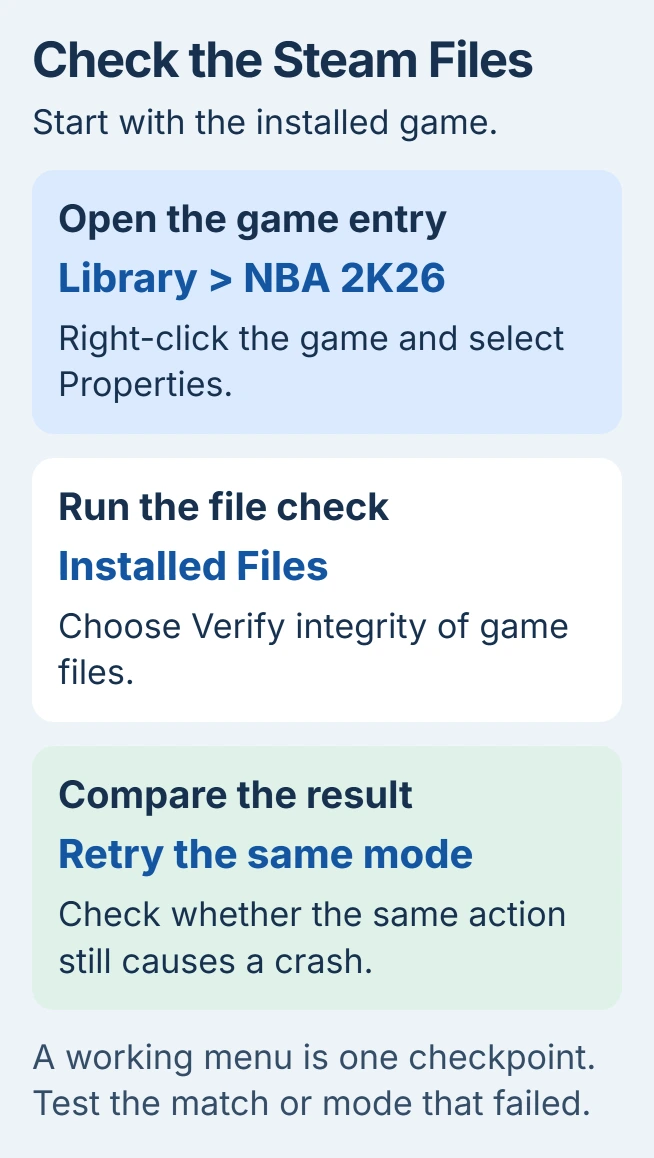
2K's Steam troubleshooting instructions recommend this check for crashes and freezes. Use it before downloading another copy of the entire game.
Launch again and try the move or match that crashed. Note whether the game reaches the menu, loads a match or closes at the same point. If the crash happened in MyCAREER, test that match rather than stopping at the menu.
The check has an exception: some configuration files can fail verification without needing replacement. Seeing a few failed files doesn't mean you need to keep repeating the check.
If it still crashes, check the driver next. Write down when the game closes and any error message so you can compare after the update.
2. Check the GPU before updating its driver
Right-click Start > Device Manager and expand Display adapters. Write down every adapter shown. Some laptops list both built-in graphics and an additional AMD or NVIDIA adapter.
Right-click your graphics adapter, choose Properties > Driver, and read Driver Version. Follow the graphics-driver update steps for that adapter and your computer model.
For Intel Arc 140V, the documented NBA 2K25/26 fix is 32.0.101.8864 or newer. Install a supported package containing that fix, restart and retry the failing game mode.
The linked fix covers this graphics chip, with an example of My Career closing after the menu worked. That driver version isn't the target for NVIDIA, AMD or another Intel adapter.
For other graphics hardware, check the computer or graphics-card maker's current supported driver. Check the version again after installation; downloading the package alone doesn't install it.
I'd keep the first driver test simple: update, restart and retry the mode that crashed with the same graphics settings. That lets you see whether the driver changed the result.
3. Compare the PC with the actual requirements
Open the NBA 2K26 Steam listing and read System Requirements. It requires an SSD, 8 GB RAM at minimum and 110 GB of available storage, alongside the listed processor and graphics hardware.
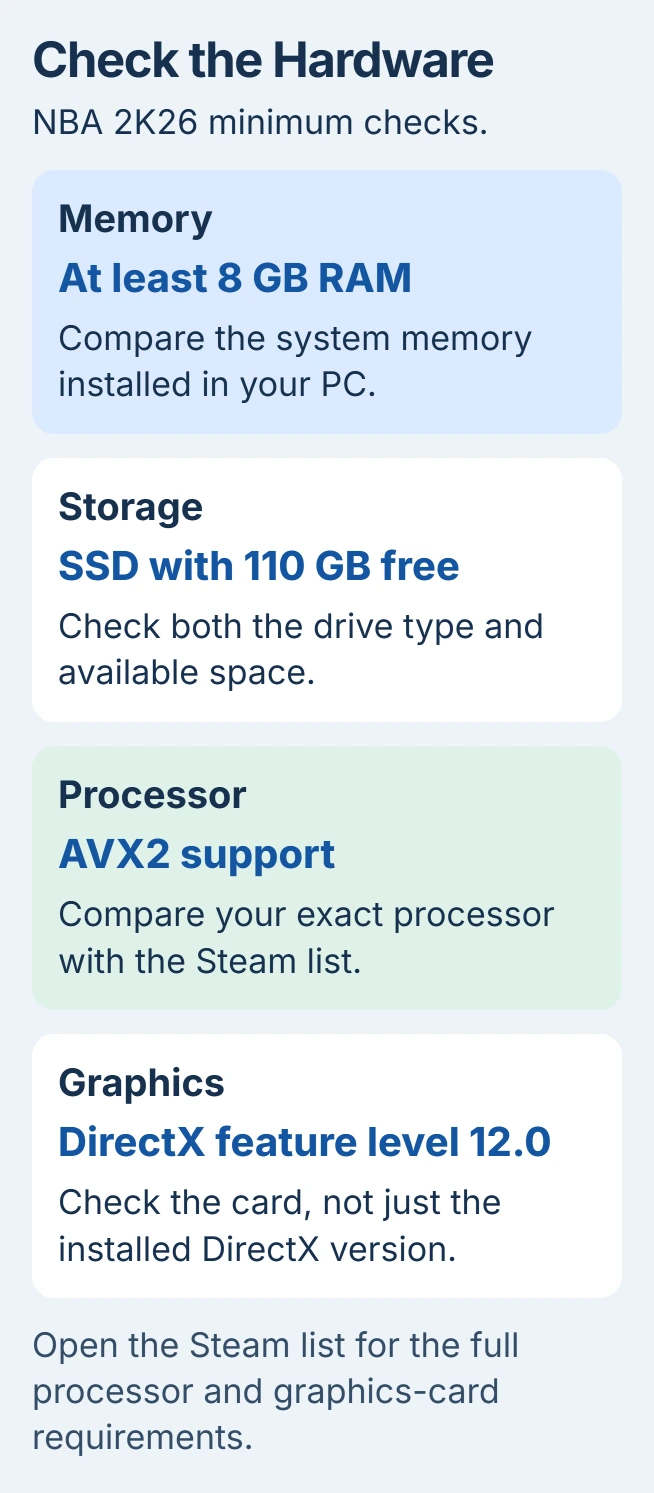
The processor needs AVX2, a set of commands the game uses. The graphics card needs DirectX feature level 12.0, which describes its supported graphics features. A Windows version number doesn't settle whether the hardware can run it.
Use the PC game requirements guide to compare exact components. Extra system RAM doesn't replace the graphics card's required features or make an older processor support AVX2.
For DirectX information, search Windows for dxdiag and open it. Microsoft's DirectX instructions show the installed DirectX version on the System tab.
The Display tabs also show graphics details. The installed software's DirectX Version is separate from the hardware's Feature Levels. Reinstalling the game won't add a missing hardware feature.
If your PC meets the requirements, check background software next. If it doesn't, ask the publisher which hardware is supported before buying a part that might leave the same problem.
4. Try a session without overlays or game modifications
Close recording tools, performance overlays and other optional game utilities for one test. An overlay adds information over the game picture, such as an FPS counter or recording controls.
Keep the game mode and other settings the same. If the crash stops, try the tools again individually. If a tool makes it crash again, report that tool's name as a possible compatibility problem.
If you've installed game modifications, copy your saves before reinstalling anything and follow the mod maker's removal instructions. Mods left after an update can change how the game behaves compared with an unmodified copy.
A file check can pass while extra files from a mod remain. Tell support which modifications you've used if the game still crashes, so they know what might still be in the installation.
Note whether the crash happens only in one mode or with one player. Keep that player's progress while troubleshooting; another mode working helps narrow your report, but it doesn't mean the save is safe to delete.
5. Compare launch with the controller disconnected
If the game crashes before reaching the menu, unplug the controller and try launching once. Controller software or the controller itself can interfere with startup, which is why the general Steam steps include this test.
If the menu opens, reconnect the controller and check whether the failure returns. Try another controller if one is available. Report whether startup fails with every pad or only a particular model.
If unplugging the controller changes nothing, reconnect it. Add that result to your file-check and driver notes so you don't repeat the same test after every launch.
Send a repeatable crash to support
Use the NBA crash-report instructions to report the PC platform, game edition, affected mode and action immediately before the crash. Include the error image or video when available.
If only one MyPLAYER is affected, include the details that identify that player in the game. Keep the save in case support asks for it. Give support the player and match details rather than calling the crashes random.
Attach requested DxDiag and MSInfo reports through the support ticket. These describe hardware, drivers and Windows details; review them before sharing them publicly. Add the driver version and results from the earlier checks.
The Short Version
Repair the installed Steam files and use a matching graphics driver. Arc 140V has a specific fixed version. Compare hardware requirements, overlays and controllers, then report the failing mode while keeping your progress.
Checked November 6, 2026.

Isaac Smith is the founder and editor of PC Glance, a website that covers computers, laptops, and technology. He is a tech enthusiast and a computer geek who loves to share his insights and help his readers make smart choices when buying tech gadgets or laptops. He is always curious and updated about the latest tech trends.