
iCloud Mail can stop sending and receiving when your iCloud storage is full, the service is unavailable, or Mail isn't enabled on the device. Check service status and storage first.
If messages work at iCloud.com but not in your app, check that app's account settings instead.
If delivery waits for you to open Mail, check its delivery settings. If one message stays stuck while other mail arrives, check outgoing mail instead. Those problems need different fixes.
1. Check the service and your iCloud storage
Open Apple System Status and check iCloud Mail. If an incident is listed, wait for service to recover before changing your account.
A green status doesn't mean your account is working, but a listed outage gives you a clear reason to stop resetting things.
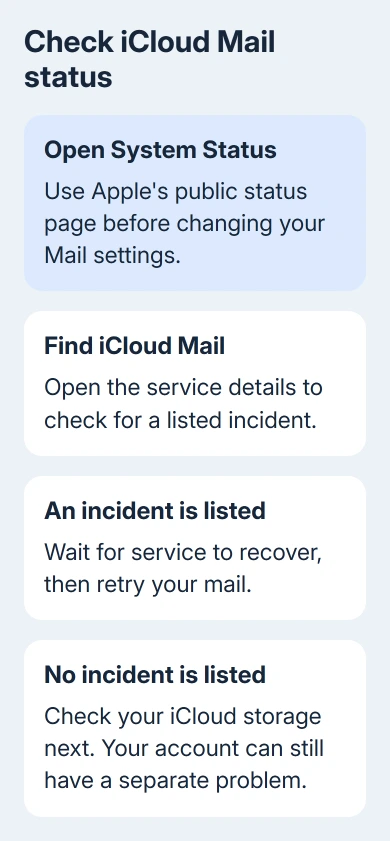
On your iPhone or iPad, check Settings > [your name] > iCloud and look at the storage display. This is your account's cloud space, separate from the storage inside the phone.
When that space is full, iCloud Mail can't send or receive. Free space in iCloud or increase the plan, then try a small message again. More device storage or deleting a downloaded app won't give you more iCloud space.
Retry with a brief email containing text alone. A large attachment adds a second possible problem before you've checked whether ordinary mail works. If only the large message fails, try Mail Drop or reduce the attachment.
2. Compare the app with iCloud Mail on the web
Visit icloud.com/mail, complete your Apple Account sign-in, and check the same mailbox. Send a short email to a second mailbox you control, then reply to iCloud from there.
If both directions work there, the account can send and receive. Focus on your device's Mail settings, its connection, or the third-party email app you're using. I'd keep the working web mailbox available while fixing the app.
If the website also fails, try a different internet connection. A mailbox that works on cellular data but fails on a particular Wi-Fi network needs that network checked. Ask its administrator whether access to iCloud Mail is restricted.
For a website that won't load, update the browser and try again. On a Mac using Safari, the iCloud Mail troubleshooting page also includes clearing the browser cache through its Develop menu.
Open Safari > Settings > Advanced, enable Show features for web developers, then choose Develop > Empty Caches. Retry the mailbox.
3. Restore Mail and Push on iPhone or iPad
Open Settings > [your name] > iCloud > Mail under Saved to iCloud or Apps Using iCloud. Enable Use on this iPhone or the equivalent iPad control. Return to Mail and open the iCloud Inbox.
For mail that appears only when the app is opened, go to Settings > Apps > Mail > Mail Accounts > Fetch New Data. Some versions label the account row Accounts.
Turn on Push, open the iCloud entry, and select Push where offered.
Check that Fetch is set to Automatically too. On older versions without the Apps section in Settings, start at Settings > Mail > Accounts. The goal is the same Fetch New Data screen.
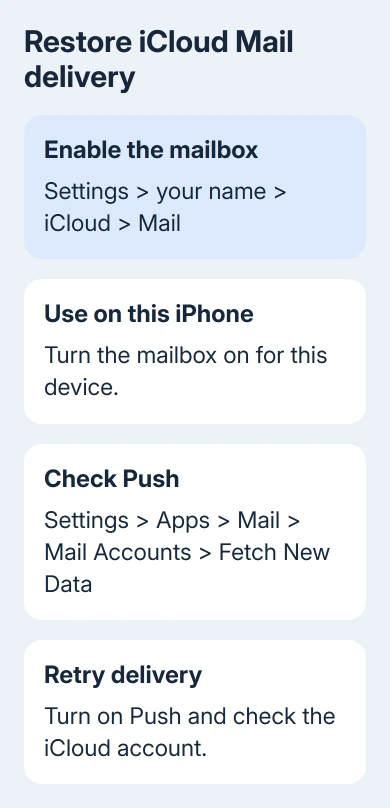
Email the account again and watch whether delivery happens without a manual refresh.
If background delivery is the only failure, our email-fetch guide covers the separate power and account-view checks.
If Mail still won't send or receive, temporarily turn off a configured VPN and retry. Restart the device as well. This can clear a connection problem or a stuck app without removing your Apple Account.
Apple recommends turning off iCloud Mail on the device and turning off Push, restarting, then enabling both again. Before changing account settings, keep any unsent draft somewhere safe so it isn't your only copy.
4. Bring the Mac account online and check outgoing mail
In Mail on a Mac, open Mail > Settings > Accounts, select the iCloud account, and look under Account Information. The account should be enabled and its status online. Older macOS versions call this window Preferences.
When receiving works but a message remains in the Outbox, select Server Settings for that account. Check Outgoing Mail Account and choose iCloud if another account is selected.
Don't look for iCloud inside Edit SMTP Server List; it isn't listed there as a separate editable server. Selecting iCloud as the outgoing account is the step that matters for this Mail configuration.
Retry the message and inspect Sent and Outbox. A message in Drafts still needs sending. If a message reaches Sent but you get a returned-mail notice, check the recipient address and read the notice.
For a phone holding an unsent message, the iPhone Outbox steps explain how to reopen it and retry. Don't repeatedly send extra copies while the original remains queued.
If sending fails only on one network, ask the internet provider whether it blocks outbound SMTP, the connection email apps use for sending. Include whether iCloud.com can send on that same connection.
5. Correct third-party app authorization
Outlook, an Android email app, or another mail app can need a different way to sign in than Apple's Mail app. Follow its iCloud sign-in option first.
Supported Windows Outlook versions can use Apple Account authorization, so you don't have to enter server details yourself.
If you entered the account details yourself, compare them with the iCloud server settings. Incoming mail uses imap.mail.me.com, port 993, with SSL. iCloud Mail doesn't support POP.
Outgoing mail uses smtp.mail.me.com, port 587, with authentication and SSL, or TLS/STARTTLS where the client requires that choice. Use your full iCloud email address for the outgoing username.
The incoming username is usually the part before @icloud.com; try the full address if the app can't connect with that.
Manual setup uses an app-specific password for both servers. You create this separate password for the mail app through your Apple Account.
At account.apple.com, open Sign-In and Security > App-Specific Passwords > Generate an app-specific password. Create one for this mail app and enter it in the client's incoming and outgoing password fields.
Changing or resetting the main Apple Account password cancels existing app-specific passwords. Generate a replacement for the mail app if that change is when its password errors began. The old one won't work again.
When the account still won't work
Choose Contact Apple Support on the iCloud troubleshooting page for help sending or receiving mail. Give them the exact error, free iCloud space, affected apps, and whether the web mailbox works on a second connection.
If only one third-party app fails while the website and Apple Mail work, give that app's support team your sign-in method and the error.
If a recipient never gets mail already shown in Sent, ask them to check Junk and their email administrator's filtering.
The Short Version
Start with iCloud space and service availability, then compare the app with the web mailbox.
Restore device Mail settings for app-only failures, check the outgoing account for send-only trouble, and replace revoked app-specific passwords in manually configured clients.
Checked November 8, 2026.

Isaac Smith is the founder and editor of PC Glance, a website that covers computers, laptops, and technology. He is a tech enthusiast and a computer geek who loves to share his insights and help his readers make smart choices when buying tech gadgets or laptops. He is always curious and updated about the latest tech trends.