
An iPhone text marked Not Delivered couldn't get through on its current connection. Check the signal, tap the red exclamation point, then choose Try Again. For a failed blue iMessage, try Send as Text Message next.
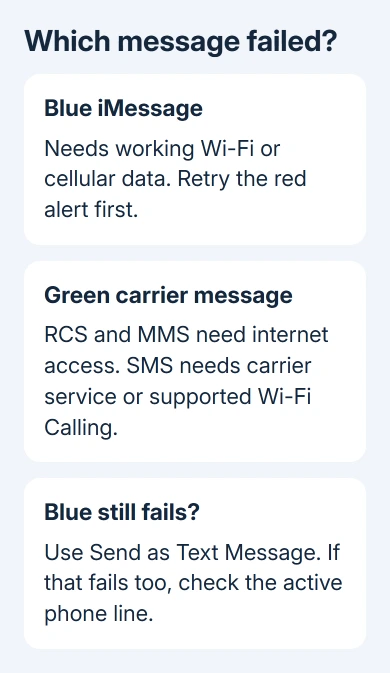
A green message uses RCS, SMS or MMS, so it needs a different check. A blue message with no Delivered label is different from a red failure alert. A missing label doesn't tell you what happened on the other person's phone.
1. Retry the message on a working connection
Open the failed conversation and find the red exclamation point beside your message. With a working connection, tap that alert and choose Try Again.
iMessage needs Wi-Fi or cellular data. RCS and MMS also need Wi-Fi or cellular data, while ordinary SMS needs cellular service. Supported Wi-Fi Calling can let SMS work over Wi-Fi.
Open a fresh webpage to check whether internet access works. If Wi-Fi won't load it, try cellular data where you have coverage. A Wi-Fi symbol only shows a router connection; it doesn't mean that router has internet access.
Once the message sends, stop changing settings. If a blue bubble still shows the red alert, try the carrier option next. If a green message fails too, move to the phone-line check in section 3.
2. Send a failed iMessage as a carrier text
Tap the failed message's red exclamation point again and select Send as Text Message. Messaging charges may apply, depending on your plan. This option is useful when internet-based iMessage can't reach the other person.
The bubble can turn green when the carrier sends it. Green doesn't automatically mean that the recipient blocked you or that the phone is broken. It means the phone used a different messaging service.
For automatic fallback, open Settings > Apps > Messages and turn on Send as Text Message. On iOS 17 and earlier, Messages is directly inside Settings instead of inside Apps.
Apple says to retry a failed iMessage and then try carrier delivery in its message troubleshooting steps. If that also fails, check whether your line is turned on and your carrier supports that message type.
I'd use this fallback for a time-sensitive message before changing account settings. It can get the text moving while leaving your existing conversations in place.
3. Check the active line, especially after a phone transfer
Go to Settings > Cellular and check that the line you intend to use is turned on. With two SIMs, check the number you want to send from. The line you're using for data might not be the one you want for messages.
A transferred iPhone can have an inactive or incorrectly selected line. If the expected number is missing from Cellular, ask your carrier to check that your SIM or eSIM is activated before changing individual conversations.
Next, open Settings > Apps > Messages > Send & Receive. Make sure your intended phone number is selected. Selecting your email address isn't the same as selecting your mobile number.
If Messages fails after you set up a new iPhone, update iOS if needed and check that your cellular line is turned on. Switch iMessage off, then on again, then choose the intended number under Send & Receive.
Use that sequence for a setup problem, rather than repeatedly toggling iMessage for every failed send. If the number shows an activation error, resolve that error first so iMessage can use the number.
For a phone that also misses incoming messages, the incoming-text checks help separate a receiving-address problem from a failed outgoing send.
4. Compare one recipient, a group and an attachment
Start a new message to the same person and check the person's full number or email address. A conversation can keep an old destination even when the person's current number is saved elsewhere in Contacts.
Send a short text without an attachment. Then compare a message to another person. If messages fail only to one person, call them or use another way you've agreed on to check their number or email.
A missing Delivered label doesn't identify a block. Don't delete your conversation or reset the phone on that assumption. The useful question is whether another correctly addressed message can get through.
For a group-only failure, create a new group message with the intended recipients and send a short text. That lets you try a fresh conversation while keeping the old thread and its history.
If plain text works but a picture or video doesn't, check the attachment. Your carrier can limit attachment size, and a large file can take longer to send than a short text.
Under Settings > Apps > Messages, look for Send Photo Previews or Low Quality Image Mode, depending on the installed software. Try the available option when full-size photos won't send.
The receiving device also needs enough space for pictures and videos. Ask the recipient to check storage if your texts arrive but media consistently fails only for them. Don't treat a picture-only fault as a reason to erase your own phone.
5. Restart once, then report the failed service
Restart the iPhone if Messages still fails after the connection, line and destination checks. Shut it down normally, turn it back on, and send one short message using the service that was failing.
For Face ID models, hold Side together with either volume key to display the shutdown slider. For Home-button models, hold Side alone, or Top on older phones. Slide to shut down, then hold Side or Top again to start.
If iMessages still fail while carrier messages work, use the Apple Support link on the troubleshooting page and choose help with Messages. Explain whether the problem affects every recipient, one number or activation after a transfer.
For failed SMS, MMS or RCS, contact your carrier's messaging support. Ask them to check that the line is active and that your plan supports the failed service. Include the failure time and whether calls and cellular data work.
If the recipient recently left iPhone for Android, they may need the old iMessage registration removed. That clears their old registration; it doesn't change your iPhone's messaging service.
The Short Version
Retry using a working connection, then try carrier fallback for a failed iMessage. Verify the active number after a transfer and check whether only groups or media fail. Give support the affected message type.
Checked November 8, 2026.

Isaac Smith is the founder and editor of PC Glance, a website that covers computers, laptops, and technology. He is a tech enthusiast and a computer geek who loves to share his insights and help his readers make smart choices when buying tech gadgets or laptops. He is always curious and updated about the latest tech trends.