
Text messages can keep going to iMessage after a number moves from an iPhone to Android. Deregister it if you recently switched, then have an iPhone user start a new conversation using your mobile number.
If your number has never been linked to iMessage, start with the messaging app, blocked contacts and carrier connection. Check whether all texts are missing or just messages from particular iPhones to see which steps apply.
1. Check who can reach your Android phone
Ask one iPhone contact and one other contact to send separate, short texts to your current mobile number. Have them start a new message and type the number, rather than replying to an old group or an Apple Account email address.
Open the Android messaging app and look inside the conversation. A missing alert is different from a missing text. If the message arrived, check notifications instead of repeating number deregistration.
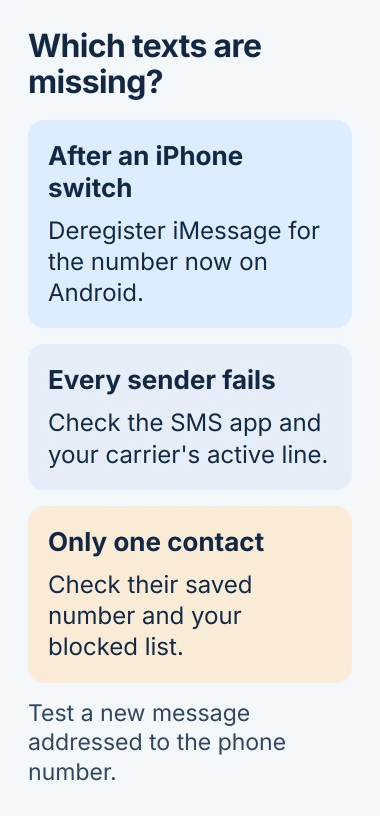
Apple says a switched number may need iMessage deregistration for missing RCS or SMS/MMS. RCS is the newer text service; SMS is a carrier text, and MMS carries pictures or some group messages.
If Android contacts can text you after the switch but iPhone contacts can't, continue with deregistration. If both tests fail, also check the default app and carrier. A SIM change or number transfer can affect several services.
2. Turn off iMessage on the old iPhone
On your old iPhone, check that your number's line is active and connected to the cellular network. If you moved a physical SIM to Android, put it back in the old iPhone for these steps.
Open Settings > Apps > Messages and turn iMessage off. Then open Settings > Apps > FaceTime and turn FaceTime off too. Older iOS versions place Messages and FaceTime directly in Settings.
Return the physical SIM to Android afterward. For an eSIM that has already moved, use the online route in the next section if you can't activate that line on the old iPhone. Neither phone needs erasing for this change.
Deregistration removes your number from iMessage. Messages to your Apple Account email can still arrive on other Apple devices using that account. Have contacts use the mobile number to reach Android.
I'd check which address the sender is using first. Changing Android settings won't redirect a conversation that someone is still sending to your Apple Account email.
3. Use online deregistration without the old phone
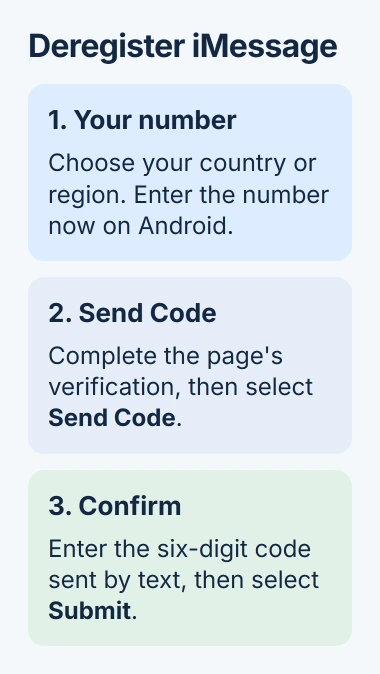
Open the official iMessage deregistration page. In No longer have your iPhone?, choose the correct country or region and enter the number you moved to Android.
Complete the verification shown on the page and select Send Code. Enter the six-digit code from the text on your current phone into the final field, then select Submit. This confirms that you control the number you want removed.
The code is sent as a text to that number. If neither the code nor ordinary texts arrive, have the carrier review your line and any number transfer. Requesting another code can't repair a line that isn't receiving texts.
After deregistration, ask for another text to your number. Messages can arrive immediately, though some iPhone senders may need a few hours to recognize the change. Test a fresh conversation, rather than only an old iMessage conversation.
The sender can keep iMessage on for their other contacts. They need to reach your number through a service your Android line supports.
4. Check Android's default app and the contact
Update Google Messages through the Play Store if that's the app you're using. In Android Settings, open Apps > Default apps > SMS app and select your intended texting app. Menu names can differ on Samsung and other phones.
Google's message-repair steps cover the default app, phone number and blocked contacts. Try these checks if just one sender fails or you haven't switched from an iPhone.
In Google Messages, check Spam & blocked through your profile menu. Open an incorrectly blocked conversation and choose its unblock option. Check the number in that conversation, rather than relying on the saved contact name.
Ask the sender to compare your current number with their saved entry, including the country code. If a fresh conversation works but the old one fails, use the new conversation while the change takes effect.
If the sender can reach you from their iPhone but not their Mac or iPad, use the iPhone-to-Android relay troubleshooting. The problem is on the sender's other devices.
5. Separate RCS, pictures and group-message failures
When short individual texts work, test a picture and then a group separately. A failed photo or group doesn't mean all incoming messages have stopped. MMS needs a working data connection and support from your mobile plan.
In Google Messages, open Profile > Messages settings > RCS chats and read the status. Connected means RCS is available; Connecting means your number is still being checked. If the carrier disables RCS, contact it about that service.
Don't keep turning RCS off and on to try to fix this. The RCS settings guidance warns that this removes you from group chats. Switching messaging apps may also mean clearing the previous registration.
If an iPhone in the group isn't receiving the Android replies, use the iPhone group-message checks on that iPhone. Check which device is missing the messages before changing settings.
For missing ordinary texts, check that you have signal and an active plan, and that Airplane mode is off. Tell the carrier which sender failed and when, plus whether calls and cellular internet work. Ask about any recent number transfer.
The Short Version
After an iPhone switch, deregister iMessage and test a fresh text to your number. Check the default app and blocked list as needed. Separate RCS, pictures and groups; ask the carrier about missing SMS or an unfinished number transfer.
Checked November 5, 2026.

Isaac Smith is the founder and editor of PC Glance, a website that covers computers, laptops, and technology. He is a tech enthusiast and a computer geek who loves to share his insights and help his readers make smart choices when buying tech gadgets or laptops. He is always curious and updated about the latest tech trends.