Android text messages can move through the new phone's setup screen by cable or wirelessly. Select messages when choosing what to copy, and keep your old phone until you've checked that conversations and attachments arrived.
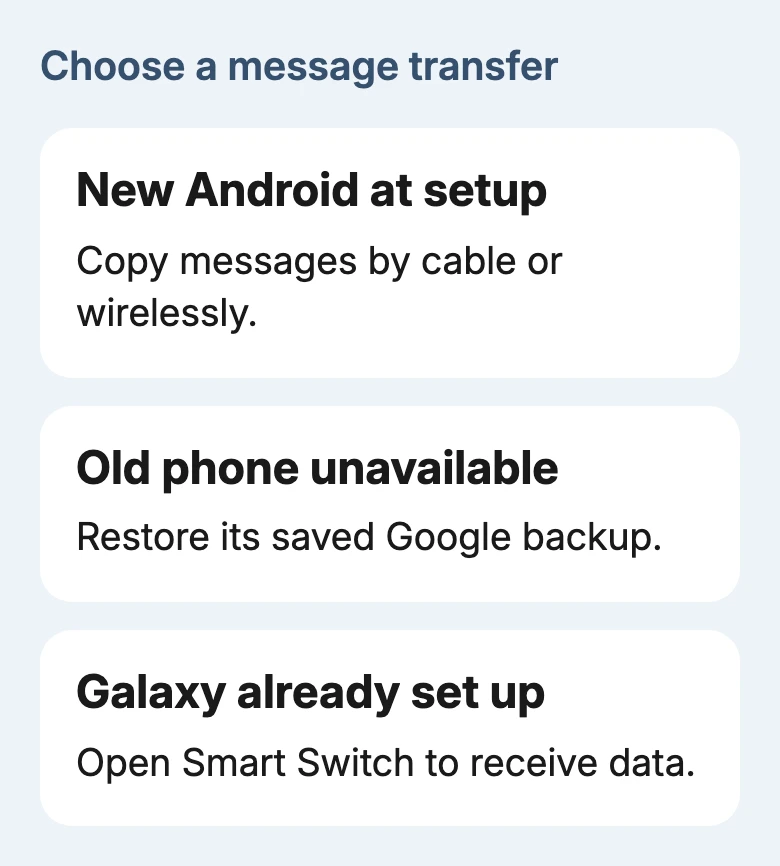
For a Galaxy already in use, choose Smart Switch. Without the original handset, restore a saved Google backup. WhatsApp and other chat apps need their own transfer or restore process rather than the SMS selection.
In this guide
Pick the route before you reset either phone
At the new phone's welcome screen, use the built-in copy steps. These can transfer text messages and picture or video attachments along with other data. A compatible cable is convenient, but wireless transfer supports the same categories.
Charge both phones, connect them to the internet, and check the receiving phone has room for the selected content. Keep the old phone unlocked and nearby during the copy so you can approve requests on it.
If the new phone is already set up, check its maker's transfer tool before resetting it. General Android setup transfer may only be offered once, while supported Pixel and Galaxy models have additional ways to copy later.
Moving the SIM or activating an eSIM moves cellular service; it doesn't copy the message history stored on the phone.
The same move can leave an address book behind even when texts arrive. Transfer Android contacts separately if the conversation list shows numbers instead of saved names.
Copy messages while setting up the new phone
Google describes its Android-to-Android copy procedure with cable and wireless routes. Start on the new phone and follow the version of the setup screens it presents.
- Turn on the new phone, tap Start, and connect it to Wi-Fi or a mobile network.
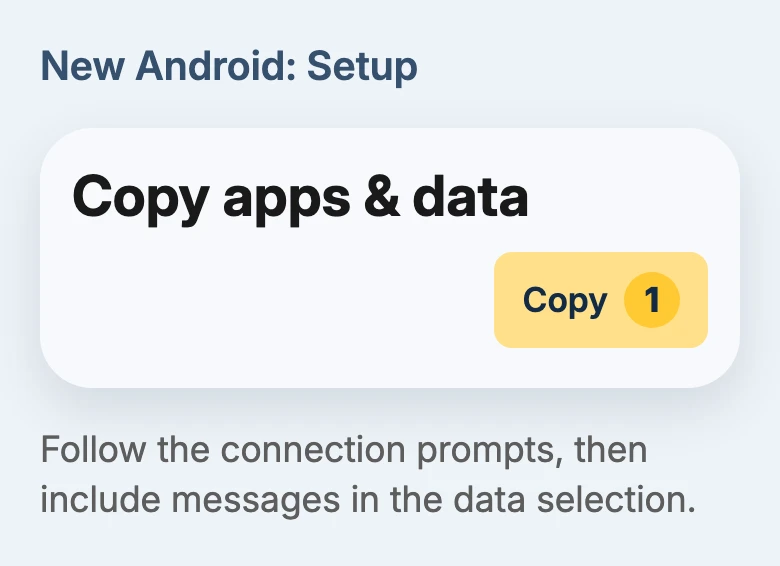
- When asked to copy apps and data, choose Copy.
- Connect the phones with a cable that fits their ports. Approve Copy on the old phone when asked.
- Choose your intended Google Account and complete sign-in on the receiving phone.
- On the screen for choosing data, include text messages and any message attachments offered.
- Start the copy and leave the phones connected until it finishes.
A cable that only charges isn't suitable for moving data. If the phones don't start the connection, try a known data cable or follow the wireless route instead of repeatedly reconnecting the same cable.
On Google's setup flow, the new phone shows Copying your data during transfer. The old phone reports when copying is done. Follow the completion prompts before unplugging or putting either device away.
Open the new phone's messaging app after setup and check an older conversation as well as a recent one. Open a picture attachment too; a visible conversation list alone doesn't confirm its media arrived.
Use wireless copying without a compatible cable
When setup asks for a cable, tap No cable, then Next when it offers Transfer wirelessly. Follow the matching instructions on the old phone to start the connection.
The Google setup flow can ask you to launch the old phone's Google app, search for set up my device, and confirm the matching shapes and numbers. Approve the copy and confirm the old phone's screen lock when requested.
Keep both phones nearby and connected to Wi-Fi. On the new phone, choose the data to copy and include messages before starting the transfer. Screen wording can differ by manufacturer, so use the option for moving data from another Android.
If the connection drops, return to the setup instructions on the new phone and check what it offers to retry. Avoid setting up a second transfer tool at the same time, because you need to track which copy actually finished.
Restore messages from a Google backup
When the old phone still works, first create a current backup. Open Settings > Google > All services > Backup, then choose Back up now. Some versions put Backup under Backup and restore.
Review Backup details and the backup date. Android backup includes SMS and MMS messages; Google Messages also backs up its RCS conversations. RCS is the internet-based chat system that supplies read receipts and other chat features.
During the new phone's setup, choose the Google Account you used for that backup and select the old phone's backup when asked. Follow any request for the old phone's screen lock to restore protected backup data.
Compare Android versions before restoring. Check which Android release created the backup: the receiving phone's Android version must match it or be more recent.
Restoring the backup can take up to a full day. Keep the phone connected and wait until the restore finishes before deciding that a conversation is missing for good.
If the old device is broken and no backup contains its messages, signing in can't create that missing backup. Keep the old device and ask its manufacturer about recovering the phone before you reset it.
Copy later with Galaxy or supported Pixel tools
For a new Galaxy, open Settings, search for Smart Switch, and launch it. Depending on One UI, the entry appears under Accounts and backup as a way to bring data from an old device.
Choose Receive data, then Galaxy/Android. Select Wireless, choose Send data > Wireless on the old phone, and approve the connection with Allow. Select messages on the receiving Galaxy and tap Transfer.
Smart Switch needs to run on the receiving Galaxy and may ask you to install or open it on the old Android. Follow its permission prompts so it can read and copy your messages.
On Pixel 9 and later, use Settings > Back up or copy data > Copy data using Android Switch > Start after setup. Earlier Pixels have different transfer limits, so check the model's support steps before considering a reset.
These tools don't make every chat app's history part of the SMS copy. Use WhatsApp's own transfer or backup restore for its chats, and check other messaging apps individually.
Check history and new-message delivery separately
If history is present but new texts don't arrive, the transfer and cellular service are separate checks. Check that your new phone uses your active SIM or eSIM and the SMS app you want to use.
For new delivery failures, use the Android SMS, MMS, and RCS checks. Repeating a history transfer won't fix an unactivated phone line or a stuck RCS registration.
For missing history, tell the new phone's maker both phone models, their Android versions, and how you copied the data. Say whether SMS, picture messages, or one chat app is missing. Keep the old phone and backup intact while they check.
The Short Version
Copy messages during setup by cable or wirelessly, or restore a Google backup. Use Smart Switch for a Galaxy already in use and check Pixel post-setup options. Verify conversations and attachments before erasing the old phone.
Checked November 29, 2026.
 If you have any business, I can build it online