Android screen flicker can come from an app or display setting; fixed lines and dark patches can mean panel damage. Restart an intact phone and check for updates first. Cracked glass calls for service.
If the phone rings but its screen stays dark, focus on the display. If it has no power, start with charging checks instead.
In this guide
1. Separate physical damage from a changing picture
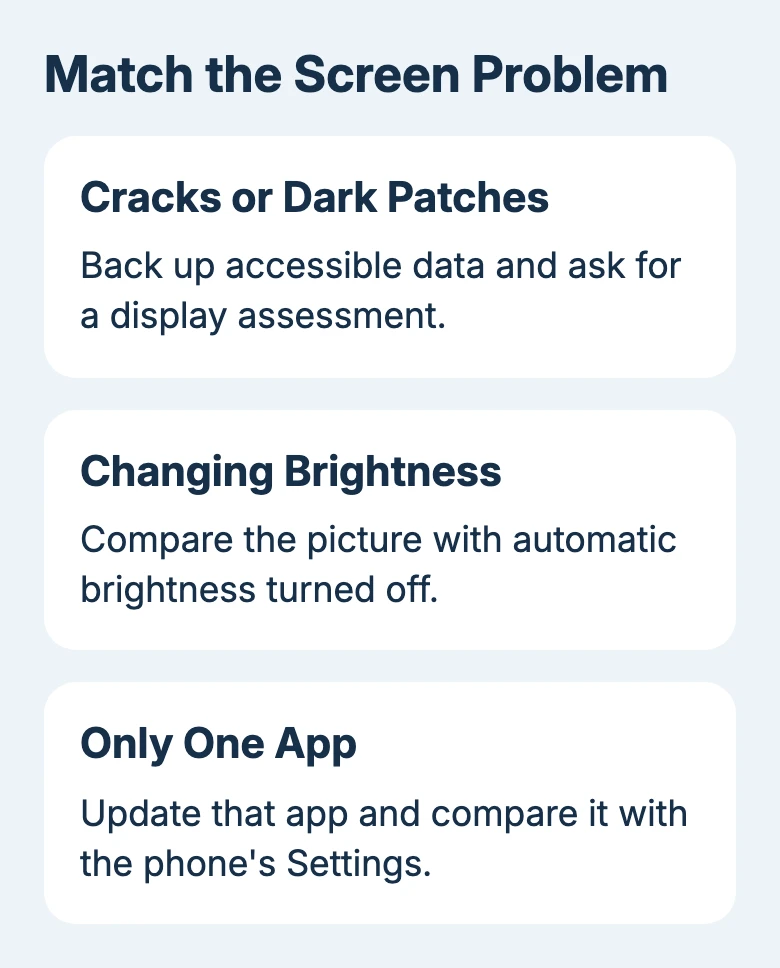
Set the phone down and look at the screen. Note whether the fault is a fixed line, a patch, flicker across the whole image or a screen that simply changes brightness.
Treat a mark that appeared after a drop, pressure or liquid exposure carefully. Don't press or massage the affected area. Pressure won't repair broken display layers and can make damaged glass harder to handle.
Many Android phones use OLED panels rather than LCDs. The repairer needs to know which part your phone uses, even though people often call any phone screen an LCD. Give the repairer your full model number and describe what the picture does.
Google says flickering, green tint, lines and physical damage can mean a hardware issue. The software checks are useful on an intact phone, but they aren't a repair for cracked glass.
If the phone still works, save important files while you can read the screen. For a handset that won't turn on at all, use the Android power checks instead of assuming the display is the only failed part.
2. Restart, then check Android and app updates
On Pixel 6 and later, hold Power + Volume up for a few seconds, then tap Restart. On Pixel 5a and earlier, hold Power to open the power menu, then tap Restart.
On a Galaxy phone with the usual Side-button layout, open the Quick panel fully and tap its power icon, then Restart. If your model's layout differs, use its own power-menu instructions rather than another brand's button sequence.
After the phone starts, open the same screen where the fault appeared. If it looks normal, try the original app too. Notice whether the picture failed during startup or only when the app reopened.
For a Pixel, open Settings > System > Software updates > System update on current versions. Older versions can show System update directly under System. Install an available update and follow its restart prompt.
On Samsung Galaxy, open Settings > Software update > Download and install. Update affected apps in the Play Store as well. If the app's update fixes its picture, keep using the phone without erasing it.
If the same line stays on the lock screen, in Settings and in other apps, continue with the display checks. An update doesn't make physical damage disappear.
3. Check brightness and refresh settings for flicker
On a Galaxy phone, open Settings > Display and turn Adaptive brightness off temporarily. Move the brightness slider to a comfortable fixed level, then check the screen under the lighting where you noticed the problem.
Adaptive brightness adjusts the display as the surroundings change. If the picture was only getting brighter and darker, this check separates that adjustment from a fixed line or damaged patch.
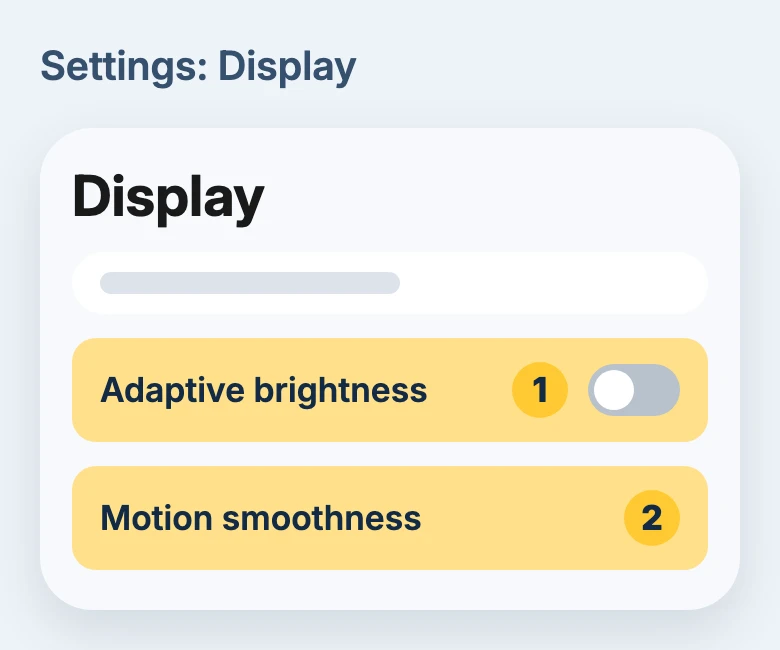
If the phone offers Settings > Display > Motion smoothness, compare Standard with the current selection. Standard changes how often the screen refreshes. This option isn't present on every Galaxy model.
A change that stops flicker gives you a usable display setting to keep while checking for updates or asking for service. Tell support which setting changes the symptom; don't describe it simply as an LCD failure.
On a Pixel, use its own Display settings for brightness. Don't look for Samsung's Motion smoothness wording. If a color change or persistent line remains after restarting and updating, arrange a screen assessment.
4. Compare the picture in Samsung Safe mode
Samsung's Safe mode runs the built-in software while downloaded apps stay inactive. Use it when the screen remains readable and flicker seems related to an app, overlay or recent installation.
Use the Quick panel's power icon to reach the Galaxy power menu. Touch and hold Power off until Safe mode appears, then tap Safe mode. After it boots, the words Safe mode should be visible along the display's bottom edge.
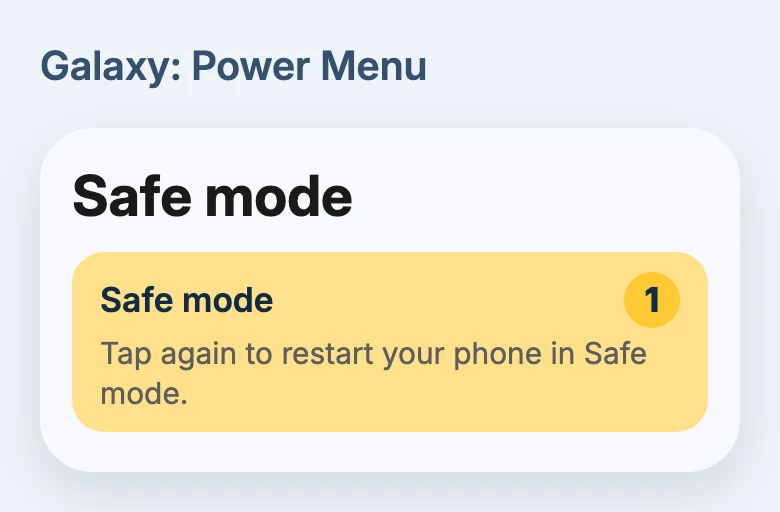
Check a built-in screen such as Settings for the same flicker. If the picture is normal in Safe mode, a downloaded app may be responsible. Restart normally and remove recent suspect apps one at a time, checking after each removal.
If flicker continues in Safe mode, the system or display still needs checking. You still won't know which component has failed.
Other Android makers use different Safe mode steps. Find the Safe mode instructions for your model on its maker's support page. Avoid unfamiliar recovery or service choices reached through another phone's button combination.
5. Handle a black display or failed touch as its own symptom
Use a second phone to ring the handset. Ringing or vibration while its display stays black tells you the handset has some power. That points you toward display service rather than repeatedly leaving it on charge.
No sound isn't enough to declare the phone dead, since silent settings and a flat battery can affect that check. Note whether it charges, vibrates or makes any startup sound and give those details to the repairer.
If taps fail despite a clear picture, remove any case or undamaged removable protector that interferes, then clean and dry the screen. Leave cracked glass to a repairer.
Save anything you can still access. The Android backup options explain what your account may already hold and what needs a separate copy before repair.
When to book a screen repair
For a Pixel, use Google's repair options linked from its screen appearance page. Galaxy repairs go through Samsung Support; specify the phone model when booking. Ask about warranty coverage before approving paid work.
Provide the drop or liquid history, whether the phone still rings, and whether the problem remains after a restart or in Safe mode. Those details help separate screen damage from an app or power problem.
I'd stop the software checks once a fixed damaged area remains across every screen. A factory reset erases data and won't repair a cracked panel, so let the repairer examine the damaged area before you agree to a reset.
The Short Version
An intact display gets a restart, updates and a settings check. Safe mode can reveal an app-related flicker. Cracks or persistent patches need a repairer, with important files saved first.
Checked November 29, 2026.
 If you have any business, I can build it online