Android phones that keep restarting can have a faulty app, low storage, or a case pressing a button. Remove the case and external battery first. If it stays on, install updates and try safe mode, which disables downloaded apps.
Those checks are possible when the Home screen opens between restarts. A phone that never gets past its startup logo needs the continuous-restart steps, since you can't reach its menus.
In this guide
1. Remove anything touching the buttons
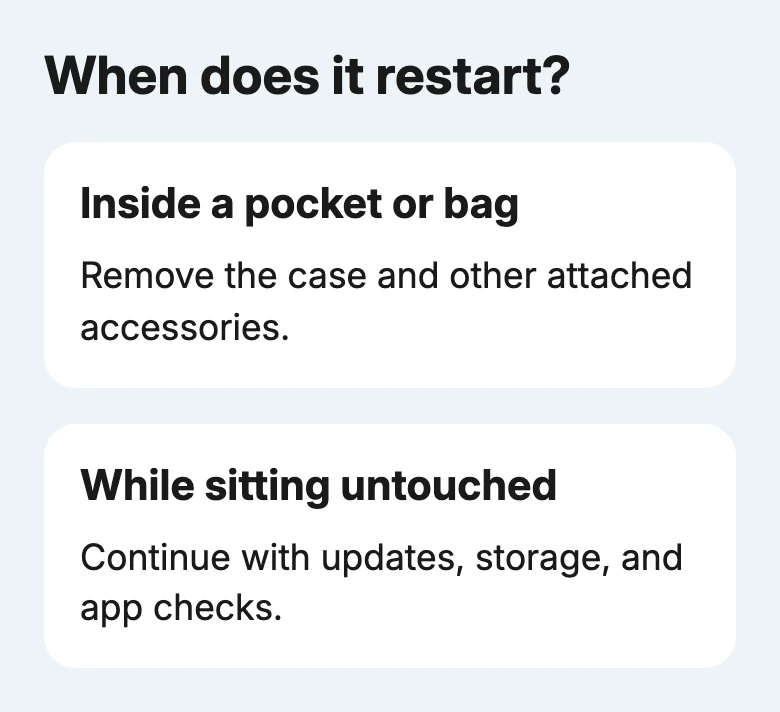
Remove the phone's case, battery pack, and other accessories. Check that nothing presses the power or volume buttons while the phone is in your pocket or bag. Leave it on a table and see whether it restarts without being handled.
If restarts stop after removing an accessory, check its button openings before putting it back on. A tight case can make a phone seem to have a software problem. Replace that accessory if it brings the restarts back.
If the phone restarts even without accessories, notice whether it becomes unusually hot. Unplug a hot phone and leave it idle to cool. The Android overheating guide covers heat-related shutdowns and when the battery needs service.
A swollen battery or damaged phone needs service rather than pressure on the case or more restarts. For an undamaged phone that reaches Android normally, continue with updates and storage checks.
2. Update Android and check free storage
Find the system updater in Settings. The usual Android path is System > Software update. Pixels may show Software updates; on Galaxy phones, use Software update > Download and install.
Install an offered update while the phone is stable enough to complete it, then check whether the restarts return. If updates are controlled by an employer, send the restart details to IT and let them handle the update.
Open your phone's storage page in Settings and check its remaining free space. Google's Android restart troubleshooting warns that phones can develop problems with less than 10% of storage free.
Move large files you've already backed up, remove downloads you don't need, or uninstall unused apps. Check free space again afterward. Closing running apps leaves those files on the phone, still taking up storage.
If you need to protect important data first, the Android backup guide explains what your account saves and which files you must copy yourself. A signed-in cloud account can still leave some app data without a backup.
3. Update the apps before removing them
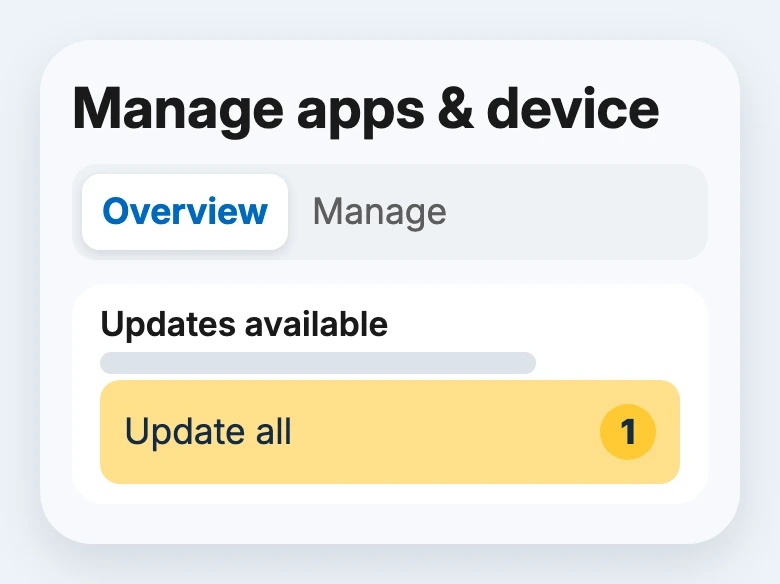
Open Google Play Store, select your profile picture, then open Manage apps & device. Under Updates available, update the apps with pending updates. Some versions show the heading as Manage apps & devices.
Use the phone normally after the updates and watch whether a particular app triggers the next restart. An app closing differs from the whole phone showing its startup logo. Write down whether you saw an app close or the phone restart.
If one app consistently triggers it, open Settings > Apps, choose that app, and use Force stop if available. This stops it for the moment; the app stays installed, and something else could still be causing the restarts.
Make a short list of the apps you stop or remove. That helps you see which change helped, without turning off several things and losing track. If the trigger remains unclear, use safe mode next.
4. Try safe mode to stop downloaded apps running
In safe mode, downloaded apps can't run. If the phone stays on in safe mode but restarts during normal use, one of those apps could be responsible. Use your manufacturer's steps; startup buttons vary across Android models.
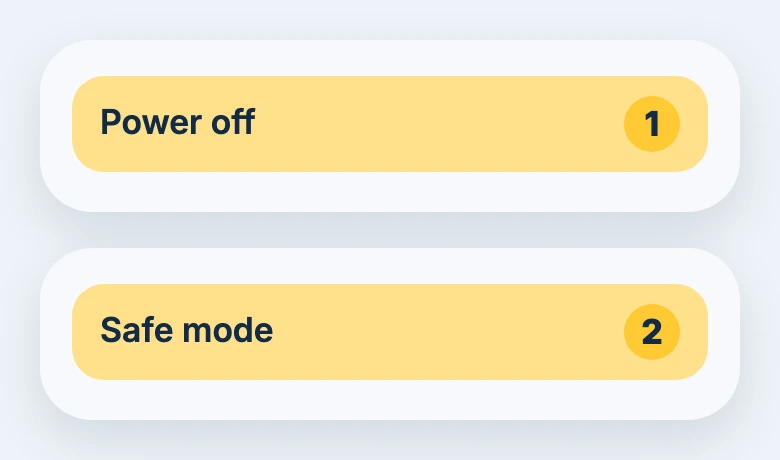
For Pixel 6 or newer, hold Power + Volume Up for several seconds to display its power menu. For Pixel 5a or older, hold Power instead. Keep a finger on Power off or Restart until prompted, then select OK when the safe-mode prompt appears.
For Samsung Galaxy, bring up its power menu, often by holding Side + Volume Down. Touch and hold Power off until Safe mode appears, then tap it. The phone restarts and displays Safe mode along the screen's lower edge.
In safe mode, try the activity that normally triggers a restart. Pixels enter safe mode with Airplane Mode enabled. If your check needs internet access, switch Airplane Mode off.
If the restarts stop, leave safe mode by restarting, then uninstall recent downloads individually. Restart and check after each removal. Once restarts stop, reinstall the other apps. Leave the troublesome app out until it's fixed.
Restarts during safe mode point away from downloaded apps as the cause. Move to the manufacturer's repair options rather than uninstalling every app. Safe mode doesn't repair Android itself or a faulty battery.
5. Take the continuous-restart route when menus won't open
For a Pixel that is already off, press Power to start it. When its startup animation begins, hold Volume Down until it finishes starting. After a successful startup, look for the Safe mode label in a lower corner.
For a stuck logo, follow your phone model's recovery steps. Don't use a random recovery-button combination from another phone. Some recovery choices erase data, and the same buttons have different uses on different devices.
Ask Samsung support about a Galaxy boot loop, a repeated startup sequence. Pixel owners should request help for a phone that constantly restarts and can't reach Settings. Tell support whether you could get into safe mode.
6. Save your data before erasing or arranging service
Leave a factory reset until last; it erases apps and locally saved data. Check your backup and the account password before confirming it. Ask the manufacturer for the reset procedure for your model and Android version.
I'd ask about repair first if the phone also loses power suddenly, gets abnormally hot, or can't stay on without a charger. Those details can change whether a reset is a sensible next step.
After a reset, tell support whether restarts returned before or after you restored apps. Reinstalling the app that caused the restarts can bring them back. Give the model, update version, and safe-mode result when you ask for service.
The Short Version
Remove accessories, install updates, and free storage if needed. Compare safe mode with normal use, then uninstall recent apps individually. A boot loop or restarts in safe mode need your model's recovery steps or service.
Checked November 29, 2026.
 If you have any business, I can build it online