An image/heic-sequence file that won't move on a Galaxy Note 8 needs a video export from its source device. For an iPhone Live Photo, use Save as Video in Photos and send that clip. Renaming only changes the filename.
First check whether the original still moves. A transferred JPEG has no motion to recover. An original sequence that animates elsewhere needs a compatible export, while a normal video that fails on the Note 8 needs its video format checked.
In this guide
Find out what the sender actually shared
Have the sender play the original using the device that created it. Does it animate there, and which app opens it? That tells you what you need: a Live Photo export, an animation app's export, or the moving original to replace a still copy.
The label image/heic-sequence describes a media type, not a playback button in Samsung Gallery. It can identify a series of images compressed using HEVC. That label alone can't identify an iPhone Live Photo as its source.
If the sender has an iPhone Live Photo that still plays, follow the next section. If another camera or animation app made the file, ask for its video export instead. Other apps won't necessarily have the iPhone menu used in these steps.
If the only remaining copy is a JPEG or PNG, get the original again. Those still-image exports can't reproduce the original motion. A converter that makes a video from one still frame won't restore the missing action.
I'd check the source before installing another viewer on the Note 8. Changing playback settings can't help when the file contains only the still picture you can already see.
Export an iPhone Live Photo as a video
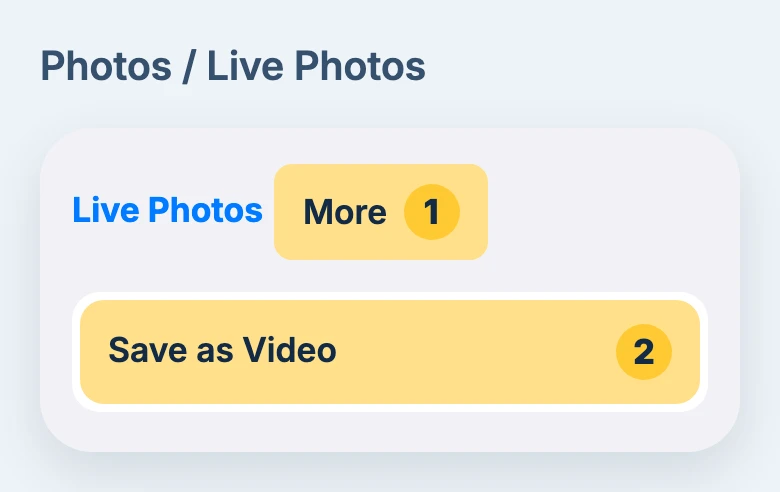
On the iPhone holding the original, open Photos and find Media Types > Live Photos. Open the moving picture you want to send. It must be the Live Photo, rather than a screenshot or a still copy received in a chat.
Tap More, the three-dot button at the upper right, then choose Save as Video. Apple says Save as Video keeps the Live Photo and creates a separate video copy.
Find the new clip in Recently Saved. Play it on the iPhone before sharing it. You should have a movie that plays the movement without needing to press and hold a Live Photo.
The location of the Media Types collection can differ with the Photos layout. The key action is opening the actual Live Photo and using its More menu. Don't choose a still-image export when motion is what you need.
Send the newly created video through a messaging or file-transfer app both people already use. Select the clip you just played, rather than sharing the original Live Photo again from its album.
For larger files transferred through a computer, the phone photo import checks cover cable connections and permissions. Importing successfully and converting successfully are separate steps.
Check the received clip instead of its preview
On the Note 8, finish downloading the attachment and open the saved video. A thumbnail or preview can display one frame without starting playback. Use the video's play control and check whether the movement runs.
If the new clip plays, keep that video for sharing with devices that don't handle the original motion-photo format. The original can stay with the sender for editing and Apple-specific Live Photo behavior.
Samsung lists MP4 among the Note 8's video playback formats. That makes an ordinary compatible video a better target than expecting every app on this older phone to animate the original HEIC sequence.
The file extension alone still isn't enough. A container holds the video, while a codec is the way the video inside is compressed. Matching file extensions can hide differences in the codecs used inside.
If Gallery reports that the received clip can't play, ask for an H.264 video, preferably in MP4, from the source app. Don't just rename an HEIC or HEVC file to .mp4; the compressed content stays the same.
Convert an existing HEVC video on a Mac
For a sender who already has a playable HEVC video, a Mac can export a more compatible copy. This route applies to a movie QuickTime Player opens. QuickTime won't necessarily open an image/heic-sequence file directly.
Open the video in QuickTime Player. Choose File > Export As > 1080p, when that resolution is available. In the export dialog, choose Greater Compatibility (H.264) rather than Smaller File Size (HEVC), then save a new copy.
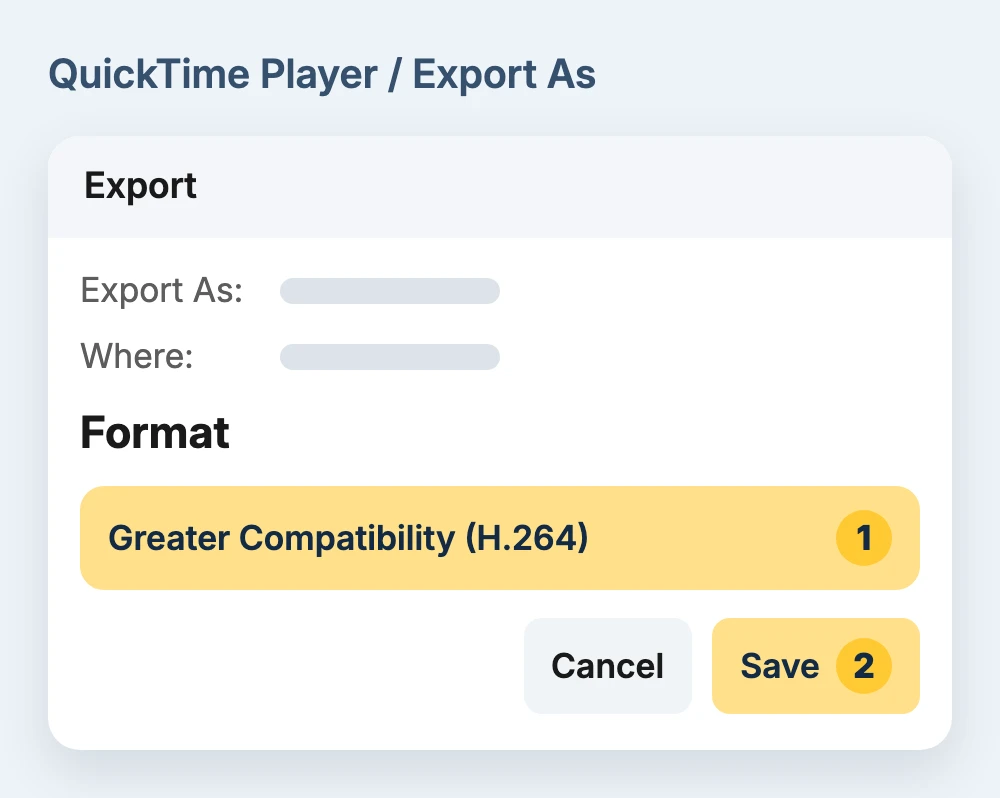
If the dialog uses an HEVC checkbox instead, clear it before saving. The HEIF and HEVC conversion instructions describe these two versions of the export control.
QuickTime exports a .mov movie, not an MP4. Don't change its extension and call it converted. If the receiving app still refuses that movie, use the source app's supported H.264/MP4 export or ask the sender for that format.
Keep the original until the Note 8 plays the new copy. That leaves the sender able to try another supported export without repeatedly converting an already converted file.
Make future iPhone transfers easier
On an iPhone that supports the choice, Settings > Camera > Formats > Most Compatible captures new photos as JPEG and new videos as H.264. It changes future captures, rather than repairing a motion file already sent.
This setting also doesn't turn every future Live Photo share into an ordinary video. Continue using Save as Video when the recipient needs the Live Photo's movement in an ordinary movie.
The Mac HEIC-to-JPEG guide is useful when the goal is a still picture exported on a Mac. JPEG is the wrong output when the movement needs to play on the Note 8.
If the original moves but its app offers no working video export, send that developer the media type and the Note 8's model details. Ask how to export the complete sequence as H.264 video, rather than converting it to a still.
The Short Version
Get a video export from the device holding the moving original. An iPhone Live Photo uses Save as Video; an existing HEVC movie can be exported as H.264. A still JPEG can't regain lost motion, and renaming a file won't make it compatible.
Checked November 29, 2026.
 If you have any business, I can build it online