
An iPhone shares its cellular internet through Settings > Personal Hotspot > Allow Others to Join. Turn that on, keep the screen open, then connect the other device to your iPhone's name using the displayed Wi-Fi password.
Connected devices use data from your cellular plan.
If Personal Hotspot is missing, check that Cellular Data is on and your carrier includes hotspot access.
If the switch works but another device can't connect, compare the network name and password with what you're entering on the other device before changing other settings.
Turn on the hotspot and set its password
First, open a web page on the iPhone using cellular data to check that the line has internet access. A hotspot can't share a cellular connection that isn't working. Any working website will do for this connection check.
Open Settings > Personal Hotspot. On some iPhones, it's at Settings > Cellular > Personal Hotspot. Turn on Allow Others to Join. The steps use Settings and don't depend on whether the iPhone has a Home button.
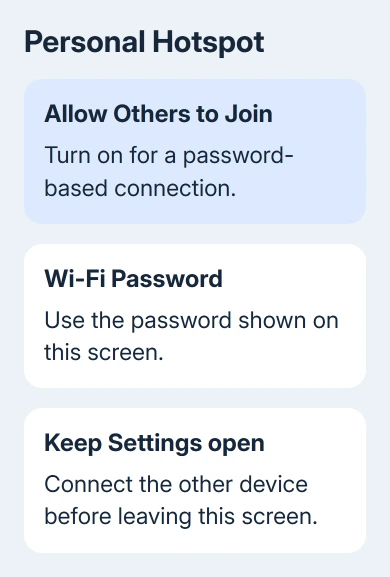
To choose a different password before sharing, tap Wi-Fi Password. Use at least eight characters. English letters, numbers, and ordinary punctuation avoid the compatibility problems that characters outside that set can cause.
Leave Personal Hotspot visible while your second device joins. It shows the hotspot's connection details, so you can compare them without guessing.
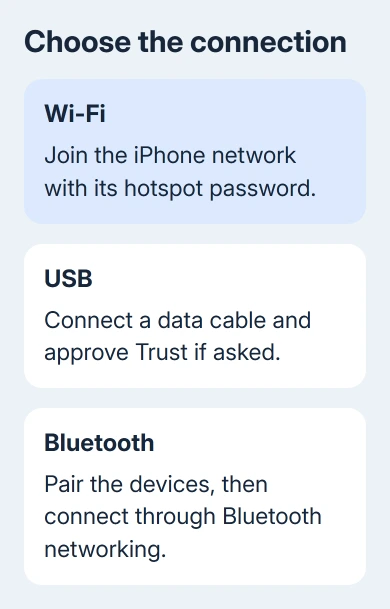
Apple's Personal Hotspot instructions describe the Wi-Fi, USB, and Bluetooth routes.
Check your plan's hotspot allowance before a long session. A laptop can use much more data than an afternoon of phone browsing, especially while downloading updates or syncing files.
Join the iPhone from another device
On a Windows 11 laptop, select the network, sound, or battery area on the taskbar. Open the available Wi-Fi networks, choose your iPhone's name, and select Connect. Enter the password from the iPhone's hotspot screen.
On Windows 10, select the taskbar's network icon, choose the iPhone network, and select Connect. Enter the Wi-Fi password displayed in Personal Hotspot settings.
On a Mac, use the Wi-Fi controls in Control Center, System Settings, or the menu bar. Choose the iPhone's name and enter its hotspot password if asked. On an iPad or another iPhone, open Settings > Wi-Fi and choose that network.
For an Android phone, open its Wi-Fi settings, choose the iPhone network, and enter the same password. Android manufacturers use different settings layouts, but the connection is an ordinary password-protected Wi-Fi network.
Open a page on the connected device and check that it loads. Joining Wi-Fi confirms the local connection; loading the page checks that the phone is also passing internet traffic through its cellular line.
To recognize the network more easily, rename the iPhone at Settings > General > About > Name. The hotspot uses the phone's name. Recheck the available networks on the other device after making that change.
Use Instant Hotspot with your own Apple devices
Instant Hotspot works with your nearby Mac or iPad when both use your Apple Account. Enable both devices' Wi-Fi and Bluetooth, then choose the iPhone from the other device's Wi-Fi menu.
For this same-account connection, Allow Others to Join doesn't need to be enabled and a password isn't required. That's why your own Mac can connect even when a friend's laptop can't see or join the phone the same way.
Family Sharing can also provide hotspot access when you've set it up for the family. Use the normal password-based setup for another person's device when it isn't part of that arrangement.
If the shared connection needs to come from a Windows computer instead, our Windows hotspot setup covers that separate arrangement. Its settings don't turn an iPhone hotspot on or off.
Connect a computer by USB instead
I'd use USB when a nearby laptop won't hold a reliable wireless connection. Turn on Personal Hotspot, then attach the phone using a USB data cable. A cable that only charges can't provide the same connection.
For Windows, install or update Apple Devices or iTunes for Windows as required by the setup. Unlock the connected phone and approve Trust if the computer-trust prompt appears.
On a Mac, connect the cable and approve the accessory if prompted. Trust the computer on the iPhone when asked. If the Mac doesn't show the connection, check that Finder can see the phone before troubleshooting its network service.
In System Settings > Network, look for iPhone USB. On macOS Monterey or earlier, open System Preferences > Network. If the Mac recognizes the phone but that service is missing, you may need to add it through the network-service controls.
Unplug the cable to end USB sharing. Turn Personal Hotspot off when it's no longer needed, because a later charging connection could let the computer use the phone's data again.
Use Bluetooth when you need that connection method
Turn on Personal Hotspot, then open Settings > Bluetooth on the iPhone and stay there. Use the computer's Bluetooth device list to find the iPhone and start pairing.
Compare the pairing code on both screens and approve the matching request. The next steps depend on your computer.
On Windows 11, open Settings > Bluetooth & devices > Devices. Expand the iPhone under Other devices, choose Join beside Personal Area Network (PAN), then choose Access Point > Connect.
On Windows 10, right-click the taskbar's Bluetooth icon and choose Join a Personal Area Network. Right-click the iPhone in Devices and Printers, then choose Connect using > Access point.
A Connection successful message confirms Windows joined the Bluetooth network. If the PAN option is unavailable, use Wi-Fi or USB instead. The Bluetooth network instructions show both Windows layouts.
On a Mac, open System Settings > Bluetooth and select the iPhone when it appears. Older Macs use System Preferences > Bluetooth. Once connected, the Mac can use the phone's cellular internet.
Fix a missing hotspot or a failed connection
When Personal Hotspot is absent or dimmed, open Settings > Cellular and check Cellular Data. If it's already on, ask your carrier whether sharing cellular data, called tethering, is enabled on your line and included in your plan.
The grayed-out Personal Hotspot guide covers that case in more detail, including restrictions.
A missing carrier feature won't be repaired by changing the connecting laptop's Wi-Fi settings.
For a visible hotspot that refuses a connection, recheck its password, turn Wi-Fi off and on on the device you're connecting, then restart both devices and install current updates. Try joining again after each change.
On iPhone 12 or later, try Maximize Compatibility in Personal Hotspot settings if an older device can't connect.
It can reduce internet performance and Wi-Fi security for connected devices, so use it when compatibility is the problem.
If the failure continues, use Apple's hotspot troubleshooting link from the setup page. Tell support your iPhone model, iOS version, carrier, and whether the connection fails over Wi-Fi, USB, or Bluetooth.
Ask the carrier first when the hotspot switch itself is unavailable.
The Short Version
Enable Allow Others to Join, keep Personal Hotspot open, and connect to the iPhone's name with its Wi-Fi password. Your own Apple devices can use Instant Hotspot.
USB is another route for a computer, while a missing hotspot needs a cellular-plan check.
Checked November 8, 2026.

Isaac Smith is the founder and editor of PC Glance, a website that covers computers, laptops, and technology. He is a tech enthusiast and a computer geek who loves to share his insights and help his readers make smart choices when buying tech gadgets or laptops. He is always curious and updated about the latest tech trends.