
A silent Lenovo laptop can be sending sound to a monitor, Bluetooth headset, or muted app instead of its speakers. Select the built-in speakers in Windows sound settings and turn off mute before replacing the audio driver.
If headphones work but the laptop speakers don't, concentrate on speaker selection and the built-in audio device. If every output is missing, move to the driver checks. A microphone problem needs different controls from playback sound.
1. Bring playback back to the Lenovo speakers
Disconnect a dock or HDMI display for this check, and unplug wired headphones. Turn off a connected Bluetooth headset. Play a familiar audio clip so you'll hear the result of changing the output.
On Windows 11, open Start > Settings > System > Sound. Under Output, select the laptop's Speakers entry. The name can include Realtek or another audio maker; it won't necessarily say Lenovo.
On Windows 10, open Start > Settings > System > Sound, then use Choose your output device. Choose the built-in speakers rather than the display, headset, or dock.
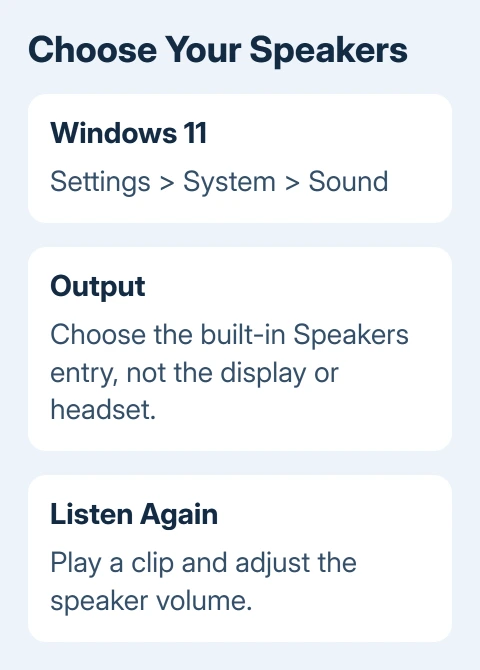
Turn off mute, then raise the speaker volume until you can hear the clip. Check the keyboard's speaker-mute key too. ThinkPad, IdeaPad, Yoga, and Legion models can place that function on different keys.
Use the key marked with the speaker symbol, with Fn if that keyboard requires it. The microphone-mute key controls recording, so pressing it won't restore a silent music track.
If sound returns when the dock is disconnected, reconnect it and select Speakers again. The laptop was choosing another output. If the speakers remain silent, compare apps before changing their driver.
2. Check whether one app is muted
Play audio in a second app. If you can hear a system sound or a video saved on the laptop, the speakers work, even if your original browser tab or meeting stays quiet.
In Windows 11, open Settings > System > Sound > Volume mixer. Look under Apps for the program playing audio. Raise its volume and check that its output device matches the speakers you selected.
In Windows 10, right-click the sound icon in the taskbar, then choose Open Volume mixer. Check both the device slider and the affected app's slider. Keep the app playing while looking for its volume control.
Meeting apps can choose their own speaker. Open the app's audio settings and select the Lenovo's built-in speaker device there. A browser tab can also have its own mute control, separate from Windows volume.
If several programs are silent, continue with the Windows checks. For Chrome alone, the browser audio guide covers its site and tab controls.
3. Restart and let Windows check audio
Save open work, then choose Start > Power > Restart. A restart completes pending driver changes and starts the audio components again. After signing in, play that clip once more.
On Windows 11, open Settings > System > Troubleshoot > Other troubleshooters and run Audio. Some builds route the check into Get Help. Select the affected output device when asked.
On Windows 10, use Settings > Update & Security > Troubleshoot > Additional troubleshooters > Playing Audio. Follow the offered checks and test playback after applying a change.
Microsoft explains these controls in its audio repair steps. Write down any device error it reports so you have it for the driver check.
Compare wired headphones with the speakers if the laptop has a headphone jack. Silent speakers with working headphones point to the built-in output and its settings. More checks are needed to work out whether any part needs replacing.
4. Turn off effects on the affected output
On Windows 11, return to Settings > System > Sound, select your speaker device, and find Audio enhancements. Choose Off when available. Play the clip again before changing another setting.
On Windows 10, open Control Panel > Hardware and Sound > Sound. On Playback, select Speakers, choose Properties, and look for Enhancements. Select Disable all enhancements or Disable all sound effects, then apply.
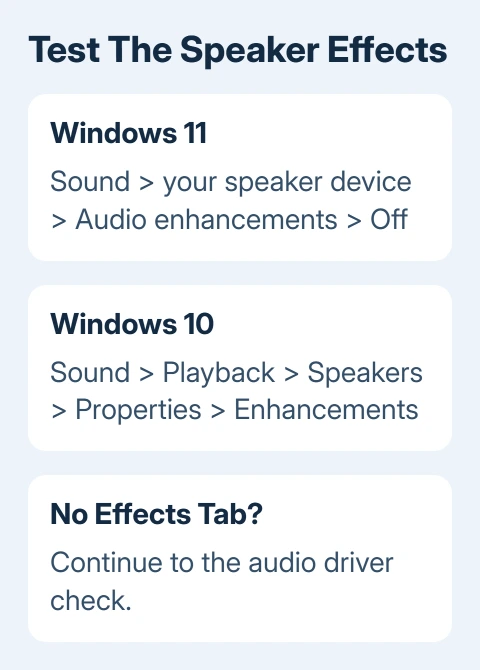
Not every driver provides that tab. If it's absent, move to the driver step instead of installing an effects app to create it. Some Lenovo models have extra audio software, but its name and controls depend on the model.
If turning effects off restores playback, leave them off while checking normal use. If it changes nothing, restore your preference and work on the audio driver rather than repeatedly adjusting unrelated volume controls.
5. Repair the driver that belongs to this Lenovo
Right-click Start > Device Manager, then expand Sound, video and game controllers. Open the built-in audio device's Properties and read Device status. Note an error code or a missing audio device.
For sound that failed just after updating its driver, open its Driver tab and select Roll Back Driver when available. A gray button means an older driver isn't available to restore from that tab.
Otherwise, check Windows Update for offered updates. For a Lenovo package, match the laptop's exact model and Windows version on Lenovo Support. Use the model printed on the device or shown in its system information.
I'd get the correct audio installer before uninstalling a broken driver. You'll have it ready if sound doesn't come back after Windows restarts. Avoid driver-download sites that only match the Lenovo brand name.
Right-click the audio device, choose Uninstall device, then restart. Try the Windows sound repairs if the device stays missing or playback still fails.
6. Ask for a speaker and audio-device assessment
If headphones keep working but the speakers stay silent with the correct driver, contact Lenovo Support. Ask them to check the internal speakers and their connections, and explain any proposed repair before resetting Windows.
Give them the model, Windows version, Device Manager status, and the result with headphones and with the dock removed. If IT manages your work ThinkPad, send those details and ask them to check its approved audio software.
The Short Version
Select the Lenovo speakers, check app volume, and restart. Try the audio troubleshooter, effects settings, and the correct model's driver. If only the built-in speakers stay silent, arrange a hardware check with Lenovo.
Checked November 9, 2026.

Isaac Smith is the founder and editor of PC Glance, a website that covers computers, laptops, and technology. He is a tech enthusiast and a computer geek who loves to share his insights and help his readers make smart choices when buying tech gadgets or laptops. He is always curious and updated about the latest tech trends.