
An iPhone won't discover an accessory just because it's powered on. Start the accessory's pairing mode, then open Settings > Bluetooth on the phone. If it connects to another phone already, remove that pairing first.
An empty discovery list, a saved device that won't connect, and a grayed-out Bluetooth switch are different problems. Start with discovery, then follow the section for your screen.
1. Start the accessory's discovery mode
Bring the accessory close to the iPhone and check that it's charged or connected to power. If it uses replaceable batteries, try fresh ones. A power light doesn't necessarily mean it will accept a new phone.
Find the pairing instructions for that exact model. Some headphones need a long press on their Bluetooth button; others use the power control or a case button. The light pattern and spoken prompt depend on the manufacturer.
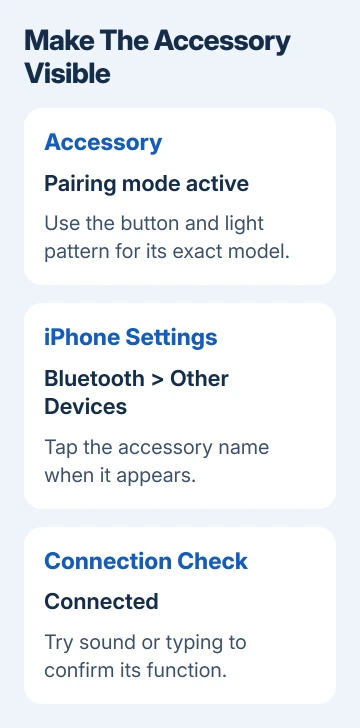
Open Settings > Bluetooth on your phone, then enable Bluetooth. Stay on that page while the accessory is discoverable. Look for its name under Other Devices, then tap it to begin pairing.
Follow any onscreen request for a PIN or passcode. Use the code in the accessory's instructions when one is required. Don't keep trying guessed codes when the maker supplies a particular pairing procedure.
Once pairing works, the device should appear as Connected in the saved-device list. For headphones or a speaker, play a short sound afterward. Seeing a name during discovery is only the start of the connection.
If the name never appears, switch the accessory off, then power it up, then enter pairing mode again. Some accessories leave that mode after a short interval. Check the maker's signal rather than assuming it's still waiting.
2. Release it from the other phone or computer
Look at the phone, tablet, or computer last used with this accessory. If it reconnects there immediately, open that device's Bluetooth settings and unpair it. Then activate its discovery mode again for your iPhone.
Apple's accessory connection steps specifically recommend unpairing from other devices when the accessory connects to those devices but not to the iPhone. This is a better next move than repeatedly refreshing the same list.
Remove the old pairing through that Android phone's or computer's Bluetooth controls. Check the accessory manual for multiple-pairing support or simultaneous connections; those features differ between products.
I'd check the old phone before resetting the accessory. It's easy to miss a headset reconnecting to something in the next room, especially when its light shows a connection but doesn't identify the device receiving it.
Retry pairing once the old connection is removed. If the iPhone discovers the accessory, finish setup and check Connected. If its name still doesn't appear, try another compatible phone before changing more iPhone settings.
For model-specific controls, our Bose headphone pairing instructions explain the discovery signal. The Beats connection guide separates the controls used by different Beats models.
3. Rebuild a saved pairing that no longer connects
An accessory already listed under My Devices doesn't need to appear under Other Devices again. Tap its name to try connecting. If that fails, make sure you know how to enter its pairing mode before removing the saved connection.
Tap the information button beside that accessory in Settings > Bluetooth. Choose Forget This Device and confirm. Now place the accessory into discovery mode again and select it when its name returns.
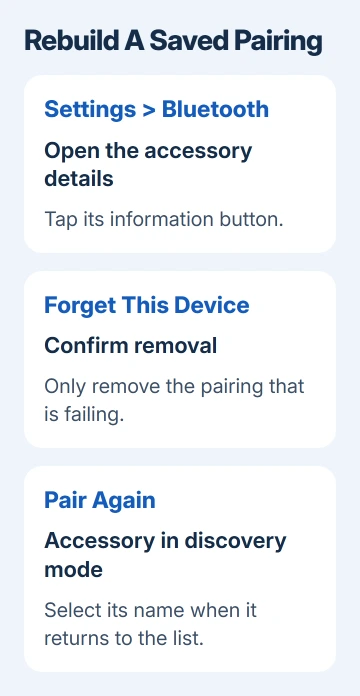
This clears the saved pairing for a fresh connection. Other accessories stay saved, but the removed accessory is also unpaired from devices using your Apple Account. Check whether you still need those connections before confirming removal.
If the maker requires clearing the accessory's own pairing list, follow the steps for your exact model. A factory reset can remove its other settings, so don't substitute a reset instruction meant for a different model with similar buttons.
Once paired, try typing with the keyboard or playing sound through the speaker. If it says Connected but sound or typing fails, the phone has found it. Check the connection or the accessory's function next.
4. Check app permission and accessory compatibility
Some accessories are set up through a companion app rather than by tapping their name in the general Bluetooth list. Check the manufacturer's setup instructions. A health sensor or watch may not follow the same process as a speaker.
For an accessory app, open Settings > Privacy & Security > Bluetooth and allow access for that app. Return to it and start its device-search process again. This permission controls the app's Bluetooth access.
The app permission isn't a replacement for turning on Bluetooth itself. It matters when the maker's app can't find the accessory even though the phone's Bluetooth setting is on. Only give access to the app you intend to use.
Check support for your exact accessory model and iOS version. Similar product names can cover several generations. Ask the maker about iPhone compatibility when its instructions only describe an Android setup route.
Bluetooth pairing doesn't turn an iPhone into a general file-transfer target for other phones. Keeping two phones together won't add an unsupported function. Check the sharing method supported for the job you intend to do.
5. Compare another accessory before requesting service
Try a second known-working, compatible Bluetooth accessory with the iPhone. Then try the original accessory with another compatible phone. Keep track of which pairing succeeds; the result tells you whom to contact.
If neither phone finds the accessory, ask its maker for pairing or repair help. Report the charge level and discovery signal. If it works elsewhere but no accessories connect to the iPhone, request Bluetooth help from Apple Support.
A Bluetooth switch that can't be turned on, or that stays grayed out, also belongs with Apple Support. The same applies when the accessory maker confirms its hardware works but the iPhone still won't connect to it.
If a device pairs and later disconnects, report that timing. Finding it and keeping it connected are separate problems. Include your iPhone model, iOS version, accessory model, and what happened with each phone and accessory.
The Short Version
Start the accessory's pairing mode and select its name in Settings > Bluetooth. Remove an old connection if needed. Rebuild a failed saved pairing, check companion-app access, and compare another accessory before service.
Checked November 10, 2026.

Isaac Smith is the founder and editor of PC Glance, a website that covers computers, laptops, and technology. He is a tech enthusiast and a computer geek who loves to share his insights and help his readers make smart choices when buying tech gadgets or laptops. He is always curious and updated about the latest tech trends.