
Beats earbuds usually connect to an iPhone when you open their case beside the phone and follow the setup card. Turn Beats headphones on first. If the card doesn't appear, put them in pairing mode and select them in Bluetooth settings.
The pairing button depends on your model. Solo Buds use a button on an earbud, while several other models use one on the case. Check which control your Beats use before holding a button down.
Start with the nearby setup card
Charge your Beats if they won't turn on, and keep your iPhone close. Open Settings > Bluetooth and turn Bluetooth on. Connect the phone to Wi-Fi or cellular data during setup so Find My features can be available.
Apple recommends using the current iOS version for pairing Beats. Install any needed update before trying to fix missing setup features.
For earbuds with a case, leave both inside and open the lid near your iPhone. With Beats Flex, turn the earphones on instead. For over-ear or on-ear headphones, turn them on and hold them near the phone.
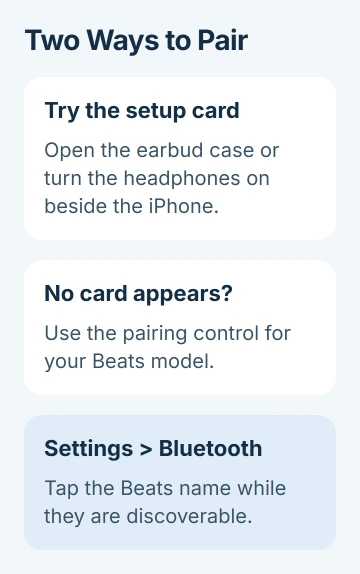
Follow the setup animation when it appears. Keep your Beats near the phone until setup finishes, then put them on and play something. Their name should now appear in the phone's Bluetooth device list.
If no card appears, pair through Bluetooth settings instead. You don't need to erase your phone or install another app to pair your Beats.
Use the pairing control for your Beats model
Put your Beats in pairing mode so the iPhone can find them. This is also called making them discoverable. Turning them on alone may reconnect them to a phone or computer they've used before.
For Beats Fit Pro, Studio Buds +, Powerbeats Pro 2 or Powerbeats Fit, place both earbuds in the case and keep it open. Hold the case's system button until the light flashes for pairing.
For Beats Solo Buds, leave both earbuds in their open case. Hold either earbud's button near the Beats logo until the pairing tone repeats. Use the earbud button, rather than looking for a case button like the other models use.
On Beats Solo 4, use the right earcup's power button. Keep it pressed until the lights begin flashing. With Beats Studio Pro, press its system button, also on the right earcup, and hold for the pairing lights.
With Beats Flex, keep the right-side power button pressed and watch for a flashing light. If your model or controls differ, use your model's manual instead of trying another pair's reset combination.
Once the light flashes or the Solo Buds tone repeats, return to your phone. These steps put the Beats in pairing mode; resetting them takes a different sequence for each model.
Select your Beats from Bluetooth settings
Open Settings > Bluetooth while your Beats are in pairing mode. Find their name among the available devices, tap it and follow any prompts. The name should move into your saved devices and show Connected.
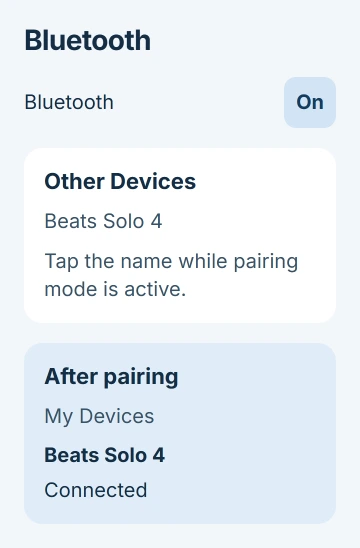
If your Beats are already under My Devices, tap that entry to reconnect them. Use pairing mode if they aren't listed or haven't been paired with this phone.
If the name doesn't appear, check whether the pairing light or tone is still going. If it stopped, use your model's pairing button again and check the phone's list. Keep the case open for models that need it.
A nearby laptop may already be using your Beats. Disconnect them from it while you connect the phone. For laptop use later, the Beats laptop pairing steps cover Windows and Mac controls.
After setup with an Apple device, compatible Beats also become available on your other Apple gear using that account. That doesn't mean all of them can play through the headphones at once.
Check the sound after the connection finishes
Play a track already downloaded on your iPhone. That checks the audio connection without relying on a streaming service or its network connection. Start at a comfortable volume and raise it gradually if needed.
If music keeps playing through the phone's speaker, open Control Center and its audio playback destination list. Select your Beats there. The phone can remember the pairing while sending music to a different speaker.
With Face ID, start your downward swipe in the display's top-right corner. On Home button iPhones, swipe upward starting at the bottom. Those swipes bring up Control Center; find the audio destination in its playback controls.
If your Beats aren't in that list, check that Bluetooth settings show Connected. Once music plays through them, try the app you wanted to use. If only that app has trouble, check it separately.
I'd try ordinary music before a meeting or call. You'll know whether playback works before you also have to check microphone permissions, where call audio goes and the other person's connection.
Re-pair a saved connection that won't work
If your Beats are saved but won't connect, use the Beats connection checks. Keep the Beats and phone charged and close together, and move away from equipment that may interfere with Bluetooth.
To pair again from scratch, open Settings > Bluetooth, open the information control beside your Beats, then choose Forget This Device. Put the Beats back in pairing mode and select them on your phone again.
Check how to put your model in pairing mode before choosing Forget This Device, especially with borrowed or unfamiliar headphones. It removes the saved entry, so you'll need to pair them again.
If several accessories fail on your phone, use the iPhone Bluetooth troubleshooting guide. If only your Beats fail, tell support their model and whether the pairing light or tone starts.
If they still won't connect, contact Apple or Beats Support. Tell them whether the setup card appears, whether the Beats show in Bluetooth and what happens with another phone. Use your model's instructions if a reset is needed.
The Short Version
Try the nearby setup card with Bluetooth on. Use your model's pairing control and Settings > Bluetooth if the card doesn't appear. Check Connected, then select the Beats for playback if the phone speaker still plays.
Checked November 5, 2026.

Isaac Smith is the founder and editor of PC Glance, a website that covers computers, laptops, and technology. He is a tech enthusiast and a computer geek who loves to share his insights and help his readers make smart choices when buying tech gadgets or laptops. He is always curious and updated about the latest tech trends.