Battery drain and warmth after an iPhone update can come from background setup work. Give it a few days. An update that won't install, an app that keeps closing, or a lost connection needs its own fix.
An update happening just before a problem doesn't tell you what went wrong. Start with what's on the screen and how the phone behaves, then use the matching fix before considering a reset.
In this guide
1. Check whether the update finished
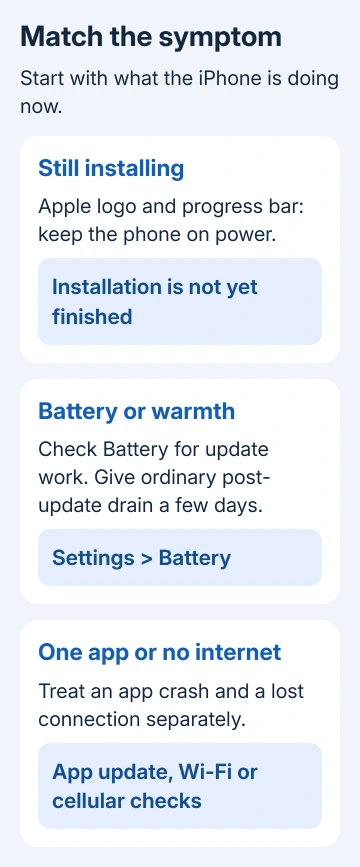
Open Settings > General > About and read the installed iOS version. Then check Settings > General > Software Update. Check whether installation finished before treating this as a problem with the new version.
If the phone still shows an Apple logo and progress bar, it hasn't reached the same stage as one that opens Settings normally. The bar can move slowly during installation. Keep the iPhone connected to power while it finishes.
If a newer compatible update is offered, back up the phone before installing it. Read the release description to see what it fixes. Don't assume a newer update will solve a fault that isn't mentioned there.
I'd write down the installed version and the exact symptom now. Those two details make a support conversation much more useful than saying the new update broke everything.
2. Let post-update battery work finish
If the phone works normally but loses charge faster, open Settings > Battery. Look for the Ongoing iOS Update insight. That message means update-related work is continuing even though you can use the phone again.
Apple's battery troubleshooting instructions recommend waiting a few days after an update before checking battery life again. Background work can temporarily affect both battery life and how warm the phone feels.
Compare battery life during ordinary use after that period. A long navigation session or video call isn't a useful comparison with a quiet day at home. Check which apps or system activities the Battery screen shows using power.
If a temperature warning appears, stop using the phone, move it away from heat or direct sunlight, and let it cool. That warning needs action now rather than several more days of waiting for background work.
If the drain continues, follow the iPhone battery usage checks, including app activity and battery health.
If Battery Health recommends service, arrange to have the battery checked, even if you only noticed the problem after an update.
3. Handle an installation or download error separately
For an update that won't download or verify, check the exact message. Keep the phone on power and use Wi-Fi. If an internet or update-server message repeats, try another working network before changing the phone's wider settings.
If the message says storage is insufficient, open Settings > General > iPhone Storage. Review the storage recommendations and make room for the update. Extra iCloud space doesn't add free local storage inside the iPhone.
For a repeatedly failing downloaded update, open iPhone Storage, find the iOS update in the app list, and tap Delete Update. Return to General > Software Update to download it again.
If the update isn't listed or keeps failing, use a computer. On a current Mac, select the connected iPhone in Finder. In Windows, open Apple Devices; older supported setups can use iTunes. Choose the option to update the phone.
These are the official failed-update steps. Choose Update, rather than a Restore command that erases the phone. Record any computer error number if the update still fails.
4. Fix one crashing app without erasing the phone
When one app closes or won't open but the Home Screen and other apps work, start with that app. Close it, then open it again. If that doesn't help, restart the iPhone and check for an app update.
For Face ID, touch the bottom edge and swipe toward the middle, pausing there until the app previews appear. With a Home button, double-click Home instead. Swipe the affected preview upward, then reopen that app.
In App Store, select the profile picture, then App Updates where shown. Install the affected app's update. An app can need its own compatibility fix even when the phone already has the latest offered iOS version.
Reinstall the app only later: deleting it can remove locally stored data. Check its account sync or backup first, especially if the app contains work that hasn't reached another device.
If that app keeps failing, use its App Store listing to contact the developer. Report the app and iOS versions, plus the action that triggers the crash. Those details help more than asking for another complete phone reset.
5. Separate Wi-Fi trouble from lost cellular service
For a page that won't load, compare Wi-Fi with cellular data. In Settings > Cellular, check that data is enabled for that app. One app's disabled data switch isn't a failed iOS installation.
If other devices also can't use the Wi-Fi connection, restart the router and check with the internet provider. If the iPhone alone fails across several Wi-Fi networks, use the iPhone Wi-Fi repair steps.
A status-bar message of SOS, No Service, or Searching points to a lost cellular connection. Enable Airplane Mode, leave it enabled for 15 seconds or longer, then disable it and recheck service.
On Wi-Fi, open Settings > General > About and install a carrier-settings update if prompted. Ask your carrier to check coverage, outages, the account, and the SIM or eSIM when normal service doesn't return.
A call that fails despite service needs the iPhone call-failure checks. Don't delete an eSIM merely because a problem began on update day.
6. Force restart only when the phone is unresponsive
Restart normally when the phone responds. Use a force restart when it's frozen, rather than for shorter battery life. Check your model's button sequence: even iPhones with Home buttons use different combinations.
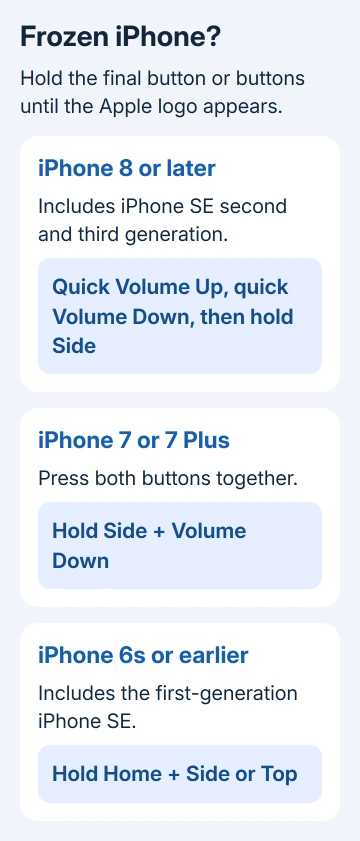
For iPhone 8 and newer, including SE (second or third generation), give Volume Up a quick press, followed by Volume Down. Keep Side pressed. Once the Apple logo shows, let go of Side.
For iPhone 7 and 7 Plus, press Side + Volume Down simultaneously. Keep both pressed, releasing them at the Apple logo.
For iPhone 6s and earlier, including SE (first generation), press Home + Side, or Home + Top where applicable. Keep them pressed until the startup logo appears.
If the phone remains stuck at the Apple logo without a progress bar or can't start, follow the frozen-iPhone recovery instructions. Recovery mode has its own connection and button procedure; a force restart alone doesn't reinstall iOS.
If those steps fail, contact Apple Support through its iPhone support page. Give the model, iOS version, message, and whether one app, every network, or startup is affected. Ask about diagnostics or service for that symptom.
The Short Version
Wait a few days for ordinary post-update battery work. Treat failed installation, a crashing app, a lost connection, and a frozen phone as different problems. Use the matching fix and keep the exact version and error for support.
Checked November 10, 2026.