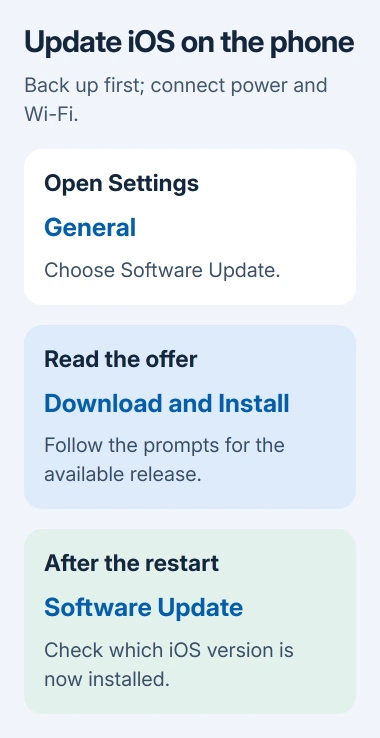
The iPhone's update controls are in Settings > General > Software Update. Back up the phone, plug it into power and connect to Wi-Fi, then install the release available to your model. That screen also shows the version already installed.
An update that's missing and an update that fails to install need different next steps. Check model support for a missing release; use another network or a computer when an available download repeatedly fails.
In this guide
Prepare the iPhone before downloading
Make a current backup using iCloud or your computer. Check that the backup finished before starting a major update, especially when the phone holds photos or other files you can't replace.
Connect the iPhone to power and Wi-Fi. Have its device passcode ready, because you may be asked for it during installation. Start when the phone can stay connected for a while, rather than just before travel or work.
Apple's own steps say to prepare for a wireless update this way. You don't need a special updater app on the iPhone, and the offered software depends on the model's supported releases.
Available storage matters too. Check Settings > General > iPhone Storage if the phone is nearly full. The update needs room on the device; having unused iCloud storage doesn't add local installation space.
I'd make the backup and power checks before tapping the download button. They're easier to deal with while the phone is still fully available.
Check the offered release and install it
Open Settings, choose General, then Software Update. Let the check complete. Compare the version already installed with the release being offered; a badge alone doesn't identify the new version.
If an update is offered, tap Download and Install and follow the prompts. Enter the iPhone passcode if asked. The button's wording can change when the update has finished downloading and is ready to install.
Keep the phone on power while it installs and restarts. Download time depends on the update size and connection speed. The download can run while you use the iPhone; plan around the later installation stage.
After the restart finishes, reopen Software Update to read its version. That confirms which version was installed. A download that's ready to install hasn't yet updated the operating system.
If the screen says the software is up to date, that describes what's available for this iPhone. An older model can remain on an older supported iOS release even when newer phones have a later major version.
Choose how automatic updates should work
On the Software Update screen, open Automatic Updates. The current controls let you choose whether the phone installs an iOS update automatically or just downloads it for later.
Enable Automatically Install for overnight installation while the iPhone charges and is connected to Wi-Fi. The phone notifies you before an update installs. Leaving it unplugged overnight doesn't meet those installation conditions.
To download updates without installing them automatically, turn off Automatically Install to see Automatically Download. Enable downloading if you want the files ready but prefer to choose when to install.
System file updates have their own control. Under System Files, Automatically Install can update those files without changing the displayed software version. That's separate from installing a full iOS release.
The wording can differ on an older iOS version. Use the download and install options actually displayed in Automatic Updates since earlier releases don't all have the current layout.
Handle a storage or update-server message
If installation offers to remove apps temporarily for space, Continue allows that removal. The apps are reinstalled after the update. Cancel lets you manage storage yourself before returning to Software Update.
For a server or verification error, retry the update, then switch Wi-Fi networks if it repeats. A VPN or proxy might block the update servers even when ordinary browsing works, so check that connection too.
If the alert specifically says the update is temporarily unavailable, follow the steps for that message. When the same installation error keeps coming back, it needs more specific checks than a routine update.
To remove a downloaded update that won't install, open Settings > General > iPhone Storage. Select the update, choose Delete Update, then start another download from Software Update.
If the update isn't listed in storage, or another download fails too, use a computer. A progress bar that moves slowly during installation isn't, by itself, a reason to interrupt the phone.
Install through Finder on a current Mac
For macOS Catalina or later, open Finder with your iPhone connected by cable. Click its entry in the sidebar. Open General, choose Check for Update, then Download and Update if an update is available.
Follow the prompts and enter the iPhone's passcode if asked. Keep the connection in place while the update completes. If the Mac uses the iPhone's Personal Hotspot, connect the Mac to another Wi-Fi or Ethernet network first.
On macOS Mojave or earlier, the updater is iTunes instead. Select the device button in iTunes, open Summary, choose Check for Update, then Download and Update.
These routes update the connected phone; they don't require choosing Restore. If Finder doesn't show the device, fix the connection or trust prompt before looking for the update controls.
Choose the Windows update app
With the iPhone connected, open Apple Devices and click its sidebar entry. Select General, then Check for Update if needed. When an update is available, select Update and follow the instructions.
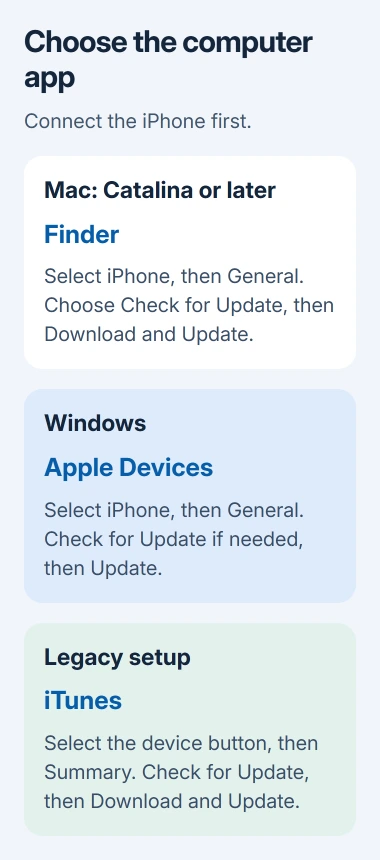
For a Windows setup using iTunes, connect the phone, click its device button, and open Summary. Choose Check for Update > Download and Update. Follow the prompts in the app you're using.
If a computer reports an update error, record its number and whether the app still recognizes the phone. Give Apple Support that code, the iPhone model and the app used, and ask for the matching computer-update error procedure.
If installation finished but the phone has a fault, the post-update iPhone problem guide has separate steps for battery trouble, app crashes and connection problems. Reinstalling an update isn't the first answer to every later symptom.
The Short Version
Back up, connect power and Wi-Fi, then use Software Update in General settings. Check the installed version afterward. Finder, Apple Devices and iTunes provide computer routes when the wireless update won't complete.
Checked November 11, 2026.