Windows 11's File Explorer shows hidden files when you turn on View > Show > Hidden items. Folders such as AppData become visible without changing their contents or marking them as ordinary, visible folders.
A file that still doesn't appear might be in another folder, protected by Windows, or deleted. Turn on Hidden items first, then check the location and access settings for the file you're trying to find.
In this guide
Reveal hidden files through the View menu
Press Windows + E to open File Explorer. Browse to the folder you need, such as your account folder inside C:\Users. Check the address bar to make sure you're in that folder. Home and search results aren't the folder itself.
Choose View on the command bar, open Show, and select Hidden items. A check mark beside that option means it's enabled. Microsoft's File Explorer instructions show this Windows 11 path.
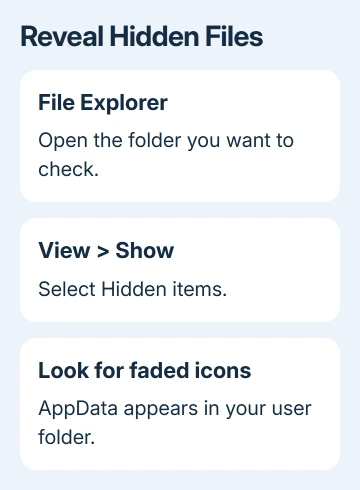
Hidden items normally appear with faded icons. If AppData appears with a faded icon in your user folder, the change worked. An ordinary folder can look unchanged if it contains nothing marked hidden.
The setting changes what File Explorer displays. It doesn't move files, make a backup, or make hidden files private. Someone with permission to open the folder can use the same switch to see them.
Return to View > Show > Hidden items and select it again when you want to hide those entries from view. You don't need to change each file's Properties to hide them again.
If the folder is visible but its contents don't update after a change, use the separate File Explorer refresh checks. Turning on hidden items won't repair a stuck folder listing.
Open AppData without browsing every folder
For a troubleshooting step that asks for your roaming AppData folder, press Windows + R, type %appdata%, and press Enter. File Explorer opens the Roaming folder for the Windows account you're currently using.
For Local AppData, use %localappdata% instead. These two locations aren't interchangeable. Follow the location named by the app's instructions rather than deleting a similarly named folder in the other location.
To see AppData itself, enter %userprofile% in File Explorer's address bar. With Hidden items enabled, open AppData. Its folders include Local, LocalLow, and Roaming, which apps use for different purposes.
I'd use a known folder path when an app's support instructions supply one. It's quicker than searching the whole drive, and it avoids confusing the current account's settings with another user's files.
Don't delete AppData just because it was hidden. It holds app settings and other working files. If a repair asks you to rename one specific app folder, make that change only to the folder named in those instructions.
Opening a direct path also helps tell a display problem from a missing folder. If the path opens, the folder exists. When Windows can't find that path, check its spelling and your signed-in account before changing other view settings.
Use Folder Options when you need the full control
The other route is File Explorer's three-dot menu > Options. In the Folder Options window, select the View tab. Under Advanced settings, find Hidden files and folders.
Select Show hidden files, folders, and drives, then choose Apply and OK. This lets you show hidden items through the older settings window. Reopen your target folder and check for the expected item.
To reverse it through this window, choose Don't show hidden files, folders, or drives. Read the two choices carefully. The nearby setting about protected operating system files controls a different category.
A Windows 10 computer uses different toolbar controls: open the View tab and select Options, then use the Folder Options View tab. Don't look for Windows 11's Show submenu on that older ribbon.
File name extensions is another separate switch. In Windows 11, View > Show > File name extensions reveals endings such as .txt and .exe. It doesn't reveal hidden folders, but it helps confirm which file you're opening.
For example, showing extensions makes a text document's full name visible. It won't turn that document into another file type. Keep the original ending when renaming a file unless the app's procedure calls for changing it.
Leave protected system files hidden for normal work
Some files remain out of view even after Hidden items is on. Folder Options has a separate Hide protected operating system files (Recommended) setting. Ordinary AppData access doesn't require clearing it.
Leave that protection enabled unless a specific repair requires seeing a protected file. If you must clear it, read the warning and restore the setting when finished. A visible Windows system file isn't something to tidy away.
An Access denied message means you need a different check. Showing a folder doesn't give your account permission to read it. Changing hidden-item visibility won't unlock another user's data or a folder controlled by your organization.
On a managed PC where the setting is unavailable or keeps changing back, give IT the exact folder path and describe what happens to the switch. Avoid registry edits that try to override the organization's settings.
Check a folder from PowerShell without changing it
To check a known folder another way, open Terminal with a PowerShell tab. This command lists your user folder, including hidden files and folders:
Get-ChildItem -LiteralPath $env:USERPROFILE -ForceThe Force option includes hidden and system items in the listing. It doesn't remove their hidden flag, alter File Explorer's settings, or bypass file permissions. The command reference explains that limit.
Compare the names with the same folder in File Explorer. If PowerShell lists the item, return to that exact location and check the viewing option. Searching a different user folder won't produce the same list.
If neither view shows the file, check its original location, any cloud account you used, and the Recycle Bin. For something actually deleted, the Windows file recovery steps cover the next choices.
For an unresolved access error, ask the folder's owner or your IT administrator to check permission for that exact path.
For a missing personal file, give support its last known folder and deletion date rather than reporting only that hidden files don't work.
The Short Version
Use View > Show > Hidden items in Windows 11 File Explorer. Open AppData directly when you know its path, leave protected system files hidden for routine work, and treat missing files or access errors as separate problems.
Checked November 12, 2026.