A deleted OneDrive folder can usually be restored from Recycle bin on the OneDrive website while it's still there.
Select the folder and choose Restore, then check its original location before waiting for your computer to sync.
Personal accounts normally keep deleted items for 30 days. Work or school accounts normally keep them for 93 days unless the administrator changed the setting. A folder missing only from one computer might still be safely online.
In this guide
Find the right account and its online Recycle bin
Visit onedrive.com using the account that stored your folder. Check the profile menu for the email address, especially if you use both personal and work OneDrive. Each account has its own files and recovery choices.
Select Recycle bin in the navigation pane. Find the deleted folder, select its circle check box, and choose Restore. Find its original location in My files, then inspect the restored contents.
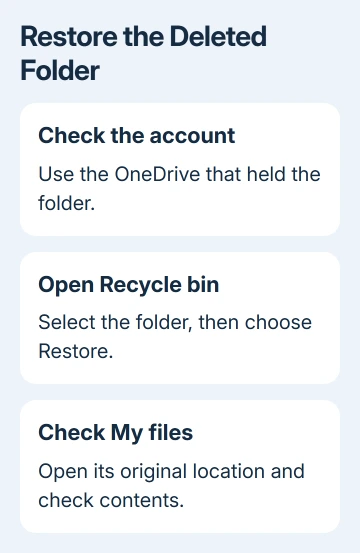
Microsoft's deleted-file recovery instructions explain recovery for folders as well as individual files. Start with the folder entry when you deleted the whole folder; restoring it avoids downloading its documents individually.
Check more than the folder name after restoring. Open a couple of important files and look for the subfolders you expected. If some items were deleted separately, look for those entries in the Recycle bin too.
For files originally in Personal Vault, use Show Personal Vault items in the Recycle bin and complete any unlock prompt. Otherwise, an ordinary view of the bin can miss the protected items you're trying to recover.
Don't empty the bin while checking. A folder permanently removed from a personal OneDrive Recycle bin can't be brought back by the normal OneDrive recovery tools. The retention period isn't a promise that an item survives manual deletion.
Check whether the folder was moved or stopped syncing
If the folder isn't in the bin, return to the main OneDrive file view and use Search everything. Search for a distinctive file that was inside it and try the folder name separately. A moved or renamed folder isn't a deleted folder.
Repeat the search in the other account if you have one. Your computer can be signed in to both a personal and a work account. An empty bin in one account doesn't tell you whether the folder is in the other.
If the folder opens online but is missing in File Explorer or Finder, the online copy is already available. Check which account and folders the OneDrive sync app is using rather than restoring the whole drive to an earlier date.
The OneDrive sign-in and folder checks help when access or setup prevents a folder appearing locally. Keep the online copy intact while you sort out that connection.
For a folder another person shared with you, ask the owner to check their OneDrive. Their deleted folder isn't recoverable from your own bin. If access was removed instead, they need to share it again.
The OneDrive sharing controls explain how the owner can check recipients and permissions. A new sharing link can restore access, but it can't recreate files the owner permanently deleted.
Check the computer's bin and the mobile app
On Windows, open the desktop Recycle Bin, select the folder, right-click, and choose Restore. On a Mac, open Trash, select the folder, and use Put Back from its shortcut menu.
This local check is useful when the deleted files had been downloaded to the computer. Files deleted from the cloud, including online-only files, don't appear in the computer's Recycle Bin or Trash. Keep checking the online bin for those.
An online-only file is a cloud file that hasn't been fully downloaded to that computer. Its entry in File Explorer can disappear after deletion without leaving a recoverable local copy. An empty bin doesn't mean you checked the wrong place.
On Android, open the OneDrive app, tap Me at the bottom right, and select Recycle Bin. Select the items you need, then tap Restore. Check the account before restoring if the app contains several accounts.
On iPhone or iPad, tap Me at the upper left, select the account, and open Recycle Bin. Select the deleted items and tap Restore. The profile control is in a different corner from the Android instructions.
If your app's layout differs, use the website procedure in a browser. The online Recycle bin avoids guessing through an unfamiliar app layout and lets you check the recovered folder in its original location.
Ask a work or school administrator about the second bin
With a work or school OneDrive, an item removed from the first Recycle bin can remain in the site collection Recycle bin, also called the second-stage bin. Have the organization's Microsoft 365 administrator look there.
The normal 93-day period runs from the original deletion. Moving an item into the second bin doesn't start another 93 days. An administrator needs the approximate deletion date to judge whether that route remains available.
Give them the folder name, original path, account address, and the names of important files inside it. Explain whether you deleted the folder, emptied the bin, or simply lost access to a shared location.
The second-stage recovery details also describe support backup recovery. An administrator has to handle that site recovery, and it has its own limits. It isn't a button you can use to restore a personal file.
If the second bin doesn't contain the item, ask IT whether an organizational backup covers that location and date. A Microsoft 365 subscription doesn't add a second-stage bin to personal OneDrive accounts.
Use a whole-OneDrive restore for a larger deletion
For many deleted or damaged folders, Microsoft 365 offers Restore your OneDrive, which can undo activity within the last 30 days. I'd restore one folder from the bin first; rolling back the whole account affects more work.
For a personal subscription, open the website's Settings > Options > Restore your OneDrive. For an organizational account offering this feature, use Settings > Restore OneDrive.
Choose a date, or Custom date and time, and review the activity chart and feed. Select the first activity you want to undo, check all the selected activity, and choose Restore when the selection matches the changes you want to undo.
Files and folders created after that restore point go to the Recycle bin. Save any recent work you need before proceeding. This feature also can't recover something permanently deleted from the OneDrive Recycle bin.
If no recovery route works, use OneDrive's Help control for a personal account or contact your organization's IT team. Supply the account, original path, deletion date, and bins checked, and ask whether any backup still contains the folder.
The Short Version
Start in the online Recycle bin for the account that held the folder, then restore it and check its original location. Search for moved files, check local copies, and ask work or school IT about the second-stage bin.
Reserve a whole-drive rollback for a larger incident.
Checked November 12, 2026.