Yes, others can edit PowerPoint with you in real time. Save a supported presentation to OneDrive or SharePoint, then use Share to invite them with editing permission. Collaborators must open that shared file, rather than an emailed copy.
This is called coauthoring. It lets the group work in one presentation instead of merging separate versions after the group finishes.
In this guide
Put one shared presentation in the cloud
With your presentation open, select PowerPoint's Share control near the top right. If it's still stored only on your computer, PowerPoint prompts you to save it to OneDrive or SharePoint before inviting collaborators.
Use the account and location your group is meant to use. For a work presentation, use a OneDrive or SharePoint folder approved by your organization. That keeps access under the organization's control.
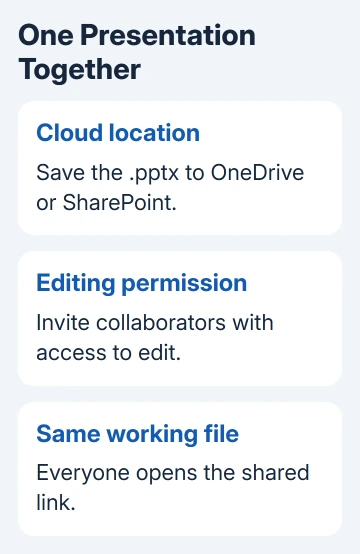
Microsoft recommends this shared-file approach for collaboration. Sending a copy creates separate files instead.
Use the modern .pptx format. If the file is an old .ppt, save a PowerPoint Presentation copy in .pptx before the group starts editing. Coauthoring needs a supported format as well as shared storage.
Keep the original if you're converting an important old deck. Open the converted presentation once and check its slides before making that the group's working file.
If several presentations need combining first, copy the required slides into one presentation. Share that combined file once the starting deck is ready.
Give collaborators permission to edit
Select Share, enter the people you want to invite and check their permission setting. Choose editing access, such as Can edit, rather than a view-only link. Add a message if the group needs context, then send the invitation.
Sharing labels can differ between personal and work accounts. Read the access description in your sharing window instead of assuming that every copied link lets its recipient change the slides.
For a work or school file, an organization can restrict outside sharing. If an external collaborator can't be invited, ask the Microsoft 365 administrator whether that file location permits guest editing.
Give access to the intended people. An unrestricted editing link can spread beyond the original group if forwarded, so a link limited to named recipients is a sensible choice for private work.
The recipient should open the invitation with the account that received permission. A browser signed into a different work or personal account can show an access request even when the correct account was invited.
Open the same file and confirm changes arrive
Have each collaborator follow the shared link. On Windows or Mac, they can use a supported PowerPoint desktop version; PowerPoint for the web is another way to work in the shared presentation through a browser.
On Mac versions that show Share > Invite People, choose that command to send the invitation. Current Windows and web sharing dialogs can use different wording, but the permission must still allow editing.
When another person joins, PowerPoint shows their picture or initials near the top of the presentation. Those pictures or initials show who has the shared file open, so you can check that they aren't working from an old attachment.
Have one person make a small agreed change to a spare slide and let another check it. Seeing that change arrive confirms the group is working in the shared file and can edit it.
Desktop versions don't all show changes in exactly the same way or at the same speed. In some versions, you need to save to send or receive updates. Keep the file connected to its cloud location and follow any Save or update prompts.
I'd do that small check before dividing a long presentation among several people. It catches a wrong account or separate copy before the group has much work to recover.
Divide the slides and use comments for decisions
Assign different slides or sections when possible. Coauthoring lets people work together, but discussing who owns each part reduces the chance of two people rewriting the same paragraph in different ways.
Use Comments for questions tied to a slide. Select the relevant material, add the comment and let the group reply there. That keeps the discussion beside the slide it's about.
Some Microsoft 365 versions also offer tasks and chat. Their availability depends on the app and file location, so check that each participant has the chat button before relying on it.
Screen sharing during a meeting isn't the same as giving file-editing access. Someone can watch you present without being able to change the deck. Send the editable presentation link when they need to contribute slides.
For basic slide editing and presentation controls, the PowerPoint starting guide covers the app separately. To work together, you also need permission to edit the shared file.
Fix view-only access or missing shared changes
If someone can read but can't type, check their permission first. The owner should reopen the sharing controls and confirm that person has edit access. Asking them to install PowerPoint won't repair a view-only invitation.
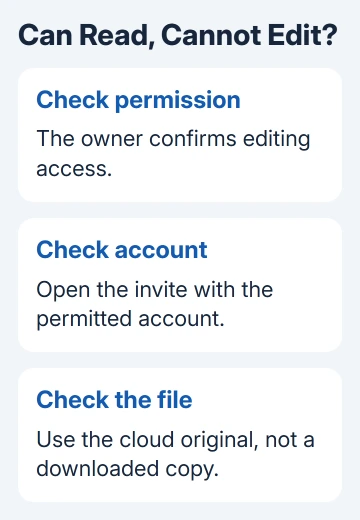
If edits don't appear for the others, compare the file name and its cloud location on both screens. A downloaded attachment and the online original can look identical while containing different work.
Check the file format next. A modern .pptx is supported for coauthoring; an old presentation format or protection applied to the file can prevent collaboration. Follow any protection message before changing permissions repeatedly.
A person working offline can't send live changes while disconnected. When they reconnect, the cloud copy can sync, and they may need to resolve conflicting edits. Read those prompts before choosing which version to keep.
If the browser version works but one desktop app doesn't, save that person's outstanding work and check the app version and account. Use the working browser session while you sort out the desktop problem.
Recover a mistake or ask the right administrator
If the cloud presentation has version history, open an earlier version and check it before restoring it. Coordinate with the group first, since restoring older content can remove changes other people still need.
When sharing remains blocked, give the administrator the file's OneDrive or SharePoint location, the recipient account and the exact access message. Ask whether guest access, edit permission or file protection is preventing collaboration.
For a personal account, contact Microsoft Support with the same details. Keep private slide content out of public help posts; the access message and file type are usually the useful starting information.
The Short Version
Save one .pptx presentation to OneDrive or SharePoint, invite people with editing permission and have the group open the same link. Confirm a small change reaches another person before the group starts the main work.
Checked November 12, 2026.