An Echo that won't connect to Wi-Fi may still be trying the old router name or password. Restart it by unplugging it for 30 seconds, then update its saved network in Alexa if the router details changed.
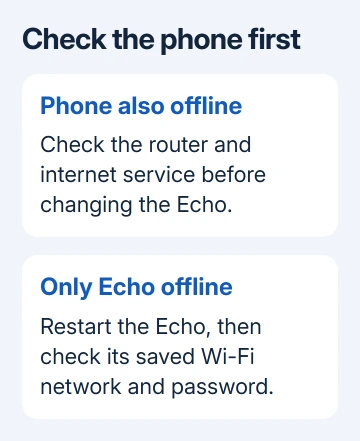
Check whether your phone has internet through that router first. When the phone also can't get online, start with the router or internet service. If only the Echo fails, check its password, position, and selected network.
In this guide
1. Check whether the home network works
On your phone, join the household Wi-Fi and open a new webpage. Temporarily turn off cellular data for this check so a working mobile connection doesn't hide a failed Wi-Fi connection. Restore cellular data afterward.
If several devices can't get online, restart the router using its normal power procedure. Wait for it to reconnect before checking the Echo again. A speaker reset won't repair an internet outage affecting the whole house.
If the router still has no internet, ask your provider whether an outage or connection fault affects your address. Tell them what the router's internet light shows and explain that more than one device is affected.
An Android phone that won't join the router needs its own Wi-Fi connection checks. Get the setup phone connected before using it to change the Echo's network.
If only the Echo fails, leave the router's broader settings alone for now. Unplug the Echo's power for 30 seconds, reconnect it, and let it start. Try a simple spoken request before continuing.
2. Replace the saved network or password
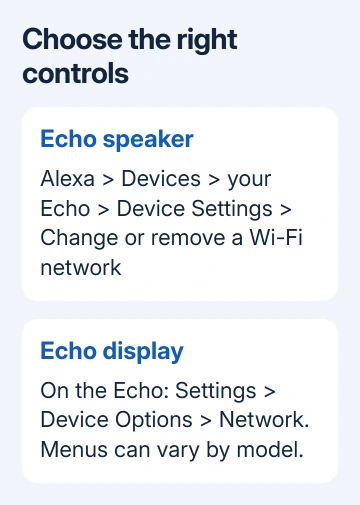
Open Alexa > Devices, select the affected Echo, and open Device Settings. Select Change or remove a Wi-Fi network. Choose a saved network or tap Join another Wi-Fi Network if the one you need isn't listed.
Follow the app's prompts to finish connecting. Amazon says Echo screen devices use their own settings, so use the display steps for those models. App labels can differ between versions.
Enter the router's Wi-Fi password, including its capital letters. This isn't the Amazon account password or the router's administrator login. Check the label only if the household hasn't changed the original wireless password.
After a router replacement, choose the new network even if the Echo remains listed in the app. Seeing the Echo in the app means it belongs to your account. It doesn't mean it has the new router's name and password.
For first setup of a Dot, follow the Echo Dot setup procedure instead of looking for an old connection to change. That route adds the device before saving its first network.
Once the app finishes, ask the Echo a question that needs the internet. If it answers, test it again in its normal position. If setup fails before you can choose a network, note where it stops so you can tell support.
3. Change Wi-Fi on an Echo with a screen
An Echo Show changes its network on the device itself. Swipe down from the top, open Settings, then choose Device Options > Network on the current screen layout. Make sure Wi-Fi is on and select the household network.
Enter the password when the screen asks for it. Some Echo Hub and Echo Show 5 menus differ while their software changes, so use the Network entry shown on that device rather than searching the phone app for an identical screen.
If the network isn't listed, use refresh. The screen's Preferences section provides advanced Wi-Fi options when available. Try moving the Echo closer to the router before making advanced changes to a router that otherwise works.
The Echo Spot (2024 release) also has a phone-assisted route: tap its Wi-Fi Off icon, scan the displayed QR code with your phone, and follow the link into Alexa's Wi-Fi settings.
Check that the displayed network name is the one you intended to use. If it connects but spoken requests still fail, check whether your phone works on that Wi-Fi again, rather than entering the same password repeatedly.
4. Bring the Echo closer and compare Wi-Fi bands
Move the Echo within 30 feet (9 meters) of the router for the next attempt. Keep it away from microwave ovens, baby monitors, and other electronics that can interfere with the connection.
I'd test it near the router before buying an extender. If the Echo connects there but fails when you move it back, focus on where it sits rather than your account.
If the router lists separate names for 2.4 GHz and 5 GHz, try the other band supported by your Echo. Use the matching password. Some households give each band a different name or password.
Don't rename a combined network just to create this comparison. When the router already offers separate names, switching is a small change. Otherwise, check which bands your Echo supports and how your router is set up first.
Temporarily turn off a few other connected devices and retry. If that helps, reconnect them gradually while checking the Echo. This checks whether the number of connected devices or nearby interference affects its connection.
The Echo Wi-Fi troubleshooting steps cover these comparisons. Echo devices need a supported home-style network. They can't use an ad-hoc network, where devices connect directly to one another.
5. Keep speaker Wi-Fi separate from Bluetooth and skills
A phone playing music through an Echo over Bluetooth isn't the same connection as the Echo reaching the internet. Working Bluetooth audio doesn't confirm that Alexa can reach its online services.
Use the phone-to-Echo Bluetooth steps when pairing is the actual failure. Changing Wi-Fi credentials won't remove a broken Bluetooth pairing, and forgetting Bluetooth won't teach the Echo a new Wi-Fi password.
Check what stopped responding. An Echo that answers questions but can't operate one bulb or plug has internet access. Tell support that the Echo works but one accessory doesn't, instead of resetting the speaker.
6. Reset only with the exact model's instructions
If this Echo still fails after those checks, use its model's factory-reset instructions. A reset clears the setup and requires adding it again. Button combinations differ between Echo generations.
Find the model in Alexa's device information or on its product label, then use Amazon Customer Service's Reset Your Echo Device help. Select the matching Dot, Echo, Spot, or Show instructions before pressing buttons.
If setup still fails, give support the model, router model, exact error, and whether another device works on that Wi-Fi. Ask for help with the step that fails: finding the network, accepting the password, or staying connected after setup.
The Short Version
Test home internet, restart the Echo, and replace old network details. Use Alexa for a speaker and the device's own Network settings for a display. Compare nearby placement and another supported band before a model-specific reset.
Checked November 12, 2026.
 If you have any business, I can build it online